Example of WhatsApp broadcast message: 20 copy-paste templates for 2026
Copy any example of WhatsApp broadcast message here: 20 approval-ready templates by use case and industry, plus sending steps, limits, costs and rules.

On this page
You’ve got an offer, a reminder or a restock to announce. And your customers? They’d much rather see it on WhatsApp than go digging through their inbox.
So you search for an example of WhatsApp broadcast message to copy. And most pages hand you theory, not the actual words.
That gap costs you. Copy that breaks Meta’s template rules gets rejected. The wrong category gets billed at the wrong rate. And the free app stops at 256 contacts per list.
The rules have changed too. Since July 1, 2025, Meta has charged for every delivered message. Then on October 1, 2026, it started charging again for some messages that used to be free (Meta pricing docs).
So here are 20 samples you can send today. Each one is laid out like a real template (header, body, footer, buttons and category), so you can submit it exactly as written.
I’ve also covered how to send them, the limits, what it costs and why templates get rejected.
What this guide covers
- What is a WhatsApp broadcast message?
- Anatomy of a broadcast template that gets approved
- Every example of WhatsApp broadcast message, by use case
- WhatsApp broadcast message examples by industry
- How to send a broadcast message on WhatsApp
- Limits, pricing and rules you need to know
- Why broadcast templates get rejected (and how to fix them)
- Strategies that make broadcasts work
- FAQs
What is a WhatsApp broadcast message?
A WhatsApp broadcast message is one message you send to lots of people at once. Each person gets it as a private chat from you.
Nobody sees who else got it. And if someone replies? That reply comes to you, and only you.
🎯 Broadcast list vs group vs Channel vs API
| Option | Can recipients see each other? | Where replies go | Best for |
|---|---|---|---|
| Broadcast list (app) | No | Private chat with you | A small list of saved contacts |
| Group | Yes | Everyone in the group | Communities and two-way discussion |
| Channel | No | One-way, followers cannot chat back | Public updates to followers |
| Business API broadcast | No | Private chat, routed to your team inbox | Opted-in customer lists at scale |
🎯 The three ways to broadcast today
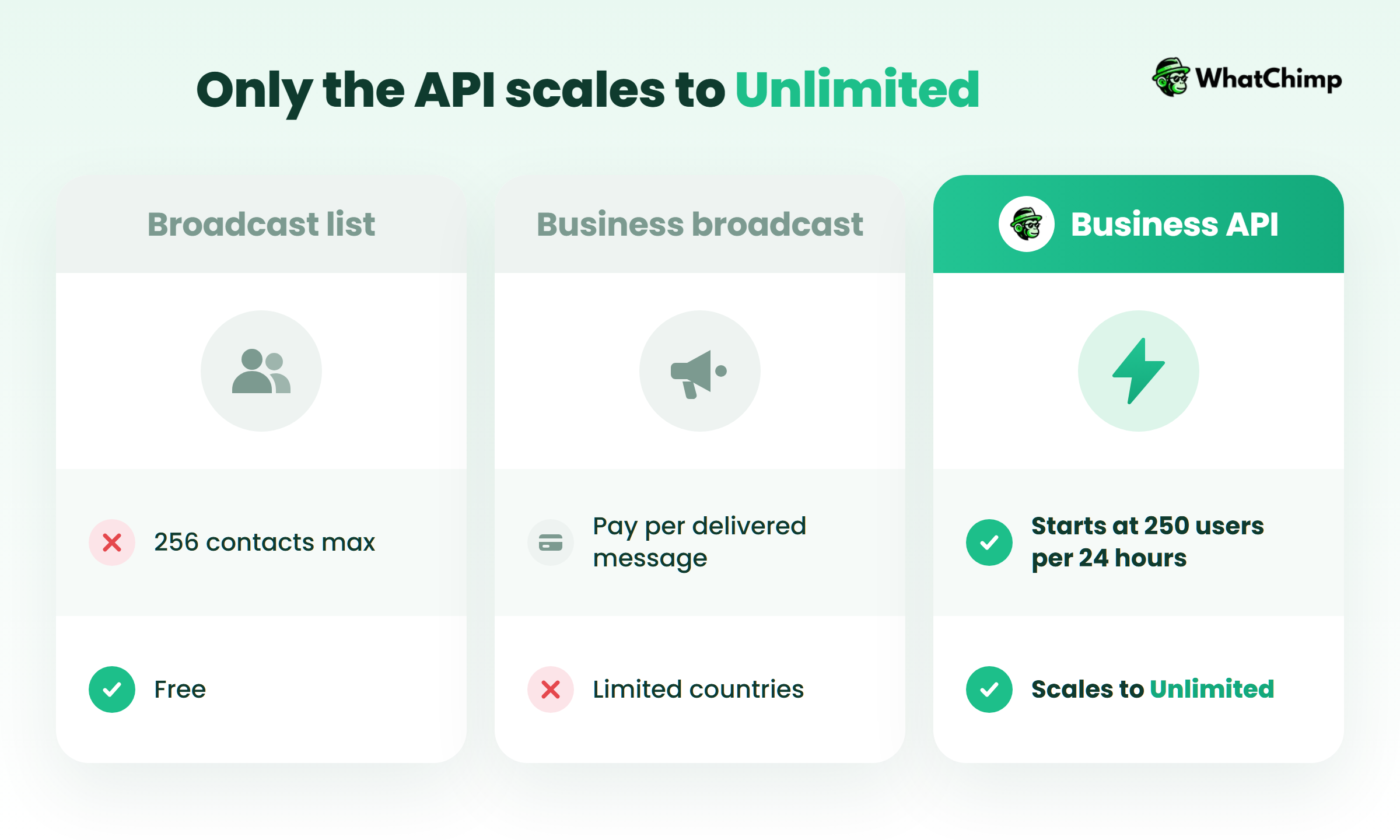
Most guides skip the second option below. WhatsApp now sells paid broadcasts inside the Business app itself.
| Method | Where you send it | Reach | Cost | The catch |
|---|---|---|---|---|
| Broadcast list | WhatsApp Business app | 256 contacts per list, saved contacts only | Free | No scheduling, contacts added one by one |
| Business broadcast | Business app, Tools > Business broadcast | Opted-in customers | Pay only for delivered broadcasts | Only available in some countries for now |
| WhatsApp Business API | Software such as WhatChimp | Starts at 250 unique users per 24 hours, can grow to Unlimited | Meta’s per-message fee, by category | Needs approved templates |
Anatomy of a broadcast template that gets approved
On the API, any message that starts a conversation has to be an approved template. Meta’s policy is clear: you “may only initiate conversations using an approved Message Template.”
Learn the structure once. After that, every template gets easier to write.
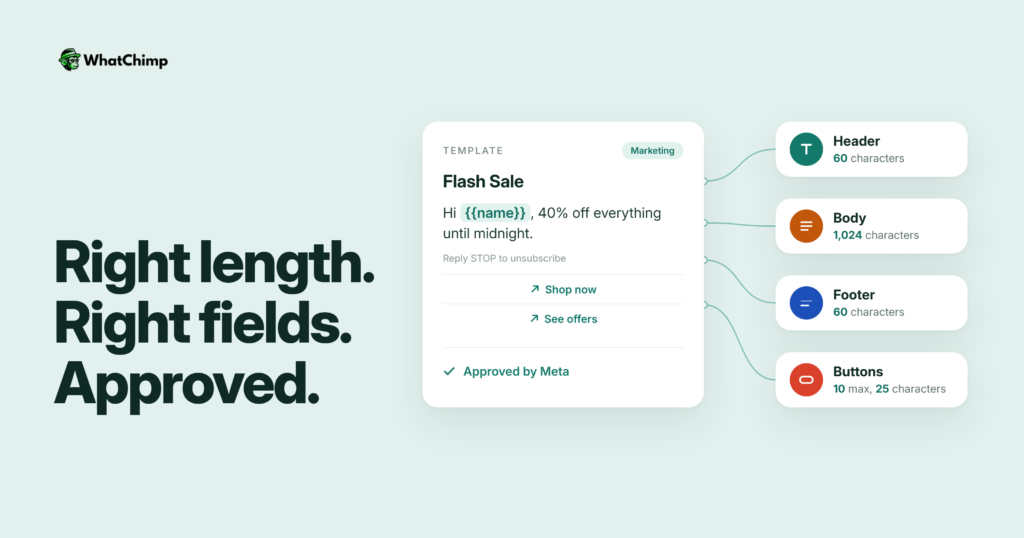
✅ The four parts and their limits
| Part | Required? | Limit | Use it for |
|---|---|---|---|
| Header | No | 60 characters of text, or an image, video or document | The hook |
| Body | Yes | 1,024 characters | The message itself |
| Footer | No | 60 characters | An opt-out line |
| Buttons | No | Up to 10 in total, labels up to 25 characters | One clear action |
Out of those 10 buttons, you get two URL buttons at most, one phone-number button and one copy-code button, plus up to 10 quick replies (Meta template components).
Only one part is required: the body. Everything else is optional.
💡 Personalise with variables
Variables are the blanks. Each customer sees their own details in them. You can number them ({{1}}, {{2}}) or name them in lowercase with underscores, like {{first_name}}. Your call.
I’ve used named variables in the samples below so you can see exactly what goes where. When you submit, swap in your own fields.
📌 Pick the right category
Every template has to go in one of three boxes. Meta calls them Marketing (“promotional objectives”), Utility (“transactional or informational objectives”) and Authentication (“identity verification objectives”).
This matters because Meta prices each category differently. An order update counts as Utility. A festive sale counts as Marketing, even when you send both to the same list.
Pro tip: Keep offers out of your Utility templates. One “10% off your next order” line can turn a shipping update into a Marketing message.
💡 The four-line formula I use to write them
- Hook: the header or opening line. It should tell them straight away why this landed in their chat.
- Value: what you’re actually offering, updating or reminding them about. One or two short sentences, max.
- One action: a single main button. If you add two, they compete.
- A way out: “Reply STOP” in the footer, or a “Stop updates” quick reply.
Every example of WhatsApp broadcast message, by use case
Each sample gives you the category, header, body, footer and buttons. Copy whatever fits your business and submit it as your own WhatsApp broadcast message template.
🎯 Welcome and opt-in
Start with consent. Always. Put a line like this at checkout, on a QR code at your counter or in a pop-up on your website: “Want order updates and members-only offers on WhatsApp? Tick to opt in. You can reply STOP any time.”
Sample 1: Welcome after opt-in (Marketing)
- Header: Welcome to {{store_name}} 👋
- Body: Hi {{first_name}}, thanks for joining our WhatsApp list! You’ll hear about sales and restocks before anyone else, and we’ll only message you a few times a month. Here’s a little thank-you for your first order: use code {{code}}.
- Footer: Reply STOP to unsubscribe
- Buttons: URL “Shop now”, Quick reply “Stop updates”
🎯 Offers and festive campaigns
Sample 2: Flash sale (Marketing)
- Header: ⚡ Flash sale ends tonight
- Body: Hi {{first_name}}, our whole {{collection}} range is {{discount}} off, but only until midnight. Popular sizes are going fast. Tap below and grab yours before the sale ends.
- Footer: Reply STOP to opt out
- Buttons: URL “Shop the sale”, Quick reply “Stop offers”
Sample 3: Festive greeting plus an offer (Marketing)
Use this one for Diwali, Holi, Eid, Raksha Bandhan, Christmas or New Year. Notice there are no dates in it? That’s on purpose. You can send the same template every season.
- Header: Image (your festive banner)
- Body: Happy {{festival}}, {{first_name}}! 🪔 We’re celebrating with {{offer}} on every order this week. Lots of joy, light and good food to you and your family.
- Footer: Reply STOP to opt out
- Buttons: URL “See festive offers”, Quick reply “Stop offers”
🎯 Launches, carts and win-backs
Sample 4: Back in stock (Marketing)
- Header: It’s back 🎉
- Body: Hi {{first_name}}, the {{product_name}} you asked about is back in stock. Quantities are limited this time. Tap below to order before it sells out again.
- Footer: Reply STOP to opt out
- Buttons: URL “Buy now”, Quick reply “Not interested”
Sample 5: Abandoned cart nudge (Marketing)
- Body: Hi {{first_name}}, you left {{item_count}} items in your cart. No stress, we’ve kept them for you. Plus, delivery to {{city}} is free on this order. Stuck on size or payment? Just reply here.
- Footer: Reply STOP to opt out
- Buttons: URL “Complete my order”, Quick reply “Stop reminders”
Sample 6: Win-back (Marketing)
- Header: We miss you, {{first_name}}
- Body: It’s been a while since your last order at {{store_name}}. Here’s {{discount}} off your next one with code {{code}}, valid for 7 days. Prefer fewer messages? Tap Stop below and we’ll respect that.
- Buttons: Copy code, URL “Shop now”, Quick reply “Stop”
🎯 Order, appointment and payment updates
These are Utility templates. Keep them strictly informational.
Sample 7: Order shipped (Utility)
- Header: Your order is on the way 📦
- Body: Hi {{first_name}}, your order {{order_id}} is on its way! {{courier}} has it now, and it should be with you by {{delivery_date}}. Tap the button below whenever you want to track it.
- Footer: Reply to this chat for help
- Buttons: URL “Track order”
Sample 8: Appointment reminder (a Utility template)
- Body: Hi {{first_name}}, just reminding you that you’re booked for {{service}} at {{clinic_name}} on {{date}} at {{time}}. If you can, come in 10 minutes early. Need a different time? Tap below.
- Buttons: Quick reply “Confirm”, Quick reply “Reschedule”, Phone “Call us”
Already taking bookings on WhatsApp? Then WhatsApp appointment booking lets your customers pick a slot without ever leaving the chat.
Sample 9: EMI or payment reminder (Utility)
- Body: Hi {{first_name}}, a quick heads-up: your EMI of {{amount}} for loan account {{account_last4}} is due on {{due_date}}. Pay by then and there are no late charges. Already paid? Please ignore this message.
- Buttons: URL “Pay now”, Quick reply “Talk to us”
🎯 Events, alerts and feedback
Sample 10: Webinar invitation (Marketing)
- Header: Free live session: {{topic}}
- Body: Hi {{first_name}}, we go live on {{date}} at {{time}}. We’ll cover {{key_takeaway}}, and then it’s your turn to ask us anything in the Q&A. Seats are limited, so grab yours!
- Footer: Reply STOP to opt out
- Buttons: URL “Save my seat”, Quick reply “Not this time”
Sample 11: Service disruption (Utility)
- Header: Service update
- Body: Hi {{first_name}}, we’re running late in {{area}} today because of {{reason}}. Your order {{order_id}} is safe, don’t worry. It should reach you by {{new_time}}. Sorry for the wait!
- Buttons: URL “Track order”
Sample 12: Feedback request (Marketing in most cases, though Meta makes the final call)
- Body: Hi {{first_name}}, so, how was your {{product_or_service}}? Tap a rating below. Five seconds, tops, and it really helps us get better.
- Buttons: Quick reply “😍 Loved it”, Quick reply “🙂 It was okay”, Quick reply “🙁 Not great”
WhatsApp broadcast message examples by industry
🎯 Education and coaching
Sample 13: Fee reminder to parents (Utility)
- Body: Hello {{parent_name}}, this is a reminder that {{student_name}}’s fee of {{amount}} for {{batch_name}} is due on {{due_date}}. You can pay online with the button below. For any questions, reply here.
- Buttons: URL “Pay fee”, Phone “Call office”
Sample 14: Admissions open (Marketing)
- Header: Admissions open for {{session}}
- Body: Hi {{first_name}}, admissions for our {{course_name}} batch are open! Not sure yet? Book a free demo class, meet the faculty and see the study plan. Sign up early and you get {{offer}}.
- Buttons: Quick reply “Book demo”, URL “View courses”, Quick reply “Stop updates”
🎯 Clinics and diagnostics
Sample 15: Lab report ready (Utility)
- Header: Document (the report PDF), or text: Your report is ready
- Body: Hi {{first_name}}, {{lab_name}} here. Your {{test_name}} report is ready, and you can download it securely with the button below. Did your doctor ask for a follow-up? You can book that here too.
- Buttons: URL “Download report”, Quick reply “Book follow-up”
🎯 Real estate
Sample 16: Site visit invitation (Marketing)
- Header: Image (project exterior)
- Body: Hi {{first_name}}, we’re opening {{project_name}} in {{locality}} for site visits this weekend. Walk through the sample flat, look over the floor plans and ask us about pricing on the spot. Pick a slot and we’ll send you directions.
- Footer: Reply STOP to opt out
- Buttons: Quick reply “Book a visit”, URL “View floor plans”, Quick reply “Stop updates”
🎯 Restaurants, salons and gyms
Sample 17: Weekend restaurant offer (Marketing)
- Body: Hi {{first_name}}, it’s {{offer}} at {{restaurant_name}} this weekend, on dine-in and delivery. Eating in? Show this message at the counter. Ordering online? Use code {{code}}.
- Footer: Reply STOP to opt out
- Buttons: URL “Order now”, Phone “Reserve a table”
Sample 18: Membership renewal reminder (Utility)
- Body: Hi {{first_name}}, just so you know, your {{plan_name}} membership at {{gym_name}} runs out on {{end_date}}. Renew before then to keep your slot and all your progress history. It’s one tap below and takes about a minute.
- Buttons: URL “Renew now”, Quick reply “Talk to a trainer”
🎯 Insurance, finance and travel
Sample 19: Policy renewal reminder (Utility)
- Body: Hi {{first_name}}, your {{policy_type}} policy {{policy_number}} runs out on {{expiry_date}}. Your renewal premium is {{amount}}. Renew before then and you won’t go a single day without cover.
- Buttons: URL “Renew policy”, Phone “Call advisor”
Sample 20: Trip reminder (Utility)
- Body: Hi {{first_name}}, {{destination}} is almost here! You leave on {{date}}. Keep this handy: your booking ID is {{booking_id}}. Scroll down for your itinerary and hotel details. Want to change anything? Just reply here.
- Buttons: URL “View itinerary”
How to send a broadcast message on WhatsApp
How you send depends on how many people you need to reach, and on whether they’ve saved your number.
On the WhatsApp Business app (Android and iPhone)
Want to know how to broadcast message on WhatsApp for free? This is how you do it.
- On Android, open WhatsApp Business, tap the three dots and choose New broadcast. On an iPhone? Open Chats, tap Broadcast Lists and then New List.
- Add your contacts one by one. You can add up to 256.
- Write your message, add a photo or file if you like, and hit send.
Here’s the catch: only people who’ve saved your number get it. And there’s no way to schedule it.
Using the paid Business broadcast in the app
In the Business app, open Tools > Business broadcast, choose your opted-in audience, write the message and confirm.
You pay only for broadcasts that get delivered. Undelivered ones are refunded to your balance. The feature is only live in some countries so far.
⚡ At scale with the WhatsApp Business API
This is how to send broadcast message in WhatsApp when you have thousands of opted-in customers, or need scheduling and tracking. Here is the flow in WhatChimp.
- Connect your number to the official WhatsApp Business API through WhatChimp, a Meta Business Partner.
- Paste in any sample from above, choose its category and hit submit for approval.
- Pick who gets it, and slice your list by city, interest or last order.
- Map the variables so each customer sees their own name, order or store.
- Send it right away, or schedule it days or weeks out.
- Watch the sent, delivered and read receipts come in.
Replies land in a shared team inbox. Your team logs in from a browser and answers from the same number.
If you want to try this with your own list, WhatChimp’s bulk WhatsApp broadcasts come with a 7-day free trial, and you don’t need a credit card to start.
Limits, pricing and rules you need to know
📌 The 256 cap and the saved-number rule
App broadcast lists hold up to 256 contacts each. You can’t import contacts either. And if someone hasn’t saved your number, your message never reaches them.
So once your list grows, the app just can’t keep up.
📌 API messaging limits and tiers
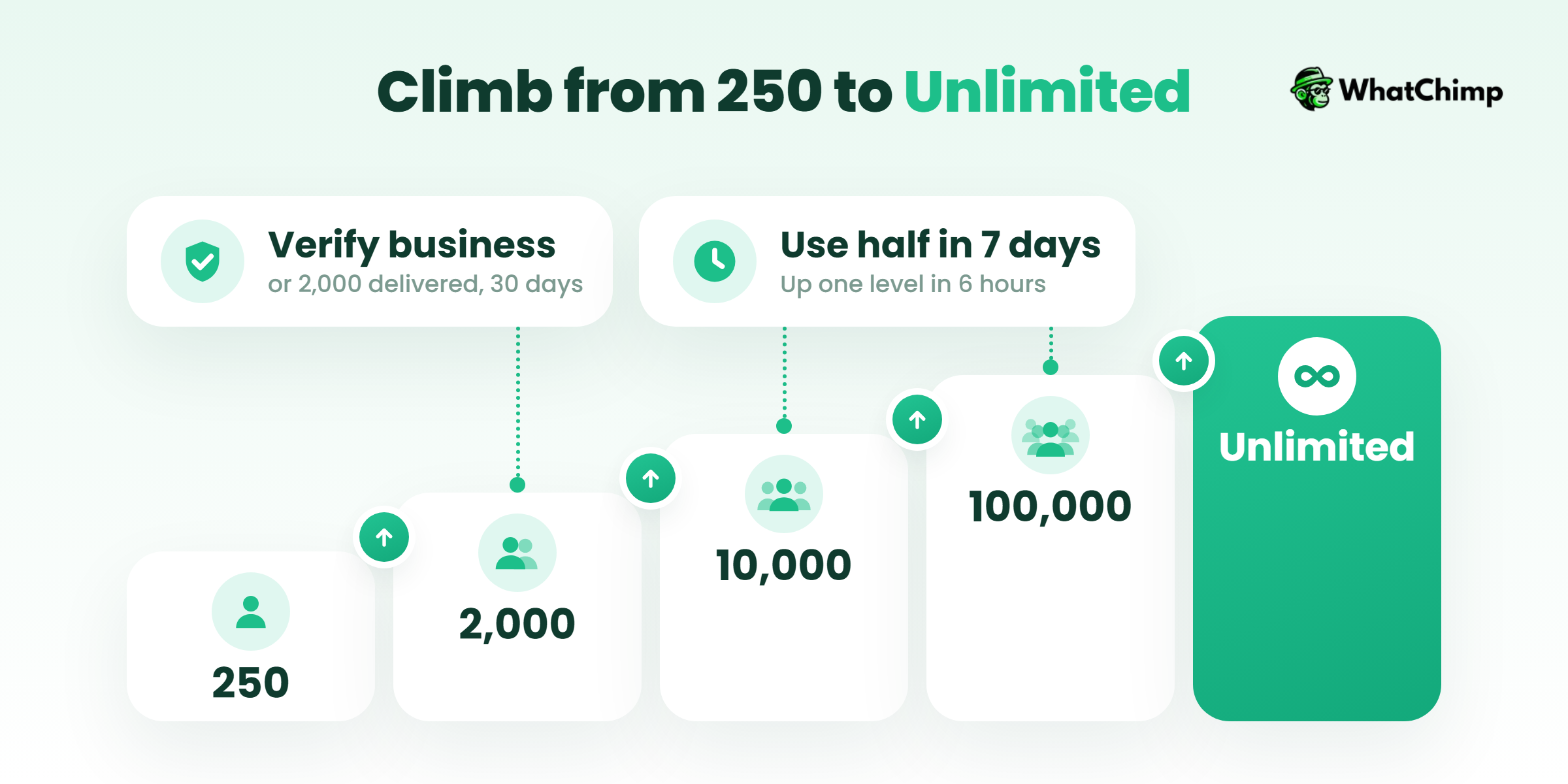
On the API, your messaging limit is the number of unique people you can message outside a customer service window in a moving 24-hour period (Meta messaging limits).
New business portfolios start at 250. There are two ways to get to 2,000. You can verify your business. Or you can send 2,000 delivered messages to unique numbers within 30 days, using templates with a high quality rating.
From there it climbs to 10,000, then 100,000, then Unlimited. Use at least half your current limit in the last 7 days and you’ll move up one level within 6 hours.
📌 What a broadcast costs
Meta charges per delivered message, at a rate set by the template category (Meta pricing docs).
Free-form, non-template replies can only be sent inside an open 24-hour customer service window. That window resets each time the customer messages you. Each business number also gets 1,000 free delivered service messages a month.
Meta can change prices on the first day of each quarter, so up to four times a year. Our WhatsApp Business API pricing guide breaks down the current rates.
WhatChimp adds 0% markup to Meta’s fees. Plans start with Basic, which was $24/mo billed annually or $40/mo billed monthly as of August 2026. Check the pricing page for today’s price.
✅ Opt-in and opt-out
Meta’s policy is clear. You can only message people who gave you their number and also gave you opt-in permission. You need both.
You must also honour every request to block, stop or opt out. That’s why every Marketing sample above includes a STOP line or button.
Why broadcast templates get rejected (and how to fix them)
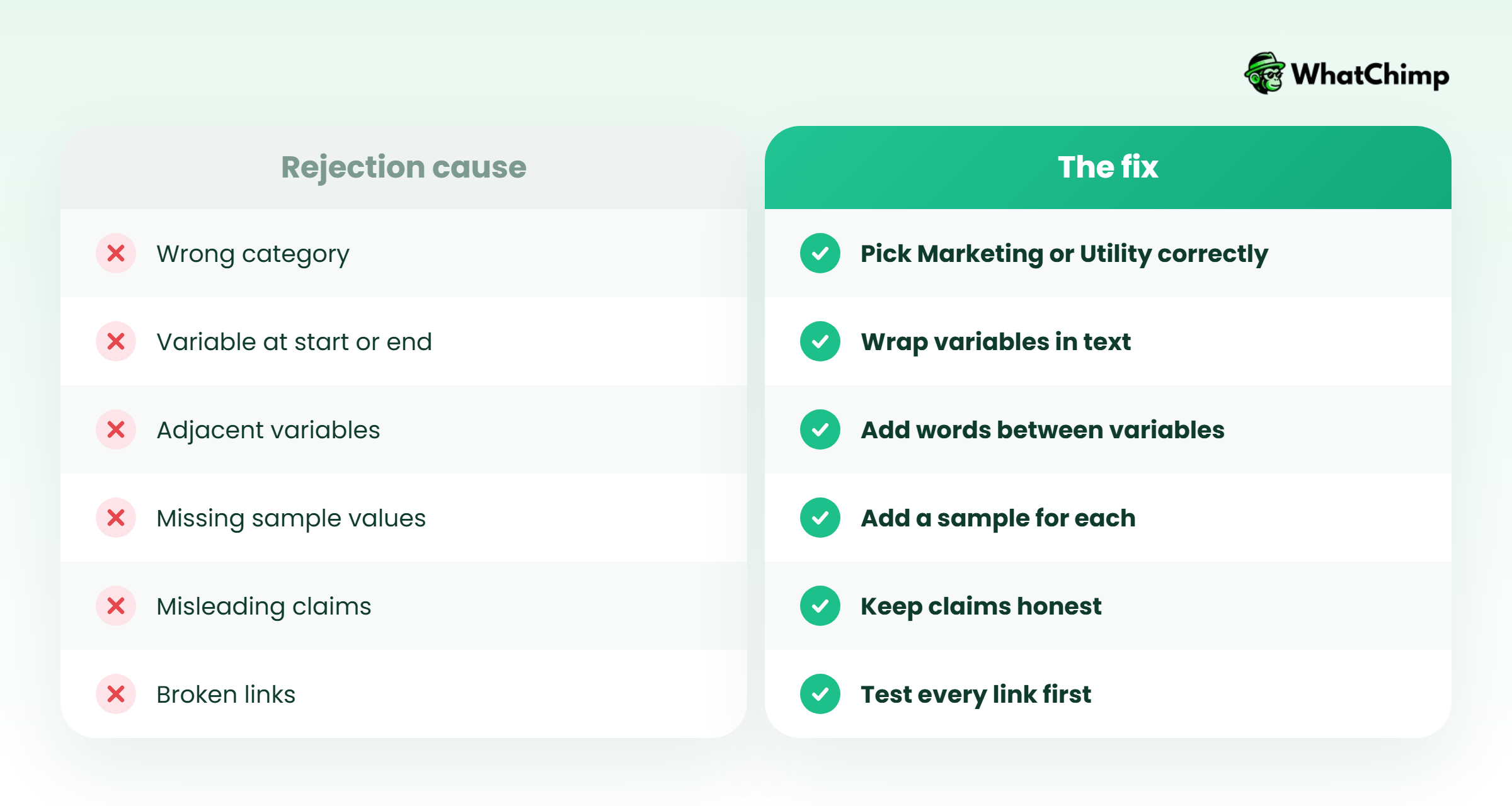
| Common cause | Fix |
|---|---|
| Promotional copy filed as Utility | Move it to Marketing, or remove the offer |
| Body starts or ends with a variable | Put words before the first variable and after the last |
| Two variables side by side with no text | Add words between them |
| No sample values, or unclear ones | Give realistic samples, such as “Priya” or “ORD1042” |
| Misleading urgency or claims you can’t back up | Use real deadlines and plain wording |
| Broken links or typos | Test every URL and proofread before you submit |
Strategies that make broadcasts work
💡 Strategy #1: Segment your list before you hit send
Sending a restock alert? It should go only to the people who asked about that product. Smaller lists get more reads and fewer blocks.
💡 Strategy #2: Keep the promise you made at opt-in
If your welcome message promised “a few messages a month”, keep that promise. Nothing loses you opt-ins faster than sending more than you said you would.
💡 Strategy #3: Send at the moment it’s useful
When you send matters almost as much as what you send. A fee reminder works best a few days before it’s due. An appointment reminder? The day before. Get the timing right and your Utility message reads like help, not noise.
💡 Strategy #4: Watch quality, not just volume
Don’t stop at sends. Track reads and replies too. Moving up to higher tiers on Meta depends on templates with a high quality rating, so one sloppy broadcast can hold your growth back.
FAQs
What should I write in a WhatsApp broadcast message?
Remember the four-line formula: hook, value, one action, a way out. Short body. The customer’s name in it. One button at the end, and that’s it. Every example of WhatsApp broadcast message in this guide is built that way.
Do people need to save my number to get my broadcast?
On the Business app’s broadcast lists, yes. Anyone who hasn’t saved your number won’t receive it. On the WhatsApp Business API, they don’t need to save your number, but they must have opted in.
Can people in a broadcast list see each other?
No. Each person gets the message as a private chat, and their replies come only to you.
How do I send a broadcast to more than 256 contacts?
You’ve got two options. Use the paid Business broadcast in the app, where it’s available. Or move to the WhatsApp Business API, which starts you at 250 unique users per 24 hours and raises that as you use your limit.
How do I send a broadcast message on WhatsApp with each customer’s name?
Put variables like {{first_name}} in an approved template, then map them to your contact fields when you send. Broadcast lists in the app can’t do this.
Can I schedule a WhatsApp broadcast?
Not with the app’s broadcast lists. With API software such as WhatChimp, you can schedule a broadcast days or weeks ahead.
How much does a WhatsApp broadcast cost?
App broadcast lists are free. The paid Business broadcast and the API both charge per delivered message, with API prices set by template category. Check Meta’s current rates before you budget.
How do I know who read my broadcast?
In the app, you check the ticks in each person’s chat. One by one. In WhatChimp, every broadcast shows sent, delivered and read receipts in one place.