How to Manage Custom Fields and Labels
Custom fields and labels help you organize and segment your subscribers effectively. Custom fields allow you to store additional information about subscribers, enabling better personalization in your campaigns. Labels help…

On this page
Custom fields and labels help you organize and segment your subscribers effectively.
Custom fields allow you to store additional information about subscribers, enabling better personalization in your campaigns.
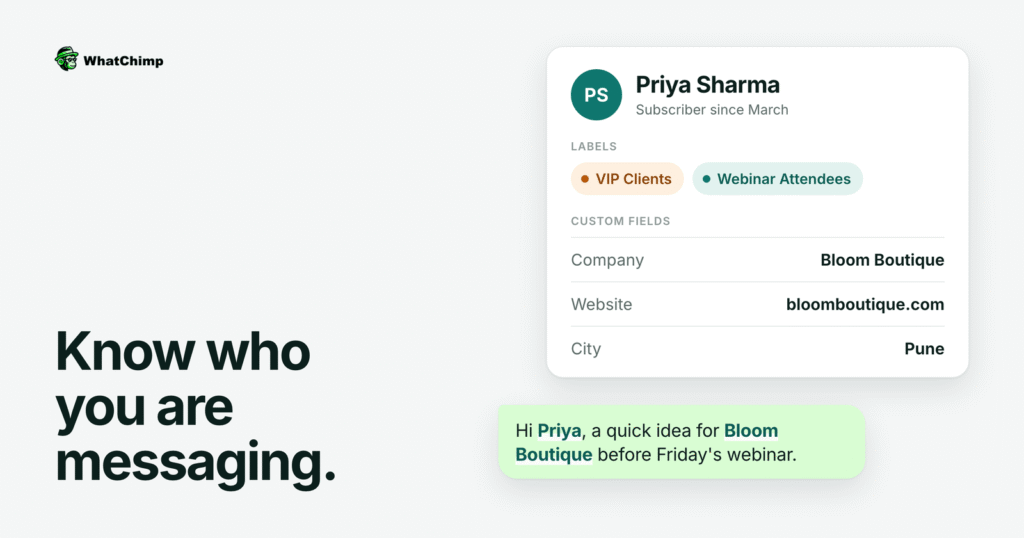
Labels help categorize subscribers into different groups, making it easier to filter and target them in messaging campaigns.
This guide will walk you through the steps to create and manage both custom fields and labels in Whatchimp.
Table of Contents
Prerequisites
Before adding custom fields or labels, ensure you have:
- A Clear Data Structure: Plan what extra details you need for subscribers (e.g., Name, Website, Company, etc.).
- Defined Labels: Have a strategy for categorizing subscribers (e.g., VIP Clients, Webinar Attendees).
How to Add Custom Fields
Definition of Custom Fields
Custom Fields allow you to add extra details to your subscriber profiles. These details help personalize your messages and campaigns.
How to Create and Use Custom Fields
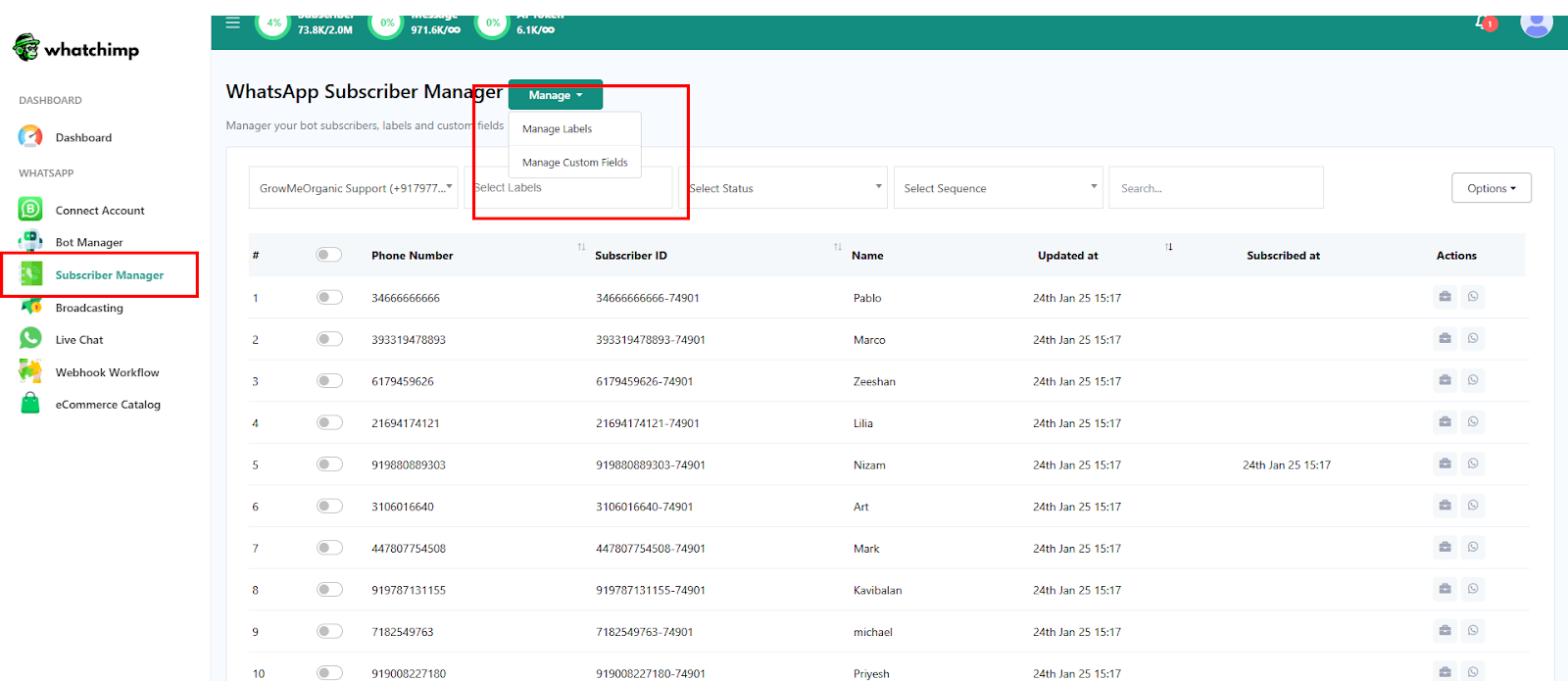
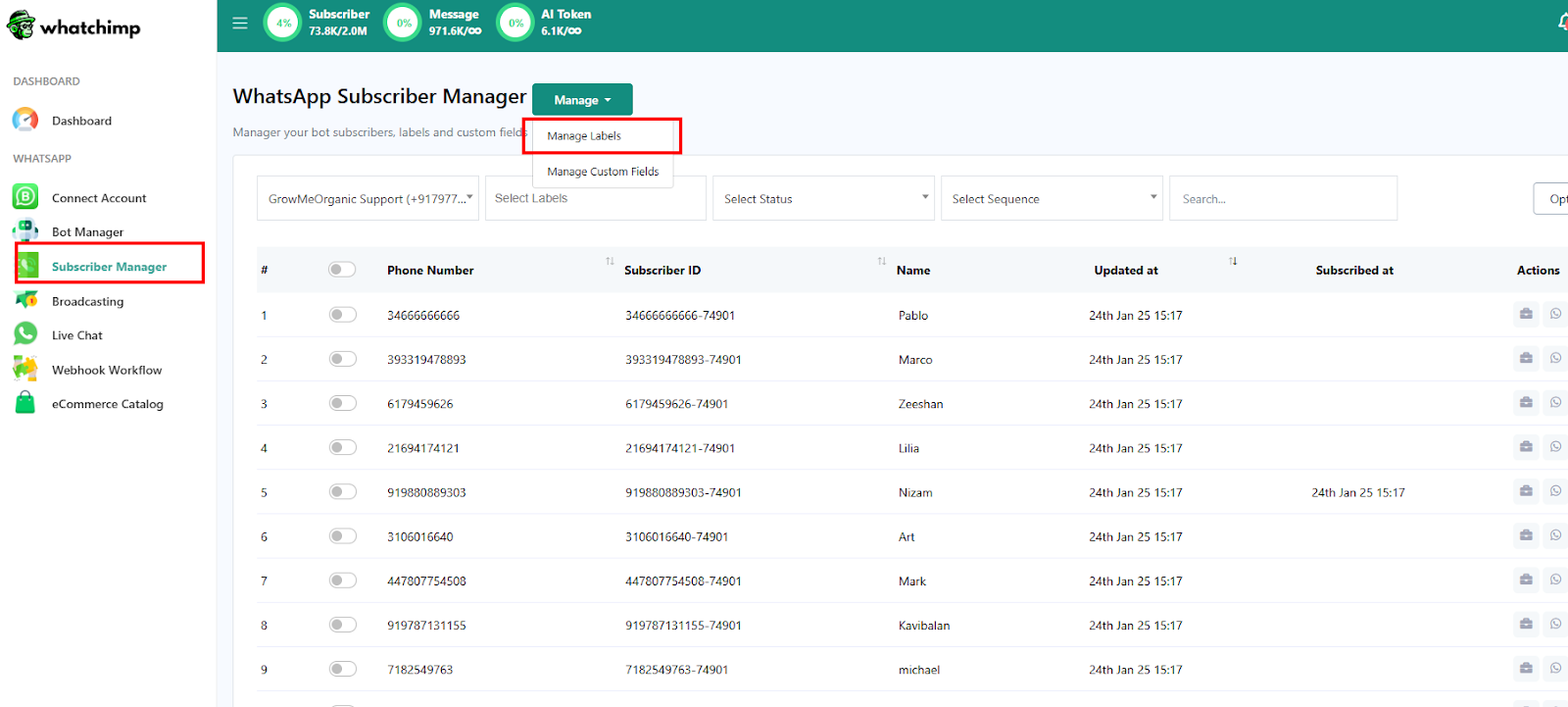
- Navigate to Subscribers Manager > Manage Custom Fields

- Add fields matching your CSV columns (e.g., Website) and select the appropriate reply type (e.g., URL).

- Note: Select the reply type that matches your column data.
- Click Save and refresh the page to confirm your new fields are available.
- Note: “Phone Number” is included by default.
- To add more columns and custom fields, repeat the steps above.

How to Add Labels
What are Labels?
Labels help you group subscribers into categories for easier targeting (e.g., VIP Clients or Webinar Attendees).
How to Create and Use Labels
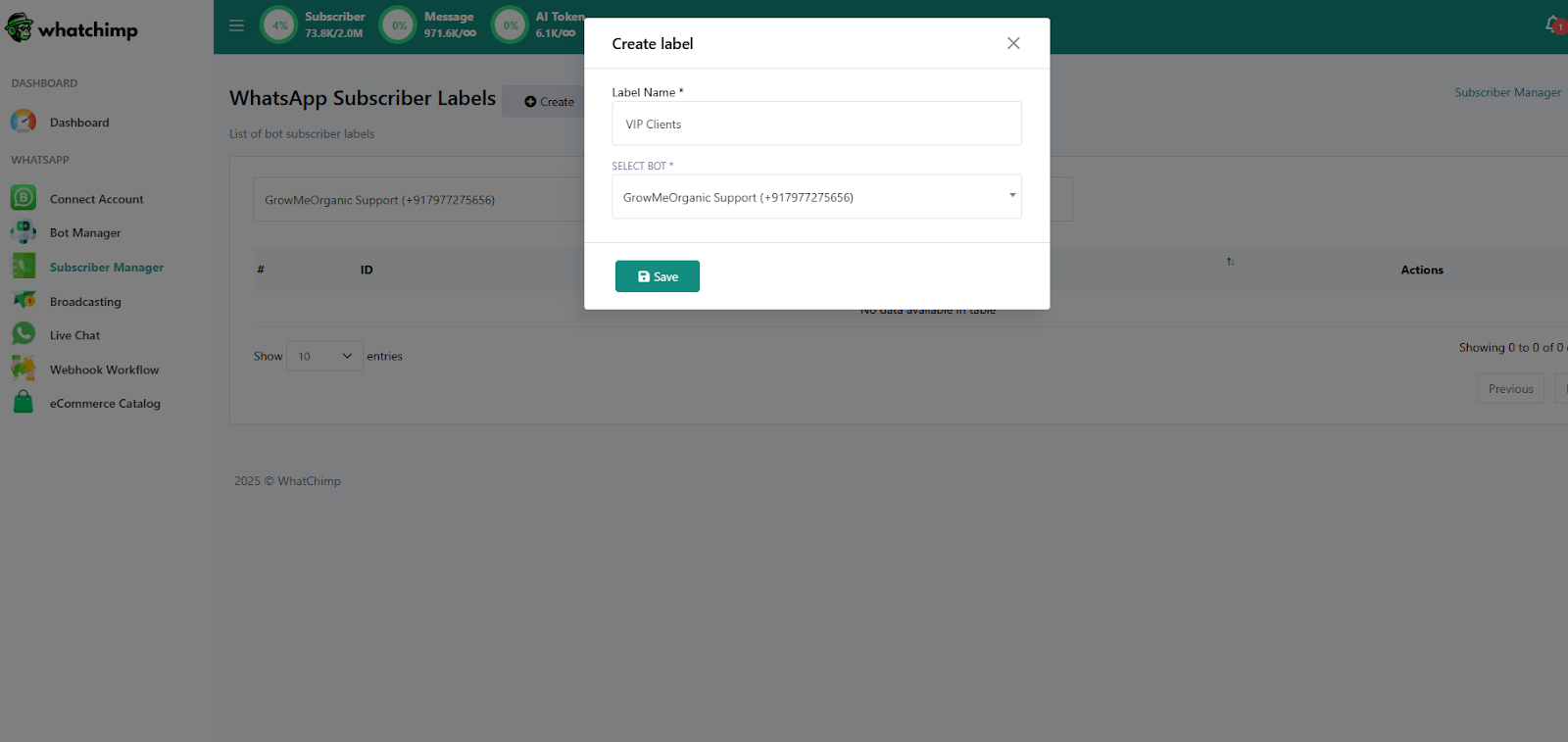
- Navigate to Manage Labels in the Subscribers Manager

- Create and assign labels for better audience segmentation (e.g., VIP Clients or Webinar Attendees).

- Use labels to filter and target subscribers during messaging campaigns.
And that’s it! By setting up custom fields and labels, you can better organize your subscriber list, personalize messages, and improve your marketing campaigns. Make sure to define your fields and labels properly before importing contacts to streamline your workflow. If you need further assistance, feel free to reach out!