
WhatsApp auto reply: how to set it up in the Business app and API, plus 30 message samples
Set up WhatsApp auto reply in the Business app today, see what API auto replies cost after October 2026, and copy 30 ready-made messages for your business.


On this page
What this guide covers
- Key takeaways
- What does auto reply on WhatsApp actually do?
- What auto reply is NOT
- How to set auto reply in WhatsApp Business (step by step)
- Why isn’t my WhatsApp auto reply working?
- What the WhatsApp Business app can’t do
- How auto replies work on the WhatsApp Business API
- Business app vs API: which do you need?
- How to set up keyword and AI auto replies in WhatChimp
- 30 WhatsApp auto reply message samples for business
- Best practices for writing auto reply messages
- Conclusion
- FAQs
Key takeaways
- To get a WhatsApp auto reply, install the free WhatsApp Business app, because regular personal WhatsApp doesn’t have one.
- Set your business hours in your business profile before anything else, or the “Outside of business hours” schedule won’t work.
- The app sends one away message and one greeting message to everyone, so once you need replies that change with what the customer types, you need the WhatsApp Business API.
- Since October 1, 2026, Meta charges for service replies on the API after the first 1,000 per phone number each month, so check costs before you automate at scale.
- Copy one of the 30 samples below, change the name and timings, and your first auto reply can go live today.
What if I told you your shop could answer a customer at 11:40 at night while you’re fast asleep, using a feature that’s probably already on your phone?
You’d probably think I’m exaggerating.
I’m not.
Here’s what most shop owners I talk to do today. A customer sends “price?” at night. You see it at 9 am. By then they’ve bought from whoever answered first.
An auto reply won’t close that sale for you. It does stop the silence, and silence is what loses the customer.
In this guide I’ll show you how to auto reply in WhatsApp with the exact taps in the Business app (labels checked against WhatsApp’s help centre in November 2026). You’ll also see why your away message might not be sending, when you need the API and what it costs now, and 30 messages you can copy.
Start with what the feature actually is.
What does auto reply on WhatsApp actually do?
An auto reply is a message WhatsApp sends for you when a customer writes and you can’t answer.
In the Business app, a WhatsApp automatic reply comes in two types. There’s also a third feature that people mix up with them.
Greeting message vs away message vs quick replies
| Feature | What it does | Sends automatically? | Best for |
|---|---|---|---|
| Greeting message | Welcomes people who message you for the first time, or after a long gap | Yes | First impressions |
| Away message | Replies when you’re closed or busy, on a schedule you pick | Yes | Nights, weekends, holidays |
| Quick replies | Saved answers you drop into a chat by typing “/” | No, you send them yourself | Questions you answer 20 times a day |
Quick replies are the one that trips people up. They are shortcuts for you, not automatic replies. You can save up to 50 of them, according to WhatsApp’s quick replies help page.
Can you auto reply on normal WhatsApp?
Technically, yes. Practically, no. Here’s why:
Regular personal WhatsApp has no auto reply setting at all. The only way to get one is a third-party Android app that reads your notifications and replies for you. AutoResponder.ai, for example, needs Android 6 or higher and has no iPhone version.
These apps aren’t made or supported by WhatsApp. To work, they need permission to read every notification on your phone, including private chats. Your phone has to stay on and connected, and if WhatsApp decides the automation breaks its rules, it’s your number on the line.
On iPhone there’s no dependable option at all.
My honest advice: if this is for your business, use the free Business app. It’s built for this.
What auto reply is NOT
Four myths I hear all the time:
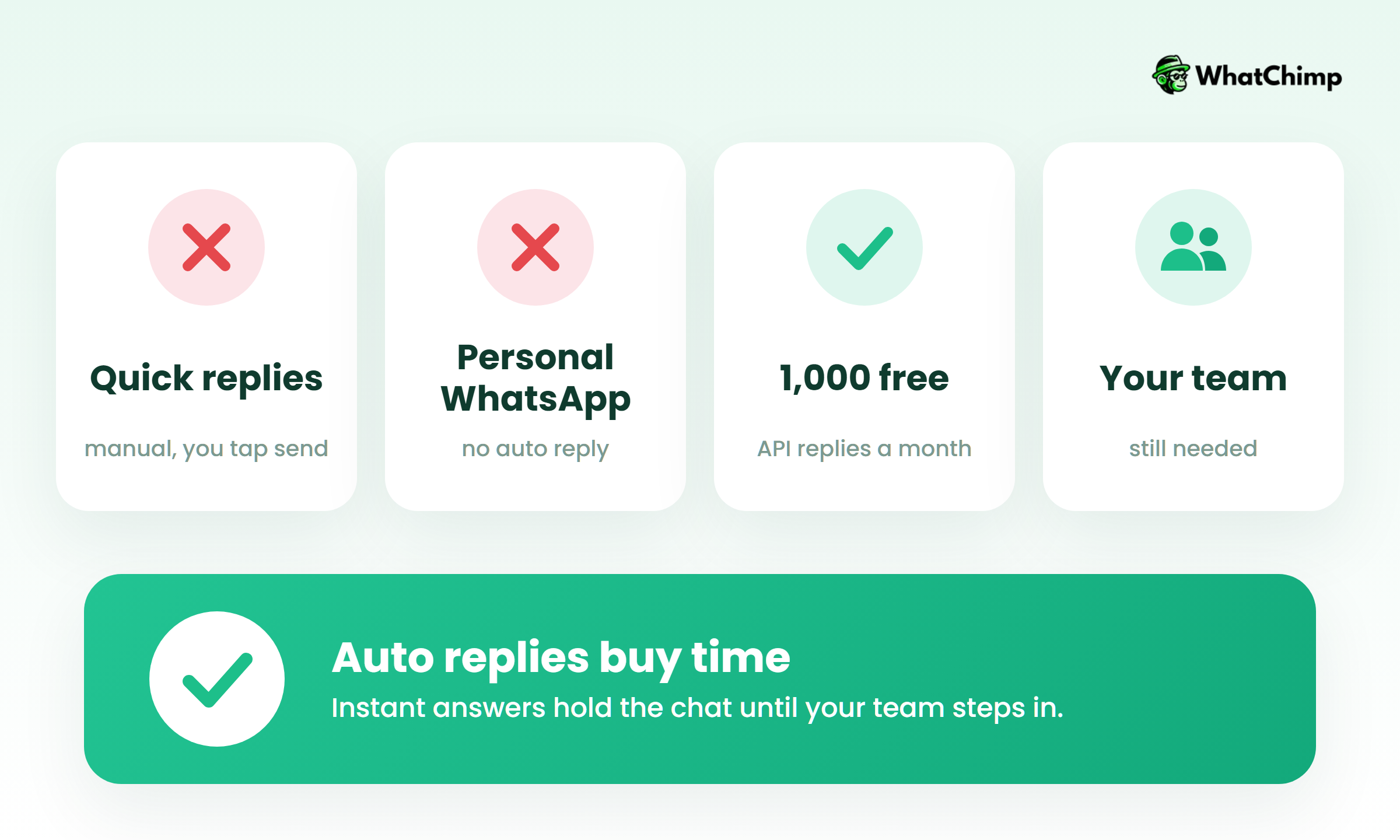
- ❌ “Quick replies send themselves.” They don’t. You tap “/” and pick one.
- ❌ “Normal WhatsApp has an auto reply hidden somewhere.” It doesn’t.
- ❌ “API auto replies are always free.” Not since October 1, 2026 (more on that below).
- ❌ “Auto replies can replace my team.” They buy you time. A person still has to close the sale.
How to set auto reply in WhatsApp Business (step by step)
This is the part most people came for. Here’s how to set auto reply in WhatsApp on the Business app, in the order that avoids problems later.
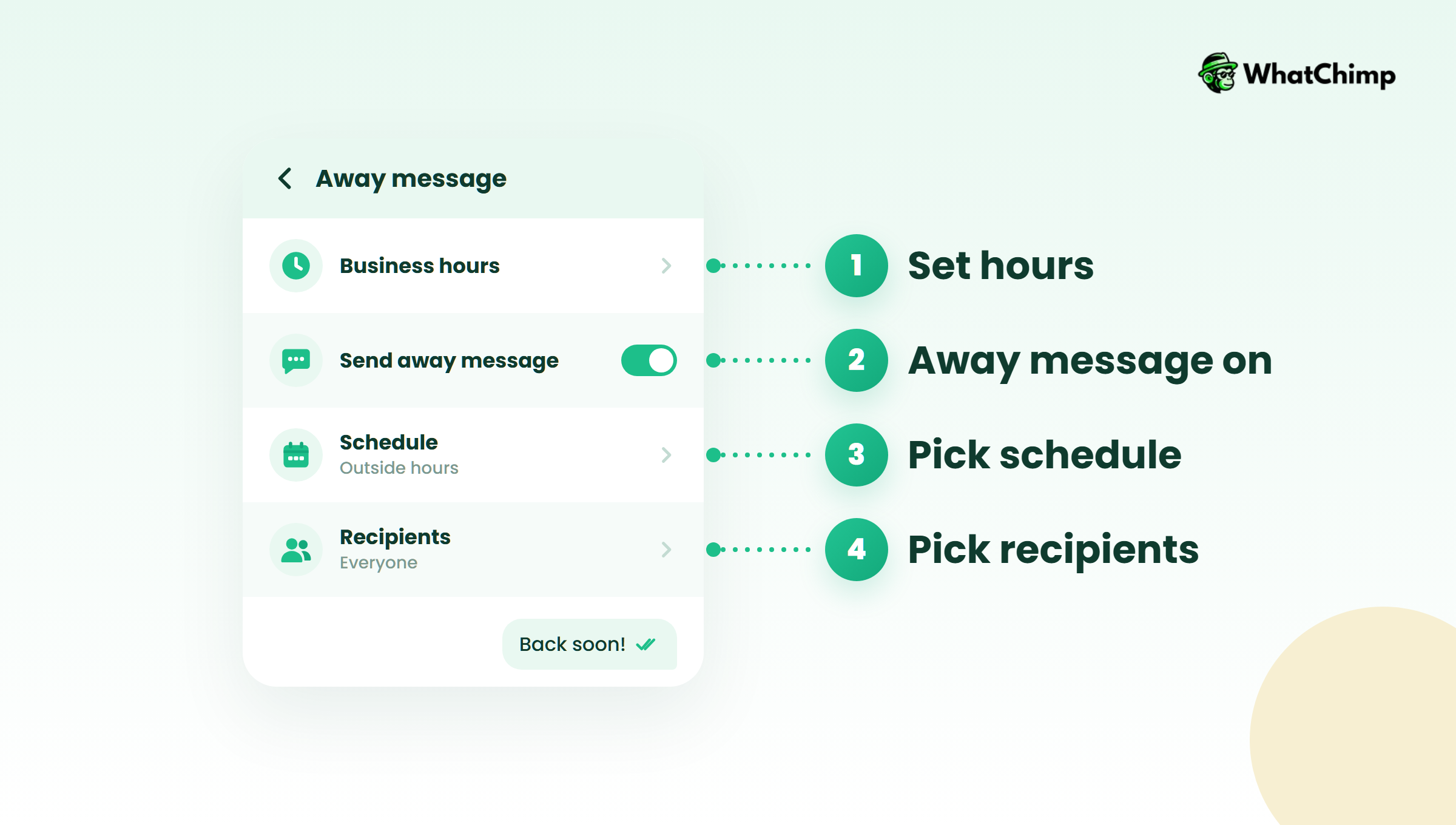
Step 1: Set your business hours first
Time required: 2 minutes
- Open WhatsApp Business and tap Tools.
- Tap Business profile, then Business hours.
- Choose your open days and times.
- Tap Save.
This step is skipped all the time, and it matters. WhatsApp’s away message help page says the “Outside of business hours” schedule only works once business hours are set in your profile.
Step 2: Turn on the away message
Time required: 2 to 3 minutes
- Tap Tools, then Away message.
- Turn on Send away message.
- Tap the message to edit it. Paste one of the samples below.
- Tap Schedule and pick one: Always send, Custom schedule, or Outside of business hours.
- Tap Recipients and pick one: Everyone, Everyone not in address book, Everyone except…, or Only send to….
- Tap Save.
What you get:
- ✅ Every message outside your hours gets an instant, polite answer
- ✅ A custom schedule for Diwali or a family wedding, set once and forgotten
- ✅ Control over who sees it, so your regulars or your supplier don’t get a robot reply
Step 3: Add a greeting message for new customers
Time required: 2 minutes
- Tap Tools, then Greeting message.
- Turn on Send greeting message.
- Edit the text.
- Choose recipients and tap Save.
It goes to people messaging you for the first time and to people coming back after a long silence. The app shows the exact rule.
Step 4: Save quick replies for your daily questions
Time required: 5 minutes
- Tap Tools, then Quick replies.
- Tap the add button.
- Type the reply and give it a shortcut, like “/price”.
- Tap Save. In any chat, type “/” to pick it.
Quick replies can include images and videos on your phone, but media isn’t supported in quick replies on WhatsApp Web or desktop.
Pro tip: On Android and iPhone these settings now sit under the Tools tab. If you don’t see it, update the app. Lots of older guides still send you to More options > Business tools, which is why their screenshots don’t match yours.
Example in action: Priya runs a saree boutique in Jaipur and closes at 8 pm. She sets her hours, turns on the away message for “Outside of business hours”, and saves “/cod” and “/delivery” as quick replies. A customer named Kavya writes at 10 pm and gets: “Thanks for messaging! We’re closed now and open again at 11 am. Share the saree code you liked and we’ll reply first thing.” Next morning Priya answers in two taps.
Why isn’t my WhatsApp auto reply working?
If your away message isn’t going out, it’s almost always one of these:
- ❌ Your phone is offline. WhatsApp says sending an away message needs an active internet connection on the device. Phone switched off at night means no auto reply.
- ❌ Business hours aren’t set. “Outside of business hours” does nothing without them.
- ❌ The customer is excluded. “Everyone not in address book” skips anyone you’ve saved as a contact. Check your “Everyone except…” list too.
- ❌ Your custom schedule has ended. Holiday dates from last month don’t repeat.
- ❌ The toggle is off, or the app is out of date. Turn Send away message off and on again, then update.
Fix those and the problem goes away nine times out of ten.
What the WhatsApp Business app can’t do
The app is a great start. Here’s where it runs out:
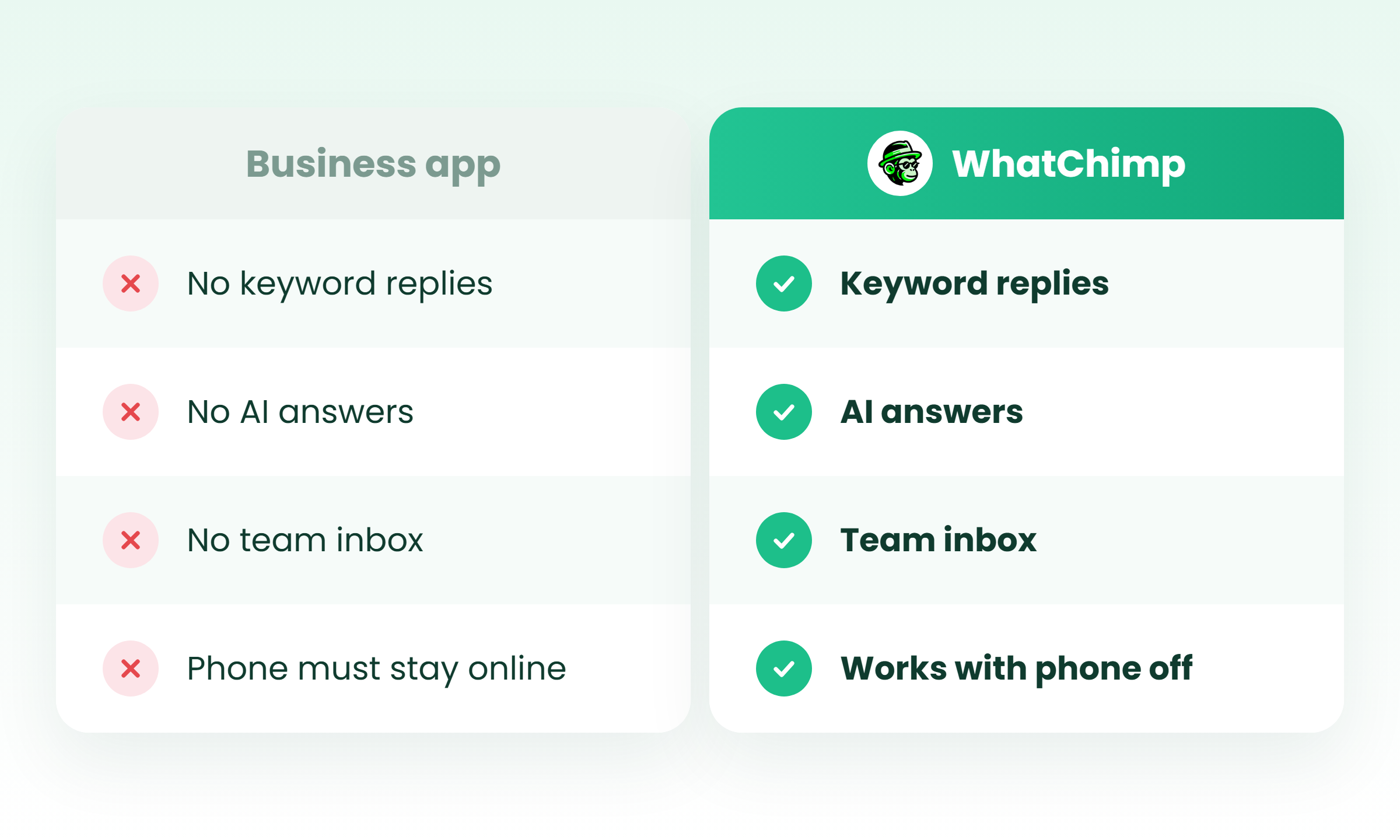
- ❌ One away message for everyone, whatever they asked
- ❌ No keyword triggers, so “TRACK” and “PRICE” get the same reply
- ❌ Your phone has to stay online for replies to send
- ❌ No way to assign a chat to a teammate or see who’s handling what
- ❌ Quick replies still need a human to tap them
If two of those hurt, you’ve outgrown the app. That’s where the API comes in.
How auto replies work on the WhatsApp Business API
The API lets software (like WhatChimp) send replies for you based on what the customer writes. It follows different rules from the app, and these are the ones that decide what you can send and what it costs.
1. The 24-hour window decides what you’re allowed to send
This is the MOST important rule, and most guides skip it.
Meta’s pricing documentation puts it plainly: “When a WhatsApp user messages you or calls you, a 24-hour timer called a customer service window starts… Businesses can only send non-template messages to users when this window is open.”
Every time the customer writes again, the window resets to 24 hours. Once it closes, you can only send pre-approved templates, according to Meta’s send messages guide.
Example in action: Rahul messages your store at 3 pm on Monday asking about a jacket. Your bot can reply in plain words until 3 pm Tuesday. If he goes quiet and you want to follow up on Wednesday, you need an approved template.
2. Templates let you message outside the window
Meta lists five message categories:
| Category | Type | When you can send it |
|---|---|---|
| Marketing | Template | Anytime |
| Utility | Template | Anytime |
| Authentication | Template | Anytime |
| Service | Free-form | Only inside an open window |
| Meta Business Agent | Free-form | Only inside an open window |
Templates need Meta’s approval. In WhatChimp, template approvals take about 10 seconds, so you’re not stuck waiting for a day before a campaign.
3. Keyword auto replies answer the actual question
This is the jump from “we’re closed” to “here’s your answer.”
| Customer types | Bot replies with |
|---|---|
| TRACK | Asks for the order number, then shares the status |
| PRICE | Sends the price list link |
| RETURN | Starts the return and collects the reason |
| BOOK | Shows open slots |
| AGENT | Hands the chat to a person |
If you sell on Shopify, the Shopify integration means a “TRACK” reply can pull the order status without anyone opening the admin panel.
4. AI auto replies handle the questions you didn’t plan for
Keywords cover the predictable stuff. Customers aren’t predictable.
WhatChimp’s AI chatbot is trained on your website, PDFs and FAQs, remembers the last 15 messages of each conversation, and hands off to a person when it’s needed. It runs on OpenAI GPT models and DeepSeek models.
5. What API auto replies cost after October 1, 2026
This changed recently, and plenty of articles are still out of date.
| Date | What changed |
|---|---|
| Nov 1, 2024 | Service messages became free |
| Jul 1, 2025 | Meta moved to per-message pricing by category and country |
| Oct 1, 2026 | Service messages are charged again after a free tier |
| Oct 1, 2026 | Utility templates inside an open window are charged too |
Each business phone number gets 1,000 free delivered service messages a month. Charging starts from message 1,001. Meta Business Agent is priced at $2.00 per 1 million tokens, which Meta puts at about 4 to 5 US cents a message. All figures are from Meta’s pricing docs.
The good news: when someone messages you from a Click-to-WhatsApp ad on the Android or iOS app, a free entry point window opens for up to 7 days, and Meta doesn’t charge for messages inside it. Meta also only changes prices on the first day of a quarter, so you won’t get surprised mid-month.
WhatChimp bills Meta’s fees at Meta’s own rates with 0% markup.
Business app vs API: which do you need?
| What you need | Business app | Third-party auto-reply app | API platform (like WhatChimp) |
|---|---|---|---|
| Cost | Free | Set by the app maker | Platform plan plus Meta’s per-message fees |
| Keyword triggers | No | Basic | Yes |
| Multiple agents | No routing | No | Yes, shared inbox |
| AI replies | No | Varies | Yes, with human handoff |
| Risk | None | Unofficial, reads your notifications | Built on the official API |
My rule of thumb: one person and under a few dozen chats a day, stay on the app. A team, an online store, or ads sending you leads, move to the API.
How to set up keyword and AI auto replies in WhatChimp
Step 1: Connect your number
Time required: 10 to 15 minutes
- Sign up at WhatChimp (no credit card required).
- Click Connect WhatsApp and follow Meta’s setup.
- Verify your business number.
Step 2: Build a keyword bot
Time required: 15 minutes
- Open the drag-and-drop bot builder from WhatsApp automations.
- Add a keyword trigger like “TRACK”.
- Write the reply, or connect it to your Shopify orders.
Step 3: Add the AI agent
- Upload your FAQs or add your website.
- Test it with the questions customers really ask.
Step 4: Route to your team
- Set the handoff so “AGENT” or an unanswered question lands in the shared inbox.
- Your team logs in from the browser and answers from the same number.
What you get:
- ✅ Different answers for different questions, at any hour
- ✅ A human takes over without the customer repeating themselves
When I checked the pricing page on November 6, 2026, Basic showed $12 a month billed yearly under a 50% promo, with the chatbot builder and AI agent included. Prices change, so check on the day. If you’d like to test it on your own customers first, there’s a 7-day free trial.
30 WhatsApp auto reply message samples for business
The best auto reply message for WhatsApp tells the customer when you’ll answer and gives them something useful to do until then. Every auto reply message sample for business WhatsApp below is tagged with where it fits: Greeting, Away, Quick reply or Bot.
Welcome and greeting messages
- Greeting: “Hi, welcome to Sharma Sweets! 👋 Tell us what you’re looking for and we’ll reply within the hour during shop hours (10 am to 9 pm).”
- Greeting: “Namaste! Thanks for messaging Glow Skin Clinic. Share your name and the treatment you’re curious about, and our team will get back to you shortly.”
- Greeting: “Hey! You’ve reached Urban Threads. See the new collection here: [link]. Questions about size or delivery? Just type them below.”
- Greeting: “Hello! I’m Anita from Anita’s Home Bakes. Custom cakes need 2 days’ notice. Send me the date and flavour and I’ll share a quote.”
After-hours and weekend away messages
- Away: “Thanks for your message! We’re closed right now. Our hours are Monday to Saturday, 10 am to 7 pm, and we’ll reply first thing tomorrow.”
- Away: “Hi! The team is offline for the night. Leave your question and order number (if you have one) and we’ll answer by 11 am.”
- Away: “Happy weekend! We’re back Monday at 10 am. You can track your order anytime here: [link].”
- Away: “Got your message 🙏 We’re closed for the night. If it’s about a booking, mention your booking ID so we can sort it fast in the morning.”
Holiday and festival closure messages
- Away: “Happy Diwali from all of us at Rangoli Crafts! 🪔 We’re closed from [date] to [date] and will reply to every message when we’re back.”
- Away: “Eid Mubarak! The store is closed on [date]. We’ll be back the next morning and will answer in the order messages came in.”
- Away: “Merry Christmas and a happy New Year! We’re on a short break until [date]. Online orders will ship from [date].”
- Away: “We’re closed today for [holiday]. Your message is safe with us, and we’ll reply by [time] on [date].”
Busy and high-volume messages
- Away: “Thanks for your patience! The sale has brought in a lot of messages, so replies are taking up to 3 hours today.”
- Quick reply: “Sorry for the wait! I’ve seen your message and I’m checking this now. Give me 10 minutes.”
- Away: “We’re with customers in the store right now and will reply within 30 minutes. Urgent? Call [number].”
Order, delivery and COD replies
- Quick reply: “Hi [name], your order #[number] is confirmed! It ships in 1 to 2 days and the tracking link will come here.”
- Bot: “Hi [name], you’ve placed a Cash on Delivery order for ₹[amount]. Reply YES to confirm or NO to cancel.”
- Quick reply: “Your order is out for delivery today! Please keep ₹[amount] ready if you chose COD.”
- Quick reply: “Sorry it didn’t work out. You can return it within [X] days. Start here: [link] and we’ll arrange pickup.”
Appointment and booking replies
- Away: “Thanks for contacting Dr. Mehta’s Dental Clinic. For appointments, reply with your preferred date and time. For emergencies, call [number].”
- Quick reply: “You’re booked! 💇 [Service] on [day] at [time] with [stylist]. Reply RESCHEDULE if you need to change it.”
- Greeting: “Hi! Thanks for your interest in Vidya Coaching. Which batch are you asking about? Reply 1 for Class 10, 2 for Class 12, 3 for JEE.”
- Quick reply: “Reminder: your appointment is tomorrow at [time]. Reply 1 to confirm or 2 to reschedule.”
Lead capture replies
- Greeting: “Thanks for asking about [project name]! To share the right flats, could you tell me your budget and preferred area?”
- Away: “Thanks for your enquiry! Our counsellors are offline now. Share your name, course and city, and we’ll call you tomorrow between 10 am and 1 pm.”
- Quick reply: “Happy to help! Send a photo of the issue and your pin code, and I’ll share a quote within the hour.”
Keyword auto replies for API bots
- Bot (TRACK): “Please share your order number and I’ll fetch the latest status.”
- Bot (PRICE): “Here’s our price list: [link]. Need a quote for bulk orders? Reply BULK.”
- Bot (RETURN): “I can help. Reply with your order number and the reason for return, and I’ll send the pickup details.”
- Bot (AGENT): “No problem, I’m connecting you to a team member now. During shop hours that’s usually a few minutes.”
Best practices for writing auto reply messages
1. A specific time promise earns more trust than a vague one
Instead of:
“We’ll get back to you soon.”
Use:
“We’re back at 10 am and will reply by 11.”
2. A self-serve link means some customers never need to wait
Tracking links, price lists and booking pages answer the question before your team even opens the chat.
3. Writing in your customer’s language makes it feel less robotic
If your customers type in Hinglish, a stiff English auto reply feels like a call centre. “Hi! Abhi shop band hai, kal 10 baje reply karenge 🙏” is perfectly fine.
4. Honest hours protect your reputation
- ❌ “We’re available 24/7!” when nobody’s there after 8 pm
- ✅ “Our bot can answer order questions anytime. A person replies from 10 am.”
Conclusion
Plain WhatsApp can’t do it, the free Business app covers the basics, and the API takes over once you need keyword, AI or team replies. You also know the 24-hour window and what replies cost since October 2026.
Your one job today: turn on a WhatsApp auto reply in the Business app with one of the samples above. If you’re already getting more chats than you can answer, try a keyword bot in WhatChimp during the free trial and see how many questions it answers before your team logs in.
Which message are you setting up first?
FAQs
Is WhatsApp auto reply free?
Yes, in the WhatsApp Business app it’s free. On the API, replies inside the 24-hour window are free up to 1,000 service messages per number a month, then charged per message since October 1, 2026. Your platform plan is a separate cost.
| Option | Cost |
|---|---|
| Business app | Free |
| API service replies | First 1,000 a month free per number, then per message |
| Click-to-WhatsApp ad chats | Free inside the entry window of up to 7 days |
Can I auto reply only to new customers?
Yes. Use the greeting message, or set the away message’s recipients to “Everyone not in address book” so saved contacts don’t get it.
Can WhatsApp auto reply with AI?
Not in the Business app. On the API, yes: an AI agent like WhatChimp’s can answer from your website and FAQs and hand off to a person when it gets stuck.
How many quick replies can I save in WhatsApp Business?
You can save up to 50. Remember they’re manual: you type “/” and choose one, so they won’t send on their own.
Can multiple team members share auto replies?
Partly in the app, fully on the API. The app’s auto replies come from one account with no chat assignment. On WhatChimp the bot handles the first reply and the team picks up chats from a shared inbox on the same number.
Can I schedule auto replies for holidays?
Yes. In the away message, choose Custom schedule and set the start and end dates. Just remember to switch it back after the holiday.
Will auto replies interfere with my manual replies?
No, not if you set them up properly. In the app the away message only fires on its schedule. On WhatChimp, the bot steps back once a chat is assigned to an agent.
- ❌ Don’t set “Always send” and forget it while you’re answering live
- ✅ Do set a handoff keyword like “AGENT”