WhatsApp menu card: how to make one, share it and take orders (2026 guide)
Make a WhatsApp menu card in minutes, share it with customers and take orders in chat. Compare 4 formats, real Meta limits, costs and automation steps.

On this page
What this guide covers
- Key takeaways
- What is a WhatsApp menu card?
- Which WhatsApp menu card format fits your restaurant?
- How to make a WhatsApp menu card image (free)
- How do I set up my menu in the free WhatsApp Business catalog?
- How do customers order from your WhatsApp menu?
- What a WhatsApp menu card is NOT
- How to build a complete automated order system on WhatsApp
- So what does a WhatsApp menu cost in 2026?
- How to set up WhatsApp ordering with WhatChimp
- Conclusion
- FAQs
Key takeaways
- There are four ways to make a WhatsApp menu card. Send an image or PDF. Use the free WhatsApp Business catalog. Share a QR or link menu. Or have a bot on the WhatsApp Business API send an interactive menu.
- Put your dishes in the catalog in the free WhatsApp Business app, and your customers can add them to a cart and order without ever leaving the chat.
- Nothing’s final on a cart order until you confirm it. So decide today who confirms orders, and how fast.
- Messages your customers send you are free. Once you automate, though, Meta charges per delivered message, so check the current rates before you plan any broadcasts.
- Building a bot menu? Show categories first and dishes second, because a WhatsApp list only holds a few rows.
What if I told you a WhatsApp menu card can let your customers pick dishes, fill a cart and order without ever leaving the chat? And that the basic version costs you nothing?
You’d probably think there’s a catch.
There isn’t. Not for the first version, anyway.
Here’s what most cafés, cloud kitchens and tiffin services do today. Someone types “menu?” and you send the same photo for the fortieth time. They reply “2 veg thali, 1 extra roti, no onion”. Then you scroll up to check the thali price, because you changed it last week and the photo still shows the old one.
It works. Until the lunch rush.
If you’ve ever typed “i want to make a menu card for whatsapp” into Google, this guide’s for you. I’ll walk you through the four formats and how to create a menu and share it on WhatsApp in each one. You’ll see exactly what your customer sees when they order, and what it really costs in 2026. And when the chats start piling up? I’ll show you how to build a complete automated order system on WhatsApp, so you’re not answering every order by hand.
Start with your format. Everything else hangs on that one choice.
What is a WhatsApp menu card?
It’s any version of your menu that a customer can open inside WhatsApp. Some owners call it a WhatsApp card, others call it a digital menu. Same idea.
There are four ways to do it.
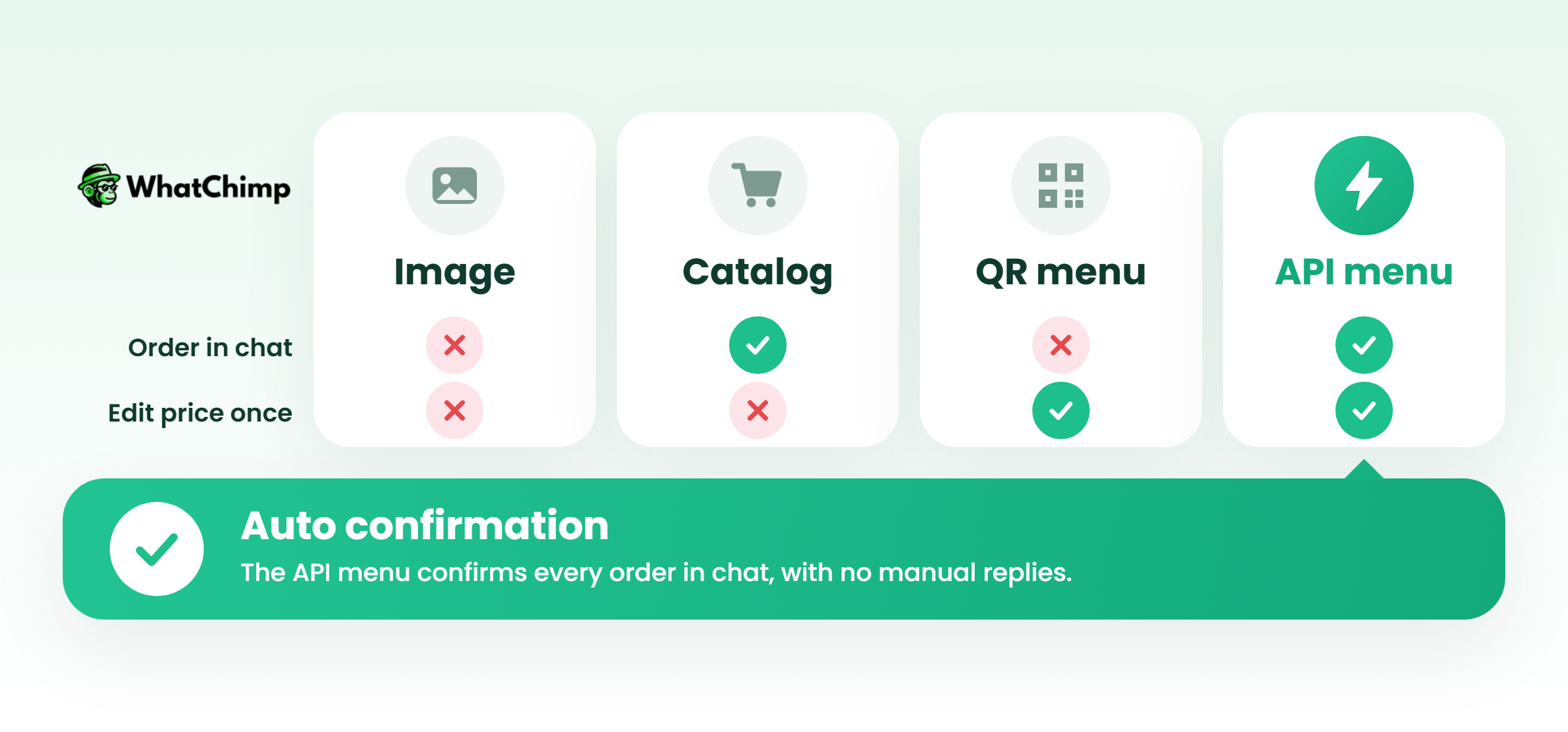
Image or PDF menu
This is a designed picture or PDF of your menu that you send in chats or post on Status. It’s the fastest to make. Customers can look at it, but they still type out their order.
WhatsApp Business catalog menu
The free WhatsApp Business app has a Catalog, which WhatsApp describes as a way to “showcase your products and services in a mobile storefront and group similar items into collections”. Each dish becomes an item with a photo, a price and a description. Collections become your menu sections, and customers can add dishes to a cart.
QR or link menu that sends orders to WhatsApp
It’s basically a menu on a web page, and a menu tool hosts it for you. Your guest scans the QR code on the table (or taps a link) and picks their dishes. The order lands in your WhatsApp as a pre-filled message. They don’t type a thing.
The interactive bot menu (on the WhatsApp Business API)
Here a bot does the talking. It says hi, shows buttons and lists, sends dishes from your catalog and confirms the order on its own. That’s a proper WhatsApp ordering system. You’ll need software built on the official WhatsApp Business API to run it.
Which WhatsApp menu card format fits your restaurant?
| Format | Cost to run | When you change a price | Can customers order in chat? | Best for |
|---|---|---|---|---|
| Image or PDF | Free | Redesign the image and send it again | No, they type the order | Tiffin services and small cafés with a short daily menu |
| Business app catalog | Free | Edit the item once in the app | Yes, with a cart and Place order | Home bakers and single-outlet restaurants |
| QR or link menu | A menu tool fee (some have a free tier) | Edit once on the web menu | Yes, the order arrives as a message | Dine-in tables and takeaway counters |
| Interactive API menu | A platform fee plus Meta’s per-message charges | Edit the catalog once and the bot uses it everywhere | Yes, with automatic confirmation | Cloud kitchens, busy restaurants and anyone running more than one outlet |
My honest take? If your menu changes every day and has a dozen dishes or fewer, just start with an image. Already getting orders on WhatsApp daily? Skip straight to the catalog.
How to make a WhatsApp menu card image (free)
Any design tool or template site will do. The tool barely matters. What you put on the image does.
1. One square image for chat and one tall one for Status, so nothing gets cropped
In a chat bubble, a square image reads fine. Status is different. It fills the whole phone screen, so make a separate portrait version instead of stretching the square one.
2. Sections, prices and veg/non-veg marks your customers can read in a second
Start with a clear heading for each section. Every dish gets a price right next to it. Then add the green and red veg/non-veg marks, because that’s the first thing your customers look for. Do your regulars read Hindi? Then write the dish names in English and Hindi. Trust me, a WhatsApp café menu card with bilingual names saves you a pile of “what is this?” messages.
3. Your number, timings and delivery area at the bottom, so nobody needs to ask
Every question you answer on the card is one less chat.
4. Three images at most, or switch to the catalog
Need more than three images for your menu? Then it’s too long to send as images. Nobody’s scrolling through seven photos to find the biryani.
And when you send the image, don’t leave the caption empty. Make it do some work.
Instead of: “Menu”
Use: “Hi Ankit, here’s today’s menu 👇 The veg thali is ₹120 till 3 pm. Just reply with the dish name and how many you’d like.”
How do I set up my menu in the free WhatsApp Business catalog?
Before you start, keep these handy: a number for the business, a clear photo of every dish, your price list and your menu sections.
Step 1: Set up your business profile
Time required: 5 minutes
- Install WhatsApp Business and verify the number you’ll use for the business.
- Open Settings, tap Business tools, then tap Business profile.
- Fill in your address, opening hours and category. Then add one line on what you do.
Step 2: Add your dishes to the catalog, one at a time
Time required: 2 to 3 minutes per dish
- In Business tools, tap Catalog.
- Tap Add new item.
- Upload a photo, then type the name and price. Add a short note too: portion size, veg or non-veg, how spicy it is.
- Tap Save.
Pro tip: Petpooja’s setup guide says new items can be reviewed before they appear, with no time guaranteed. Add dishes a day before you announce them.
Step 3: Group dishes into collections
Time required: 5 minutes
- In Catalog, tap Add new collection.
- Name it after a menu section. “Breakfast”, “Thalis”, “Desserts”, whatever you use.
- Tick the dishes that belong there and tap Save.
Step 4: Share the menu everywhere
Time required: 2 minutes
- Open your catalog and tap the share icon. Copy the catalog link.
- Paste it into chats, your Instagram bio and your Google Business Profile.
- Turn that link into a QR code. Then stick it on tables, bills, even delivery bags.
- Drop the link into your Greeting message. Now every new chat gets the menu and you don’t lift a finger.
What you get:
- ✅ A menu that updates the moment you edit a price
- ✅ A cart customers can order from
- ✅ One link you share once and never resend
How do customers order from your WhatsApp menu?
According to WhatsApp’s help article on ordering, customers use the Add to cart button, then tap Place order. Afterwards they can check it under View sent cart.
Then comes the line that matters: “An order isn’t final until confirmed by the seller.”
Here’s the MOST important rule of selling on WhatsApp. The order sits there until someone confirms it. No confirmation? Then there’s no order. Your customer just sits there waiting.
Example in action: Priya runs a cloud kitchen in Pune. It’s 1:10 pm. Rohan adds two paneer wraps and a cold coffee to his cart and taps Place order. Priya’s busy packing a big office order, so she doesn’t see it until 1:40. Too late. Rohan’s already ordered somewhere else.
With an automatic reply, Rohan would have heard back within seconds: “Got it, Rohan! 2 paneer wraps and 1 cold coffee, ₹420. Ready in 25 minutes. We’ll message you when it leaves the kitchen.”
What a WhatsApp menu card is NOT
The free app is brilliant for getting started. Just know where it stops.
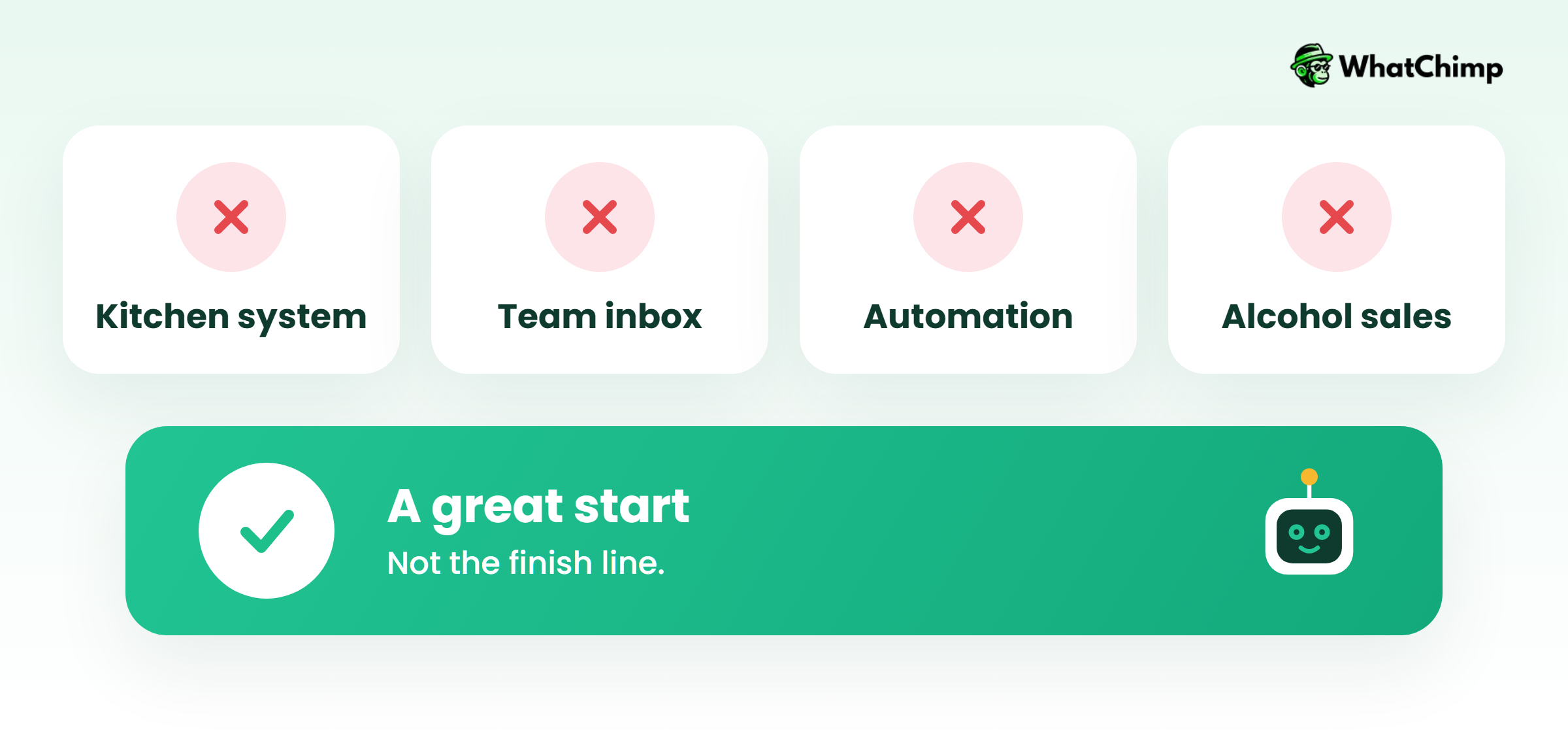
- ❌ It’s not a kitchen system. Orders don’t reach a kitchen screen or your records, so someone has to copy them across by hand.
- ❌ It’s not built for a team. The app is designed for one person replying, and its automation stops at greeting messages, away messages and quick replies.
- ❌ It’s not free forever once you automate. On the API, Meta charges for the messages your business sends.
- ❌ It’s not a place to sell alcohol. WhatsApp’s Business Messaging Policy lists “Alcohol and tobacco” among prohibited categories, and businesses that use catalogs must follow the Meta Commerce Policy. If you run a bar, keep drinks out of the catalog.
How to build a complete automated order system on WhatsApp
Once you get more orders than one person can confirm, it’s time to move to the WhatsApp Business API. Here’s the flow I’d build for any WhatsApp restaurant menu.
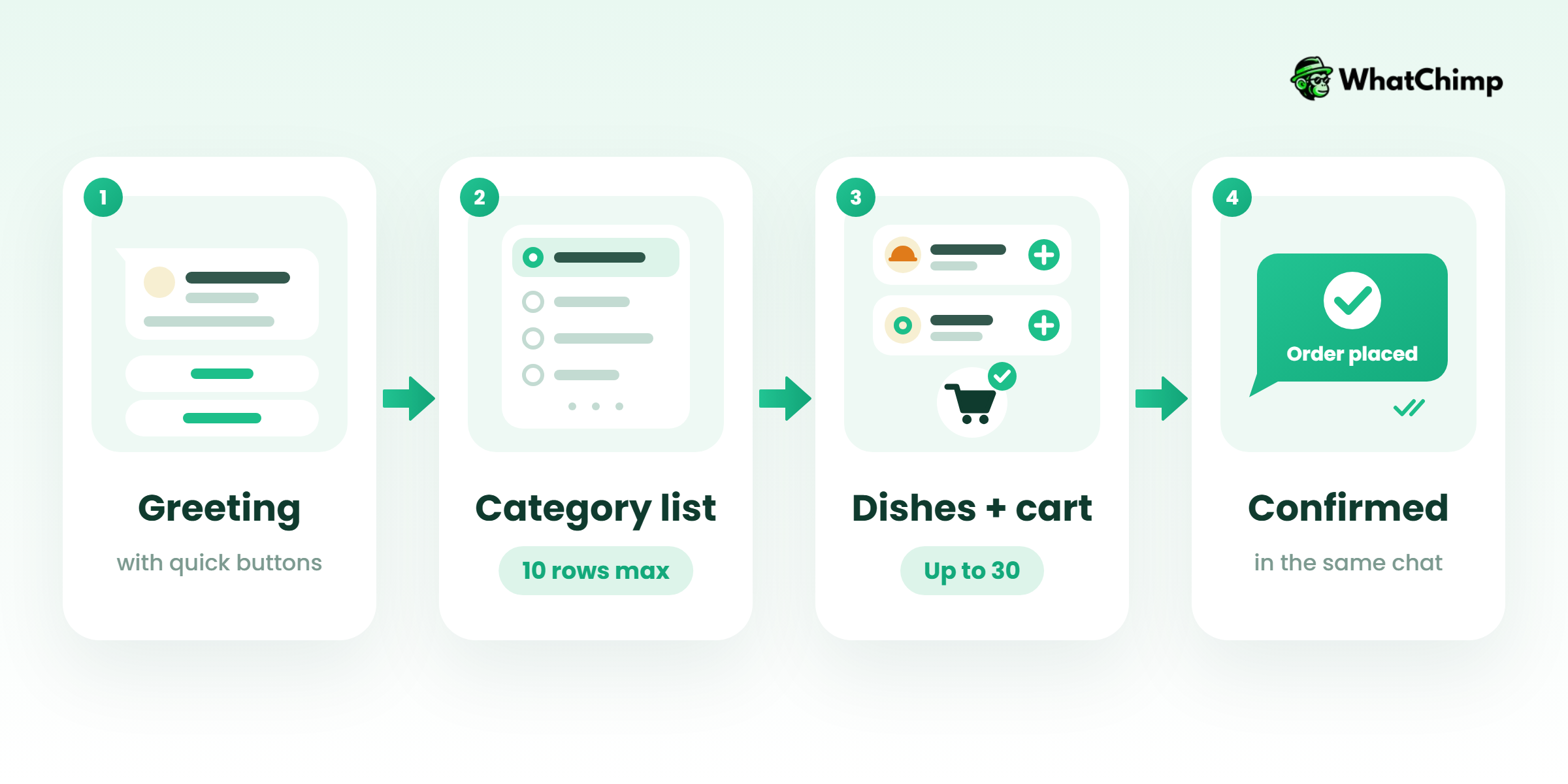
1. Greet with buttons, so nobody has to type “menu?”
Instead of: “Hi, how can I help you?”
Use: “Hi Rahul! 👋 Welcome to Ammi’s Kitchen. What are you in the mood for?” and put three buttons under it: View menu, Today’s special, Talk to us.
2. Show categories in a list, because one list holds 10 rows in total
Meta’s documentation says list messages “support up to 10 sections, with up to 10 rows for all sections combined” (interactive list messages). And each row title gets just 24 characters. So don’t list dishes. List categories instead (Thalis, Biryanis, Rolls, Desserts). One tap opens the dishes inside.
3. Send up to 30 dishes per message, with a cart
Multi-product messages “display up to 30 products from your catalog, organized into sections”. Your customer adds dishes to the cart and places the order, just like in the free app.
4. Collect add-ons, address and delivery time with a form
WhatsApp Flows let you build forms inside the chat. Picture a pizza order. Size, toppings, a special instructions box, all filled in before the order even reaches you.
5. Confirm automatically, then send status updates
When an order comes in, the bot sends the confirmation straight back. One catch. You can only send normal replies within 24 hours of the customer’s last message. Template messages can go out any time. So anything you send later, like “your order is out for delivery”, should be a template.
6. Send today’s specials, but only to people who said yes
Send a bulk WhatsApp broadcast using an approved template. And only to customers who agreed to hear from you. Nobody else.
So what does a WhatsApp menu cost in 2026?
Since 1 July 2025, Meta has charged per delivered message. These are the rules from Meta’s pricing page, which was updated for 1 October 2026:
| What | Cost |
|---|---|
| Free WhatsApp Business app, catalog and cart | Free |
| Messages customers send you | Free |
| Your service replies inside the 24-hour window | 1,000 free per month per business number, with no rollover |
| Utility templates sent inside an open window | Charged again from 1 October 2026 |
| Template messages (broadcasts, later updates) | Charged per delivered message |
| Chats that start from a click-to-WhatsApp ad | Free entry point window, open for up to 7 days |
Plenty of older blogs still say service conversations are always free. That changed on 1 October 2026.
On top of Meta’s charges, you pay for the software that runs the bot.
How to set up WhatsApp ordering with WhatChimp
WhatChimp is browser-based WhatsApp marketing software built on the official WhatsApp Business API. We’re also a Meta Business Partner. So how does it fit the flow above? Like this:
- WhatsApp catalog: your customers scroll your dishes, add to cart and buy, all inside the chat. Confirmations go out on their own. You’ll find it on the Pro and Enterprise plans.
- Chatbot builder and AI chatbot: greet customers, show View menu buttons and lists, answer “are you open?” and grab their address. Every plan gets these.
- WhatsApp Forms (Flows): order forms with options and add-ons, with prices that follow the customer’s selections. Pro and Enterprise.
- Shared inbox: your whole team logs in from a browser and replies from the same number.
- Google Sheets: every order lands in a sheet the kitchen can keep an eye on.
To be honest about it: WhatChimp is the automation layer, not a POS or a kitchen display.
Message volume is unlimited, and we add 0% markup on Meta’s WhatsApp fees. Templates? They’re approved in about 10 seconds. Here’s the catch, though. Basic lists at $24/mo billed annually, but the menu features sit on Pro. So check today’s pricing before you choose.
Want to try it with your own menu? Start the 7-day free trial (no credit card needed) and build the greeting and View menu buttons first. That alone stops most of the “menu?” messages.
Conclusion
You now know the four ways to put a menu on WhatsApp and how to set up the free catalog. You also know the limits that shape a bot menu and what each message really costs.
Your one job today: set up the catalog and add the link to your Greeting message. When confirming orders by hand starts costing you sales, connect the same catalog to WhatChimp and let the bot confirm them.
So which dish goes into your catalog first?
FAQs
Is it free to put my menu on WhatsApp?
Yes, if you use an image or the catalog in the free WhatsApp Business app. Once you automate on the API, Meta charges per delivered message. Customer messages are still free, and you get 1,000 free service messages a month per number, according to Meta’s pricing page.
Can customers order directly from a WhatsApp menu?
Yes. Set up a catalog first. Then they just tap Add to cart, then Place order, and that’s it on their side. Here’s the catch: the order isn’t final until you confirm it. So reply fast. Or let a bot confirm it for you.
How many dishes can I add to a WhatsApp catalog?
There’s no official limit I could verify. You’ll see 500 quoted a lot, but I couldn’t find WhatsApp publishing that number anywhere. On the API, one multi-product message shows up to 30 dishes. Got a bigger menu? Split it into sections.
Can I update prices instantly?
Yes, in the catalog. Just edit the item, and the new price shows up everywhere the catalog’s been shared. An image menu? You’d have to redesign it and send it again.
Can my menu be in English and Hindi?
Yes. Write dish names in both languages on an image menu, or put the Hindi name in each catalog item’s description.
Can I sell alcohol through a WhatsApp menu?
No. WhatsApp’s Business Messaging Policy prohibits commerce in “Alcohol and tobacco”.
- ❌ Beer or cocktails as catalog items
- ❌ Liquor offers sent by broadcast
- ✅ Food, soft drinks and table bookings
How do I send my menu to all my customers at once?
Send a broadcast using an approved template message, and only to customers who opted in. Template messages can go out at any time, and Meta charges for each one delivered.