WhatsApp automation: the complete 2026 guide to setup, examples and tools
Learn WhatsApp automation step by step: free Business app replies, API chatbots, Meta's 2026 rules and fees, 10 sample messages and a tool comparison.

On this page
It’s 11 pm. A customer messages you to ask if something’s in stock.
Nobody answers until the morning. By then, they have bought it somewhere else.
WhatsApp automation closes that gap. It replies, asks the same questions you’d ask, and sends the follow-up so nobody has to remember it. And when a chat needs a real person? It hands it over.
But the rules have changed. Meta now charges per message instead of per conversation, and more pricing changes started on October 1, 2026. Most guides you’ll find still describe the old system.
This guide covers five things. You get the free setup inside the WhatsApp Business app and a step-by-step API setup. You also get the 2026 rules that keep your number safe, 10 automations with sample messages you can copy, and a fair way to compare tools.
Updated November 2026.
What this guide covers
- What is WhatsApp automation?
- WhatsApp Business app or API: which do you need?
- How to send automated messages on WhatsApp for free
- How do you automate WhatsApp messages with the API? Step by step
- The 2026 rules that keep your number safe
- 10 automations you can copy (with sample messages)
- How do I pick the right WhatsApp automation tool?
- How do you keep your bot human (and compliant)?
- Where should you start this week?
- FAQs
What is WhatsApp automation?
Put simply, it’s software that sends, answers and routes your WhatsApp messages for you. Nobody on your team has to sit there typing every reply by hand.
You set the rules once. Then they run every time, at 3 pm or 3 am.
🎯 How does it work? Trigger, condition, action
Every automation, however fancy, comes down to three parts:
- Trigger: what kicks it off. A customer types “price”. Someone abandons a cart. A booking comes in.
- Condition: the check that picks what happens next. Is this person new? Have they paid? Is it after hours?
- Action: what WhatsApp actually does next. Send a message. Ask a question. Tag the contact. Or pull a teammate into the chat.
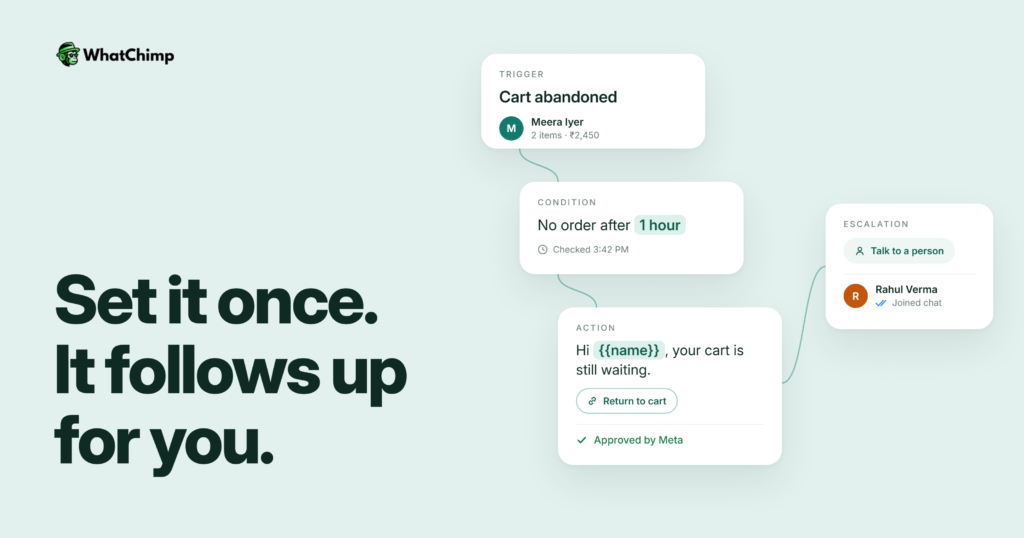
Put those three together and you’ve got one plain sentence. Like this: when a Shopify cart is abandoned and no order comes in within an hour, send a reminder with the cart link.
✅ What can you automate, and what’s off limits for bots?
So what can you hand over to automation? Welcome replies, FAQs and lead questions, for a start. Order and shipping updates. Reminders, and follow-ups for people who went quiet. Even broadcasts to contacts who opted in, with every chat landing on the right agent’s screen.
Three things are off limits, and they come straight from Meta:
- You can only message people who gave you their number and opted in to hear from you. Nobody else.
- Did the customer last message you more than 24 hours ago? Then you’re limited to pre-approved templates. That’s it.
- If a bot replies inside that window, it must give people an easy way to reach a human.
All three are in the WhatsApp Business Messaging Policy. Each one is covered below.
WhatsApp Business app or API: which do you need?
There are two ways to automate WhatsApp. And they’re very different tools.
The WhatsApp Business app is free and handles the basics just fine. But chatbots, store triggers or a team inbox? For those you need the WhatsApp Business API (Meta calls it the WhatsApp Business Platform), and you get to it through a platform such as WhatChimp.
| Feature | WhatsApp Business app | WhatsApp Business API (via a platform) |
|---|---|---|
| Cost | Free app | Platform plan plus Meta’s per-message fees |
| Automation | Greeting, away message, quick replies | Chatbots, keyword flows, AI answers and timed follow-ups |
| Broadcasts | Only for eligible users in some countries | Template broadcasts to opted-in contacts, within your messaging limit |
| Triggers from your store, CRM or ads | No | Yes, through integrations and webhooks |
| Team access | Built for an owner replying alone | Shared inbox: the team logs in and answers from the same number |
| Best for | Solo owners with a few chats a day | Stores, clinics, agencies and any team that needs flows |
⚡ You may not have to choose
Meta now allows coexistence: a number that runs on the Business app can also run on the Cloud API. Meta documents a fixed throughput of 20 messages per second for these numbers (source). That’s enough for most small businesses, and you keep the app you know.
How to send automated messages on WhatsApp for free
If you want to know how to send automatic messages on WhatsApp without paying anything, start here. The Business app has three built-in tools for automated messages on WhatsApp, and they are free.
Menu names vary a little between phones and app versions. All three tools live under Business tools.
Set up a greeting message
Meta describes this as a way to “automatically send a custom welcome message to new customers”.
- Open WhatsApp Business, go to Settings, then Business tools.
- Tap Greeting message and switch it on.
- Write your message and choose who receives it.
- Save.
Sample: “Hi, thanks for messaging Bloom Bakery. Reply 1 for today’s menu, 2 to place an order or 3 to speak to us.”
Set up an away message
This tool will “respond automatically to messages received outside your business hours”.
- Go to Settings, then Business tools, then Away message.
- Switch it on and pick a schedule: always, a custom time, or outside business hours.
- Write the message and save.
Sample: “We’re closed right now, back at 9 am. Drop your question here and we’ll reply first thing.”
Create quick replies
Quick replies are saved shortcuts for the messages you keep typing over and over.
- Open Business tools, tap Quick replies, then tap add.
- Type the message. Your price list, say, or your delivery areas.
- Give it a shortcut like /prices.
Now, in any chat, type “/” and pick your reply.
Pro tip: Write your quick replies first. The questions you answer most often turn into your chatbot’s first keywords later. One list, two jobs.
The free app stops there. It can’t read keywords, react to your store, assign chats or follow up later. For those, you need the API.
How do you automate WhatsApp messages with the API? Step by step
If you’re doing WhatsApp Business automation at real volume, this is your path. Do the steps in order. Don’t skip around.
Step 1: Connect your number through a Meta Business Partner
You get API access through a partner platform. WhatChimp is a Meta Business Partner built on the official WhatsApp Business API. Nothing to install. It runs in your browser, and your whole team logs in and replies from the same business number.
Want to keep using the app too? Pick coexistence during setup.
Step 2: Get your message templates approved by Meta
Templates are messages Meta reviews in advance. Anything you send outside the 24-hour window needs one: reminders, order updates, offers.
Every template falls into one of three categories: Marketing, Utility or Authentication. Be honest when you pick. A discount dressed up as an order update is still marketing. Does it matter? Yes. The category decides what you pay, and whether Meta approves it at all. In WhatChimp, approval takes about 10 seconds.
Step 3: Build a welcome or keyword flow
Start small. One flow: a welcome menu, plus keyword triggers for your top questions (the ones on your quick replies list).
Good flows ask one question at a time. Not three. Say someone taps “Rent”. That answer sticks to their contact, and the flow reads it to pick the next question. Simple. But what if they type something you never planned for? There’s no button for it and no branch. That’s where an AI chatbot trained on your own FAQs and policies steps in and answers like a person would.
Step 4: Connect the events that kick off each flow
This is where WhatsApp marketing automation really pays for itself. You don’t have to wait for the customer to say hi. A chat can kick off because something happened in another app:
- Someone orders, walks away from a cart, or their parcel ships. The Shopify integration catches it and sends the message.
- Someone fills in a form, or a new row pops up in your sheet. Hook it up through Google Sheets, Zapier, Make, n8n or Pabbly.
- Someone taps your click-to-WhatsApp ad. Just like that, they’re chatting with your bot.
- Pretty much any app that can fire off a webhook.
Step 5: Add a human handoff, then test it yourself
Always leave a door open to a real human. Someone types “agent”, “help” or “refund”? The bot steps aside. That chat lands in a shared team inbox, and whoever on your team is right for it picks it up.
Now grab your own phone and pretend you’re the customer. Tap every button, type a few wrong answers, and send a message after hours.
If you’d rather build this than read about it, WhatChimp has a 7-day free trial and needs no credit card to start. Build one welcome flow, test it on your own number and decide from there.
The 2026 rules that keep your number safe
Automation only works while your number stays in good standing. These rules decide that.
✅ Opt-in comes first
Meta’s policy is plain. You can only contact people who gave you their number and from whom you “received opt-in permission”. So ask. At checkout, on your forms, or in the chat itself. Then keep a record.
✅ Inside 24 hours, reply freely. Outside, use templates
A customer messages you, and a 24-hour customer service window opens right then. Every new message from them resets the clock. While it’s open, your bot can send any reply it likes. Once it shuts, you’re back to approved templates only.
📌 Messaging limits and quality rating
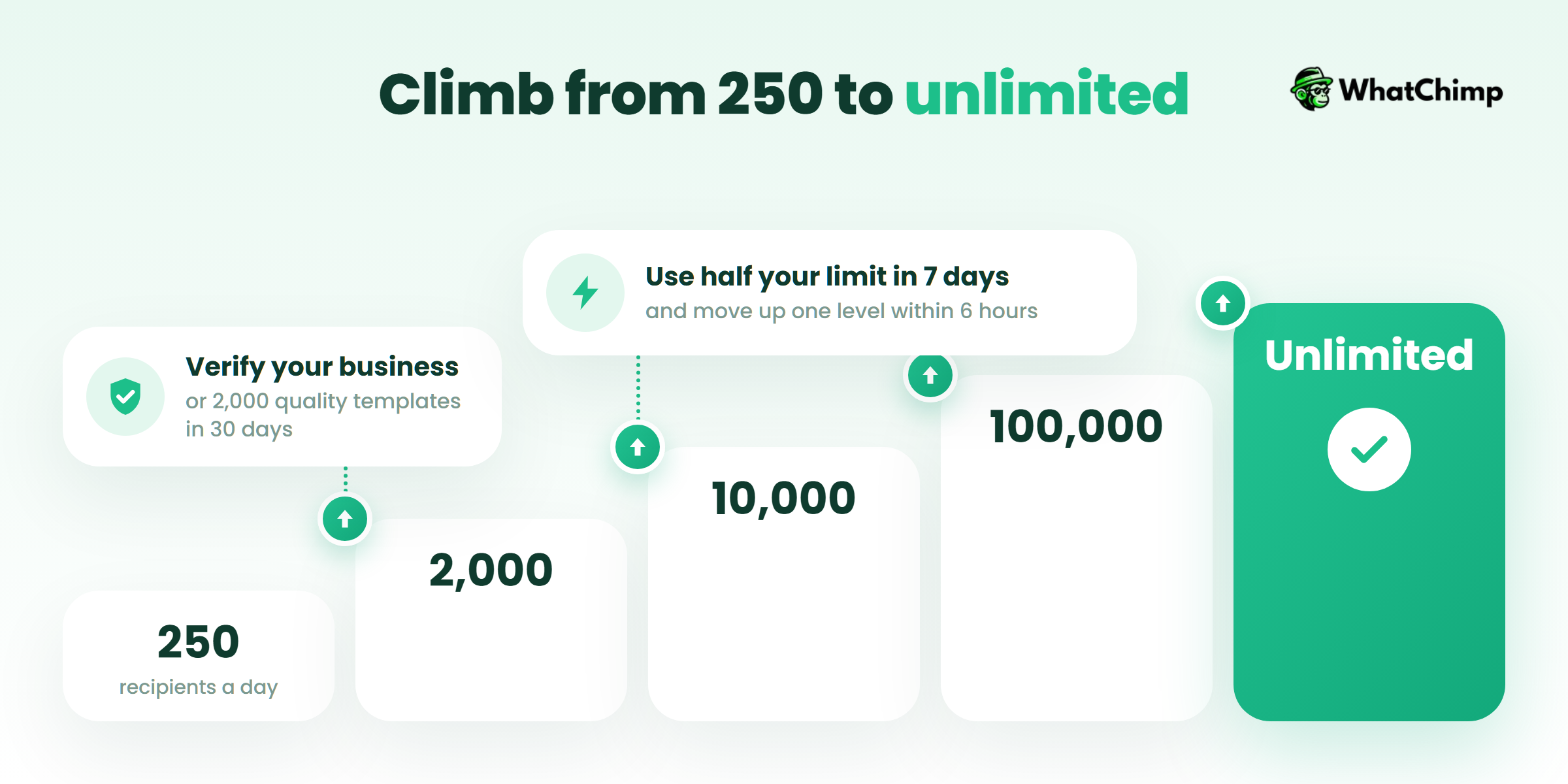
Your messaging limit is the number of unique people you can message outside a service window in any 24-hour period. All the numbers in your business portfolio share it.
| Level | Unique recipients per 24 hours |
|---|---|
| New portfolio | 250 |
| Level 2 | 2,000 |
| Level 3 | 10,000 |
| Level 4 | 100,000 |
| Top level | Unlimited (automatic scaling) |
You can move up in one of two ways:
- Verify your business.
- Get 2,000 template messages delivered outside service windows within 30 days, with those templates rated high quality.
After that, Meta scales you automatically. If you used at least half your limit over the last 7 days, Meta raises it one level within 6 hours (source).
Quality matters too. Templates that people block or report slow you down. Templates that people reply to keep your limit growing.
📌 What automated messages cost now
Meta switched to per-message pricing on July 1, 2025. Here is what that means for your flows, all from Meta’s pricing page:
- Messages customers send to you are free.
- Marketing, utility and authentication templates are charged per message.
- From October 1, 2026, each business number gets 1,000 free delivered service messages a month. Beyond that, service messages are charged, except for eligible government and non-profit organisations.
- Utility templates sent in reply to a customer have been free since July 1, 2025. But Meta changed its pricing on October 1, 2026, so check the current rate card before you set a budget.
- Someone came in through a click-to-WhatsApp ad? Then a free entry point window can stay open for up to 7 days. Anything you send inside it, Meta doesn’t charge for.
Rates vary by country. The WhatsApp Business API pricing guide works through the numbers. WhatChimp adds 0% markup on Meta’s fees: you pay Meta’s rate and nothing on top.
✅ Always give people a way to reach a human
The policy says you “may use automation when responding during the 24-hour window”. You must also have “prompt, clear, and direct escalation paths”. A “Talk to a person” button in every menu covers this.
📌 Why unofficial tools get numbers banned
Chrome extensions and “bulk blaster” tools control WhatsApp Web or the app from outside the official API. They skip the opt-in checks, templates and quality ratings that the policy is built on. If you want to keep your number, automate through the official API only.
10 automations you can copy (with sample messages)
Each one shows you a different trick. Copy it, swap the {{placeholders}} for your own fields, and you’re live. Honestly, that’s all.
Example 1: Welcome new chats and find out who’s serious
It kicks in the moment someone messages you for the first time. One question per message. Never a list. And add buttons, because on a phone nobody wants to type when they could just tap.
Sample: “Hi {{name}}, thanks for messaging Nest Realty! Are you looking to buy, rent or sell?” Next, ask about their budget. Hot leads skip the queue and go straight to an agent.
Example 2: Win back an abandoned cart
Trigger: a cart left without checkout. Send one reminder. Not three. And link them straight back to the saved cart.
Sample: “Hi {{name}}, looks like you left {{product}} in your cart. No stress, we’ve saved it for you here: {{cart_link}}. Unsure about sizing? Just reply and ask.”
Example 3: Confirm COD orders before you ship them
A new cash-on-delivery order comes in. That’s what wakes this flow up. Before anything goes to the courier, the customer gets one simple question: yes or no? No reply? Hold the courier and give them a call.
Sample: “Hi! Your order {{order_id}} for {{amount}} is packed. It’s cash on delivery, so you pay when it reaches you. Tap Confirm and we’ll send it out. Changed your mind? Tap Cancel, no problem.”
Example 4: Book appointments and remind people to turn up
Trigger: a booking comes in. A reminder goes out the day before. Put a reschedule button on it. Always. I’d rather see a moved appointment than an empty chair.
Sample: “Hi! Quick reminder: you’re seeing Dr {{doctor}} tomorrow at {{time}}. Tap Confirm, or Reschedule if you need a new slot.”
Example 5: AI FAQ and support bot
Trigger: any question inside the service window. The AI answers from your own policies. Not sure of the answer? Customer asks for a person? It hands the chat over right away.
Sample: “Good news, returns are free within {{days}} days! Want me to start one now, or would you rather chat with our team?”
Example 6: Turn click-to-WhatsApp ad taps into leads
Trigger: a tap on your ad. These chats can open a free entry point window of up to 7 days. A short qualifying flow followed by a timely offer then costs you nothing in Meta fees.
Sample: “Thanks for tapping our ad! Quick one: Design, Marketing or Coding, which course caught your eye?”
Example 7: A drip follow-up for enquiries that go quiet
Someone enquires, then goes quiet. Happens all the time. You wait however long you’ve set, then nudge them. They reply? The sequence stops right there. There’s nothing worse than a bot talking over what someone just said.
Sample: “Hi {{name}}, did the brochure reach you okay? Happy to book a quick call if you’d like.”
Example 8: Feedback requests
Trigger: delivery confirmed or appointment completed. Then ask for a quick rating. Got a low score? It goes straight to a manager, who can fix things while the customer still cares.
Sample: “How did we do today? Tap a number from 1 to 5.”
Example 9: Send payment reminders
Trigger: an invoice due date. This one’s a utility template, so keep it that way. Just the facts and the payment link right there in the message. No pitch.
Sample: “Hi {{name}}, just a heads-up: invoice {{invoice_id}} for {{amount}} is due on {{date}}. You can pay securely here: {{link}}.”
Example 10: Win-back broadcast
Trigger: customers who haven’t ordered in a while (you pick the period). This one’s a marketing template. So segment tightly, and only send it to people who opted in to offers. Broad blasts hurt your quality rating.
Sample: “We’ve missed you, {{name}}. Here’s {{offer}} on your next order, valid until {{date}}.”
How to choose a WhatsApp automation tool
🎯 What to look for
- Built on the official WhatsApp Business API, through a Meta Business Partner.
- A clear policy on markup over Meta’s fees.
- A no-code flow builder where you set the keywords, conditions and timed follow-ups yourself.
- AI that answers from your own content, once you’ve trained it.
- A shared inbox with routing, so a human can take over when the bot can’t.
- Integrations with the tools you already use.
- A price published on the vendor’s website.
📌 How the main options compare
Here’s what each vendor claims on its own automation page. Plan prices change a lot, so check each vendor’s pricing page before you buy.
| Tool | Price on its automation page | What the vendor highlights | Way to start free |
|---|---|---|---|
| WhatChimp | Published on the pricing page | 0% markup on Meta fees, no cap on messages sent or received | 7-day free trial, no credit card |
| AiSensy | Not shown | Broadcast scheduling, a large integration library | Check the vendor’s site |
| Wati | Not shown | Make.com integration | Free trial (check terms on the vendor’s site) |
| Interakt | Not shown (“nominal fee”) | Shopify, no-code bot, auto-assignment | Check the vendor’s site |
| Picky Assist | Not shown | Third-party integrations | “Free Forever Plan” (limits not stated) |
| WhatsApp Business app | Free | Greeting, away message, quick replies | Free download |
Here’s a reference point. In August 2026, WhatChimp’s Basic plan was $24 a month if you paid yearly, or $40 if you paid month to month. Promos change that, so check the pricing page for what it costs today. And Meta’s message fees? Those are always extra. On every platform, ours included.
💡 Is there a free WhatsApp automation tool?
Yes: the WhatsApp Business app. Greeting messages, away messages and quick replies are free, and for a solo owner they are often enough.
Be careful with “free” on the API side. Meta charges its per-message fees whatever platform you’re on, and free plans don’t always tell you where their limits are. So add it up yourself: plan price, plus Meta’s fees, plus any markup. That number is what you’ll really pay.
Best practices to keep automation human (and compliant)
- One job per flow. A welcome flow welcomes. A cart flow recovers carts. Mixing jobs confuses people.
- Say it’s a bot. People forgive a bot that admits it is one. They don’t forgive one that pretends.
- Always show the exit. A “Talk to a person” option in every menu keeps customers calm and keeps you within the policy.
- Use what you know. Their name, their order number, what they bought last time. You’ve already got it. Use it. Now the template sounds like you’re talking to them, not at them.
- Send less, not more. Every block or report drags your quality rating down. So what? That rating decides how fast you’re allowed to grow.
- Read the transcripts weekly. Find the chats where the bot fumbled. What did people actually type? Turn those exact words into new keywords.
Where to start this week
What’s the one question you answer more than any other? Start there. Build a single flow for it, add a hand-off to a human, and leave it running for a week.
That small start teaches you more about WhatsApp automation than any feature list. If you want a browser-based place to build it, with 0% markup on Meta’s fees and no credit card to start, you can try WhatChimp free for 7 days. Businesses in 90+ countries already use it.
FAQs
Is WhatsApp automation free?
The basic version is. In the WhatsApp Business app, greeting messages, away messages and quick replies cost you nothing. Want chatbots, store triggers or a team inbox? That’s API territory, which means a platform plan plus Meta’s per-message fees.
Can I get banned for sending automated messages?
Not if you stick to Meta’s rules. Message only people who’ve opted in. Once the 24-hour window closes, send approved templates and nothing else. And always let people reach a real person. The bans I’ve actually seen? Almost always unofficial extensions and blaster tools that skip those checks.
Do I need coding skills to automate WhatsApp?
No. API-based tools give you a no-code flow builder. You set your keywords, questions and conditions in a visual editor, and you never write a line of code. Have developers on the team? Great. They can hook up webhooks or the API later, if you ever need it.
Can I personalise automated WhatsApp messages?
Yes. Templates have placeholders for a name, order number, date or amount. Flows go further. A flow can save something a customer tells you and bring it back later in the same chat.
Can I use automation for customer support?
Yes, and honestly, it’s one of the best uses. A bot or AI agent takes the common questions at any hour. The harder ones go to your team in a shared inbox. Meta requires that clear path to a human anyway.
Can I keep using the WhatsApp Business app if I move to the API?
Often, yes. Meta supports coexistence, so a Business app number can also run on the Cloud API. Meta documents a fixed throughput of 20 messages per second for these numbers.
How many people can I message with automation?
A new business portfolio can message 250 unique people a day outside the service window. Everyone starts there. Big brand, corner shop, doesn’t matter. Verify your business and keep your quality rating healthy, and the cap goes up: 2,000, then 10,000, then 100,000, then unlimited. The good news? Replies inside the 24-hour window don’t count toward it.