
WhatsApp Business introduction message: templates, setup steps and rules for 2026
Copy-ready WhatsApp Business introduction message templates, plus the official greeting setup steps, opt-in rules and 2026 Meta pricing changes.

On this page
What this guide covers
- Key takeaways
- What is a WhatsApp Business introduction message?
- What a greeting message is NOT
- How do you set up a greeting message in the WhatsApp Business app?
- How to send a business introduction message on WhatsApp to someone first
- Welcome messages for click-to-WhatsApp ads
- How to write a WhatsApp intro message that gets replies
- WhatsApp Business introduction message templates you can copy
- Introduction message templates by industry
- How to automate introduction messages with WhatChimp
- Conclusion
- FAQs
Key takeaways
- A WhatsApp Business introduction message is one of two things: the automatic greeting a customer gets when they message you, or the first message you send to a lead.
- The app’s greeting message only fires on a customer’s first message or after 14 days of silence. It won’t go out on every chat.
- To message someone first on the WhatsApp Business Platform, you need their opt-in and an approved message template.
- Since October 1, 2026, Meta charges for service replies beyond 1,000 free per month per number, so “welcome replies are free” is no longer true.
- Keep your intro short: say who you are, why you’re writing and the one thing they should do next.
What if I told you the greeting on your WhatsApp Business app doesn’t go to most of the people who message you?
You’d probably think I’m exaggerating.
I’m not. According to the WhatsApp Help Center, greeting messages go out when a customer messages you for the first time, or after 14 days of inactivity in their chat. Your regulars who pinged you last week? They get nothing.
That’s fine, actually. The bigger problem is what I see from shop and D2C owners every week. They copy a “Hi! Welcome to our store 😊” greeting from somewhere, switch it on and hope for the best. Or they paste the same intro into 200 chats by hand and wonder why half of them never reply and a few report the number.
In this guide I’ll show you which kind of WhatsApp Business introduction message you actually need, how to set up the greeting properly, the rules for messaging someone first, what it costs after Meta’s October 2026 change, and templates you can copy today.
Start with the one question most guides skip.
What is a WhatsApp Business introduction message?
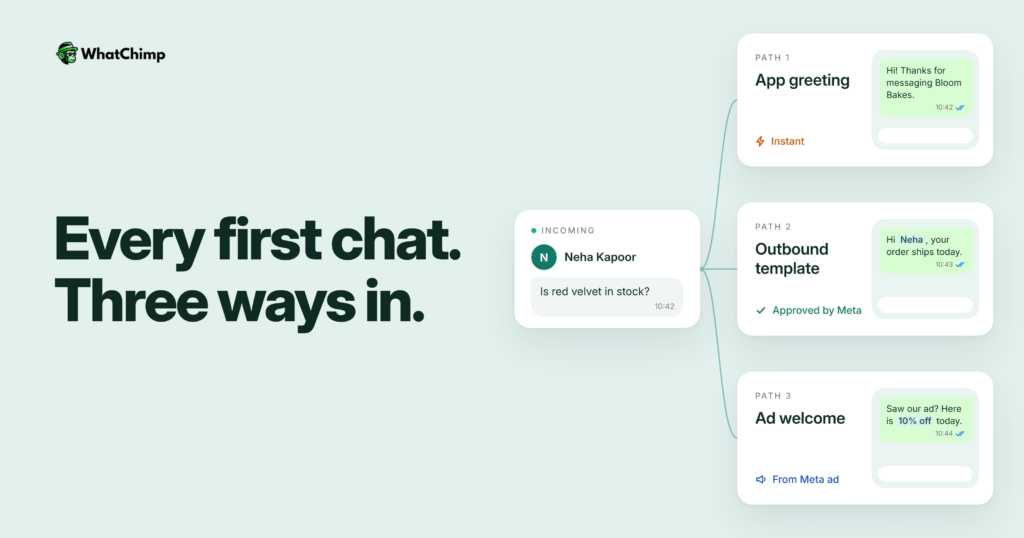
It’s the first message a customer sees from your business on WhatsApp.
Simple, right? The catch is that people use four names for messages that work very differently.
| Message type | Who starts the chat | When it’s sent | Where you set it up |
|---|---|---|---|
| Greeting message | The customer | First message, or after 14 days of silence | WhatsApp Business app |
| Welcome message | The customer (often from an ad) | Right after they tap your ad or link | API platform or ad builder |
| Away message | The customer | When you’re closed or busy | WhatsApp Business app |
| Introduction message (outbound) | You | Whenever you choose, with opt-in | WhatsApp Business Platform, approved template |
So which one do you need?
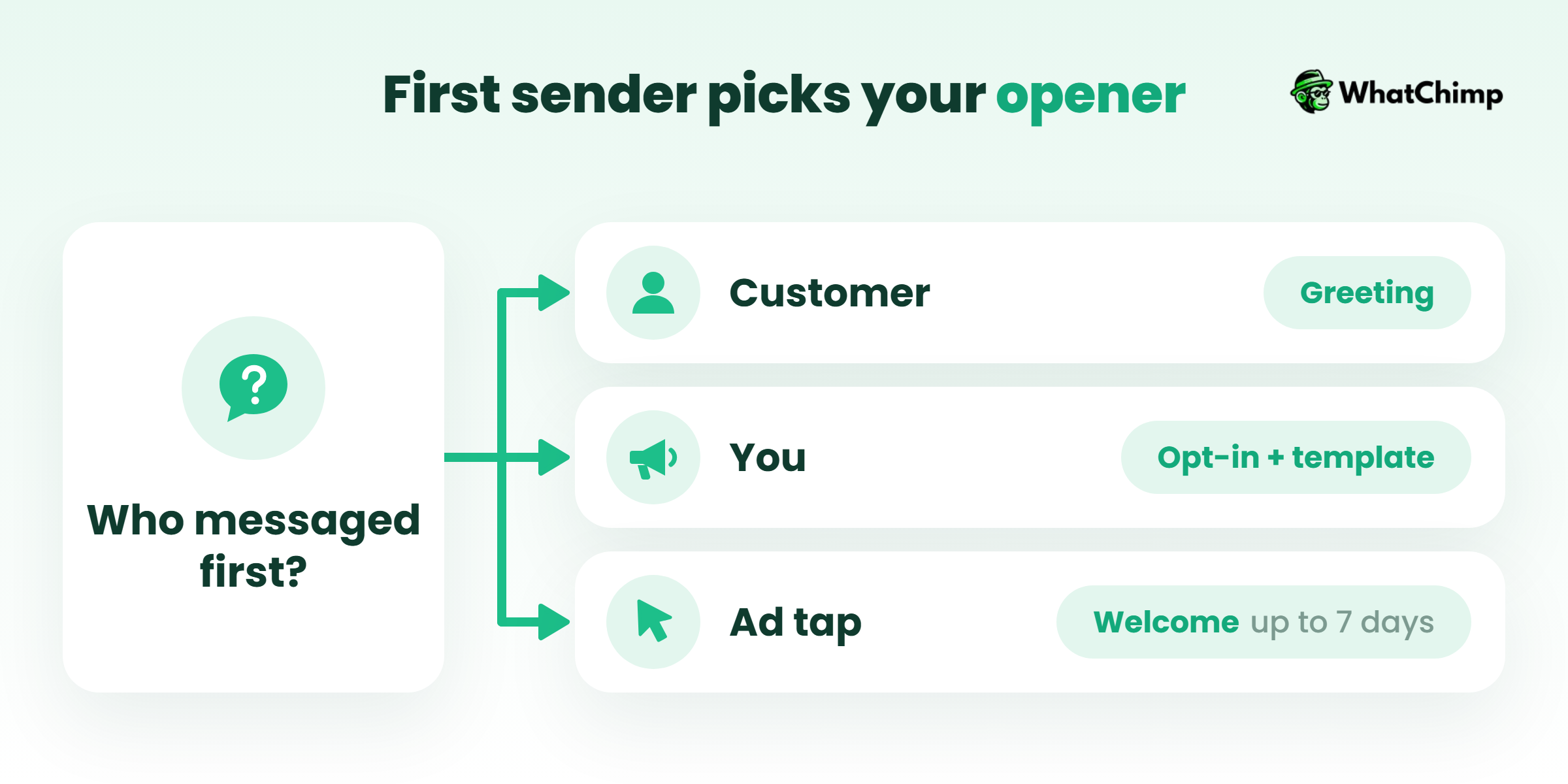
Here’s the quick test. Who sent the first message?
- They messaged you. You need a WhatsApp greeting message. It’s automatic and lives inside the app.
- You’re messaging them first. You need an outbound business introduction message on WhatsApp. That means opt-in, plus an approved template on the API.
- They tapped a click-to-WhatsApp ad. Then you need a welcome message for WhatsApp ads, and you set it up right where you build the ad.
Every template further down is labelled with one of these, so you’ll know exactly where it goes.
What a greeting message is NOT
There’s a lot of copy-paste advice out there. Here’s what I’d ignore.
- ❌ It doesn’t go out on every new chat. Who gets it comes down to the 14-day rule.
- ❌ It can’t reach leads who never wrote to you. It only replies.
- ❌ It’s not where your discount blast goes. On the API, an offer is a marketing template, not utility, and it gets billed and reviewed as one.
- ❌ It won’t send while your phone is offline. The Help Center says your device needs an active internet connection to send it.
- ✅ It’s a quick, friendly first reply. It tells people they’ve found the right place and what happens next.
How do you set up a greeting message in the WhatsApp Business app?
Here’s the official path, with the bit about what to write that the Help Center leaves out.

Step 1: Open the greeting settings
Time required: 1 minute
- Open WhatsApp Business.
- Tap the Tools tab.
- Tap Greeting message.
- Turn on Send greeting message.
Step 2: Write your message
Time required: 2 to 3 minutes
- Tap the message to edit it.
- Paste one of the app greeting templates from later in this guide.
- Read it on your phone. Have to scroll? It’s too long.
WhatsApp’s Help Center doesn’t publish a character limit for app greetings. So if you see a number quoted without a source, ignore it. Two or three short lines? That’s the sweet spot.
Step 3: Choose who gets it
Time required: 1 minute
- Tap Recipients.
- Pick one of the four options: Everyone, Everyone not in address book, Everyone except…, or Only send to….
- Tap Save.
What you get:
- ✅ An instant reply for every brand new customer
- ✅ A “welcome back” moment for anyone quiet for 14 days or more
- ✅ No more “Hello?? Anyone there?” from first-time buyers
Pro tip: Pick “Everyone not in address book” if your suppliers and family are saved as contacts. They don’t need your shop’s welcome speech.
Why your greeting isn’t sending
This is the question I get most. Check these in order.
- ❌ The customer messaged you in the last 14 days, so they don’t qualify.
- ❌ Your phone has no internet connection.
- ❌ The customer falls under your recipient exclusions.
- ❌ You connected Meta Business Agent. The Help Center says greeting messages are automatically disabled when it’s connected.
That last one catches a lot of people. If you turned on Meta’s AI agent and your greeting went quiet, that’s why.
How to send a business introduction message on WhatsApp to someone first
Now the outbound case. You’ve got a list of leads and you want to say hello.
Can’t I just paste it into my regular WhatsApp and hit send?
Technically, yes. Practically, no. Here’s why. Meta’s WhatsApp Business Messaging Policy says you can only message people who gave you their number and opted in. And you can only start a conversation with an approved message template. Cold messages from the app are exactly how numbers get reported and restricted.
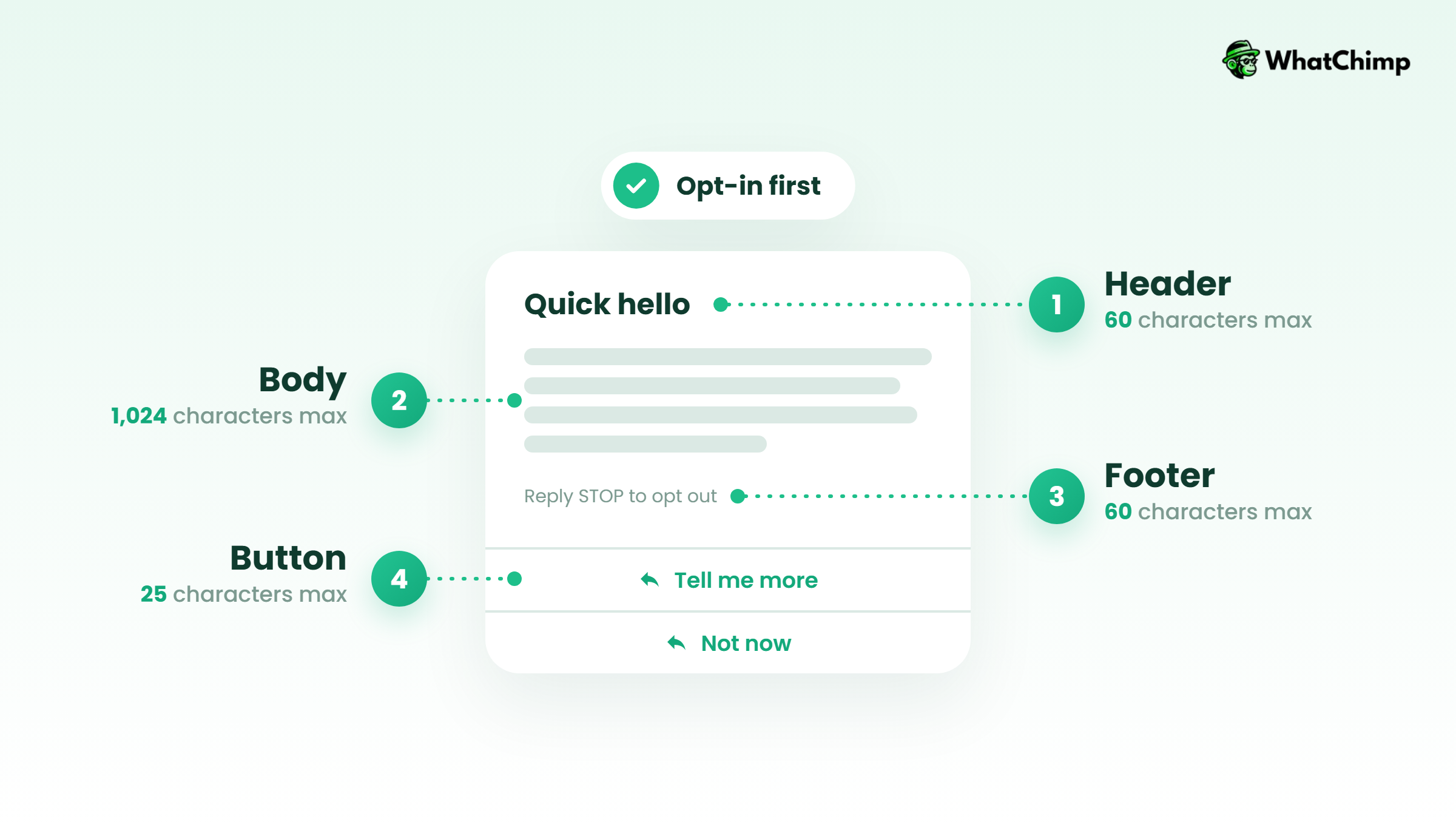
1. Opt-in first, so you don’t get blocked
This is the MOST important rule.
The person must have agreed to hear from you on WhatsApp, and they need to know which business they’re agreeing to. A checkbox at checkout, a “Get updates on WhatsApp” field on your form, or a reply to a QR code at your counter all work.
You also have to respect every opt-out request, whether it comes on WhatsApp or anywhere else.
2. An approved template in the right category
Outside the 24-hour customer service window, templates are the only kind of message you can send. Each one has to be categorised as authentication, marketing or utility.
Be honest about the category. An order confirmation is utility. “Hi, we’re a new skincare brand, here’s 15% off” is marketing. Calling it an introduction doesn’t change that.
3. Character limits that keep templates clean
Meta’s template components docs set these limits:
| Template part | Limit |
|---|---|
| Text header | 60 characters |
| Body | 1,024 characters |
| Footer | 60 characters |
| Button label | 25 characters |
| Buttons in total | Up to 10 (max 2 URL, 1 phone number) |
Just because you have 1,024 characters doesn’t mean you should use them. My best intros come in under 300.
What it costs after October 2026
This is where most guides are now out of date.
Per Meta’s pricing page, billing has been per message since July 1, 2025, and Meta doesn’t charge for messages users send to you. On October 1, 2026, Meta started charging again for service messages beyond a free tier of 1,000 per month per business number, and for utility messages sent inside an open service window.
| Situation | What you pay Meta |
|---|---|
| Customer messages you | Nothing |
| Your replies inside the 24-hour window | First 1,000 per month per number free, then charged |
| Utility template inside an open window | Charged (since Oct 1, 2026) |
| Outbound marketing intro | Charged per message |
| Customer arrives via click-to-WhatsApp ad | Free entry point window, may stay open up to 7 days |
Every time the customer messages you again, the 24-hour window resets. So an intro that gets a reply? That buys you a full day to talk.
For country rates and worked examples, see our WhatsApp Business API pricing guide.
Welcome messages for click-to-WhatsApp ads
The third case, and the one nobody else writes about.
When someone taps a click-to-WhatsApp ad, they start the chat, so you don’t need a template to reply. Better still, Meta’s pricing page says this free entry point window may remain open for up to 7 days.
That makes the welcome message for an ad lead worth getting right. It’s the first thing they see after spending a tap on you.
Example in action: Rohan runs a used car showroom and his ad says “Check today’s stock on WhatsApp.” His welcome message reads: “Hi! 👋 Thanks for tapping our ad. Which car are you looking for: hatchback, sedan or SUV? Reply with one and I’ll send this week’s stock with prices.”
The customer answers with one word and Rohan’s team has a qualified lead.
You can also add ice breakers on the API. These are tappable starter questions that show up the first time someone chats with you, like “See today’s stock” or “Book a test drive”.
How to write a WhatsApp intro message that gets replies
Every good intro I’ve sent follows the same five parts.
1. Greet them by name so it doesn’t feel like a broadcast
Templates support variables. Use them.
Instead of: “Dear customer, greetings from our company.”
Use: “Hi {{1}}, it’s Meera from Leafy Home 🌿”
2. Who you are, in one line
People open messages from names they know. If yours doesn’t ring a bell, remind them where they met you.
Instead of: “We are a leading provider of premium home decor solutions.”
Use: “You signed up at our Diwali pop-up in Bandra last weekend.”
3. Why you’re writing, so they don’t wonder
One reason. Not three.
Example in action: a hotel front desk messaging a guest named Sarah before arrival: “Hi Sarah, it’s Anjali from the front desk at Seabreeze Goa. You check in tomorrow and I wanted to share your directions and early check-in options.”
4. One clear next step, so replying takes a second
Give them a button or a one-word reply. It beats an open question every time.
Instead of: “Let us know if you have any questions.”
Use: “Reply YES and I’ll send the airport pickup rates.”
5. An easy way out, so they don’t hit Report
On marketing intros, add a footer like “Reply STOP to opt out.” People who can leave politely don’t report you.
How long, how formal, how many emojis?
App greetings: two or three lines, tops. Outbound intros: short enough that nobody has to scroll to read them.
Formal or casual? Talk the way you would at your counter. A bank should sound calmer than a sneaker brand, obviously. An emoji or two is fine. Five is a ransom note.
Mistakes that get you blocked
- ❌ Messaging numbers you bought or scraped
- ❌ Hiding a discount inside a “greeting” template
- ❌ Not naming your business in the first line
- ❌ Sending the same intro twice because nobody replied
- ✅ They opted in, they know who’s writing, there’s one clear ask, and they can opt out
WhatsApp Business introduction message templates you can copy
Each one’s labelled, so you’ll know where it goes.
App greeting messages (WhatsApp Business app)
- “Hi 👋 Thanks for messaging Chai & Crumbs! Tell us what you’re looking for and we’ll reply within the hour.”
- “Hello! You’ve reached Sharma Electronics. Send a photo of the product you need and we’ll share price and stock.”
- “Hi there! Welcome to Glow Studio ✨ Reply 1 to book, 2 for prices, 3 to talk to us.”
First message to a new lead (marketing template, opt-in needed)
- “Hi {{1}}, it’s Arjun from FitFuel. You asked about our protein plans on our website. Want me to send the 3 plans with prices? Reply YES. Reply STOP to opt out.”
- “Hi {{1}}, thanks for visiting our stall at the Pune Home Expo. Here’s the catalogue you asked for. Tap below to see this month’s designs.”
Welcome after a purchase or sign-up (utility template)
- “Hi {{1}}, welcome to Leafy Home! Your order {{2}} is confirmed. We’ll message you here when it ships.”
- “Hi {{1}}, your account at TaxEase is ready. Tap below to upload your documents.”
Customer support greeting (service reply)
- “Hi {{1}}, thanks for reaching out. I’m Neha from support. Can you share your order number so I can check this for you?”
Away and after-hours messages (WhatsApp Business app)
- “Thanks for your message! We’re closed right now and open again at 10 am. We’ll reply first thing.”
- “Hi! Our team is with customers at the moment. Leave your question here and we’ll get back to you today.”
Welcome-back messages (app greeting after 14+ days)
- “Hey, good to hear from you again! 😊 What can we help you with today?”
Click-to-WhatsApp ad welcome messages (no template needed)
- “Hi! Thanks for tapping our ad 🙌 Want today’s price list? Reply PRICE.”
- “Welcome! Tell us your city and we’ll check delivery and offers for you.”
Introduction message templates by industry
Here are short versions you can tweak. Sending them as outbound marketing templates? Then add a name variable and an opt-out line.
| Industry | Greeting message business owners can use |
|---|---|
| E-commerce and D2C | “Hi {{1}}! Thanks for shopping with Kurta Kraft. Need help with sizes? Reply SIZE.” |
| Real estate | “Hi {{1}}, it’s Vikram from Skyline Homes. You’d asked about 2BHK flats in Wakad. Want me to send the floor plans?” |
| Clinics | “Hello, thanks for contacting Smile Dental. Reply BOOK to see available slots this week.” |
| Education and coaching | “Hi {{1}}, welcome to MathMentor! Your demo class link will come here. Any questions before then?” |
| Restaurants | “Hi! Welcome to Spice Route 🍛 Reply MENU for today’s menu or TABLE to reserve.” |
| Travel | “Hi {{1}}, it’s Riya from Wanderlust Trips. You asked about Kerala packages. Want 3 options in your budget?” |
| Salons and fitness | “Hey! Thanks for messaging Urban Fit. Reply TRIAL to book a free first session.” |
| Financial services | “Hello {{1}}, this is Amit from SafeHarbour Insurance, following up on your quote request. Is now a good time?” |
| B2B and agencies | “Hi {{1}}, it’s Kavya from Pixel North. Thanks for downloading our pricing deck. Want a 15 minute walkthrough?” |
How to automate introduction messages with WhatChimp
Once you’re past a few dozen chats a day, typing intros by hand stops working.
WhatChimp is browser-based WhatsApp marketing software built on the official WhatsApp Business API, and we’re a Meta Business Partner. Here’s how I’d set up each case:
- Outbound intros: save your approved templates in WhatChimp (approvals come back in about 10 seconds), then send them to your opted-in list using bulk WhatsApp broadcasts.
- Inbound greetings: build an AI chatbot flow. It replies instantly when someone types “hi”, “price” or “menu”, and keeps the chat going while you’re away.
- Ad leads: on Pro and Enterprise, the click-to-WhatsApp ad builder has a step where you set the welcome message people see first.
- Follow-ups: WhatsApp automations send follow-ups inside the 24-hour window or after it, so an unanswered intro doesn’t just die. If you sell on Shopify, order confirmations and abandoned cart reminders pick up after the intro.
Your whole team logs in from the browser and answers from the same number.
On cost, we charge 0% markup on Meta’s WhatsApp conversation fees. You pay Meta’s rate and nothing on top, which matters more now that service replies past 1,000 a month are billed. Plans are on the pricing page, and there’s a 7-day free trial with no credit card required.
Conclusion
You now know there are three kinds of first message: the app greeting, the outbound intro and the ad welcome.
Each one has its own rules, and the October 2026 pricing change means none of them should be treated as automatically free.
Today, pick the one case that brings you the most chats, paste in a template from this guide and switch it on. If that case is outbound or ad leads, start a free WhatChimp trial and send your first approved intro to an opted-in list this week.
Which of the three is your business getting wrong right now?
FAQs
What is a WhatsApp Business introduction message?
It’s the first message a customer receives from your business on WhatsApp. That can be an automatic greeting when they message you, or an approved template you send first to someone who opted in. The two are set up in different places and follow different rules.
How do I set a greeting message on WhatsApp Business?
Open the Tools tab, tap Greeting message and turn on Send greeting message. Edit the text, choose your recipients from the four options and tap Save. Your phone needs an internet connection for it to send.
What’s the difference between a greeting message and an away message?
A greeting welcomes new or returning customers, while an away message tells people you’re unavailable.
| Greeting | Away |
|---|---|
| First message or after 14 days of silence | Sent on a schedule, such as outside business hours |
| “Welcome, how can we help?” | “We’re closed, back at 10 am” |
Can I send an intro message to someone who hasn’t messaged me?
Yes, but only on the WhatsApp Business Platform, with their opt-in and an approved template. Meta’s policy says businesses may only start conversations with approved message templates. Sending cold messages from the app is how numbers get reported.
Can I personalise my WhatsApp welcome message?
Yes, on the API. Your templates can drop in the customer’s name and order number. The app’s greeting is fixed text, though, so keep it general.
Should I use a formal or informal tone?
Write it the way you’d talk to a customer across the desk. A clinic or insurer should sound calm and clear. A café can have fun with it. Either way, put your business name in the first line.
Why isn’t my greeting message sending?
Usually it’s the 14-day rule: the customer messaged you recently. Other causes:
- ❌ Your phone is offline
- ❌ The contact is excluded in Recipients
- ❌ Meta Business Agent is connected, which disables greetings automatically