
Quick reply messages for business: 40+ WhatsApp templates and how to set them up
Copy 40+ quick reply messages for business on WhatsApp, learn the 50-reply limit, button rules and 2026 pricing, and set it all up in minutes.

On this page
What this guide covers
- Key takeaways
- What are quick replies in WhatsApp Business?
- What quick replies are NOT
- How to set up quick replies in the WhatsApp Business app
- Quick reply messages for business you can steal today
- Auto-reply message samples (greeting and away)
- Quick reply buttons for chatbots and templates
- Best practices for writing quick replies
- When 50 quick replies on one phone isn’t enough
- How to use quick replies in WhatChimp
- Conclusion
- FAQs
Key takeaways
- WhatsApp Business lets you save up to 50 quick reply messages for business, and you send any of them by typing “/” in a chat.
- Quick replies never send on their own. Greeting and away messages are the automatic ones, and reply buttons are a different feature altogether.
- Write every reply with blanks like {name} and {order_id}, and fill them in before you hit send. That way it never reads like a copy-paste.
- Give your shortcuts simple names (/ord-status, /ret-policy) so anyone on your team finds the right answer in two keystrokes.
- Sharing one number across a team, or need more than 50 replies? Move to a shared inbox with saved replies. And budget for it: from October 1, 2026, Meta charges API service messages above 1,000 a month per number.
What if I told you WhatsApp already gives you 50 ready-made answers, and you can send any one of them by typing a single “/”?
You’d probably think it’s too simple to matter.
But look at your chats today. “What’s the price?” “Is COD available?” “Where’s my order?” You type the same answers by hand, again and again, with typos, at 11 pm, while three more customers wait.
Quick reply messages for business fix exactly that. In this guide I’ll show you how to set them up in the WhatsApp Business app and give you 40+ templates to copy, including COD, UPI and Hinglish ones. I’ll also explain what “quick reply” means for buttons and chatbots, and what to do once 50 replies on one phone stops being enough.
Grab your chai. Here’s the whole playbook.
What are quick replies in WhatsApp Business?
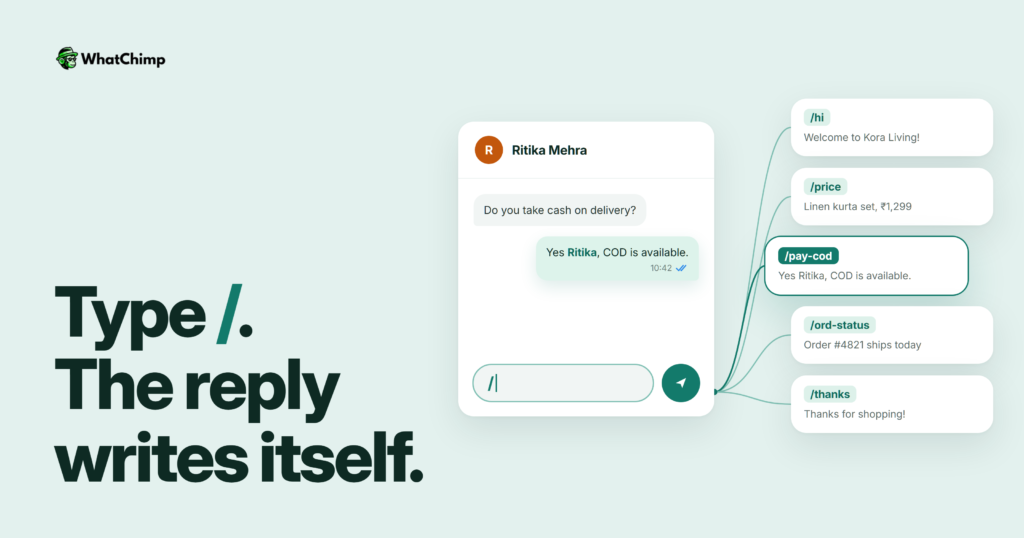
A quick reply in WhatsApp is a saved message with a shortcut attached. You type “/”, pick the shortcut, and the full message drops into your chat box. You check it, edit it and send it.
That’s it.
WhatsApp’s own help page spells it out. You make them in the Tools tab. You get a maximum of 50. And yes, they can carry images and videos. One catch, though: media files don’t work in quick replies on WhatsApp Web or Desktop.
Quick replies vs greeting vs away vs template messages
People mix these up all the time, so here’s the difference in one table.
| Type | Sent automatically? | Where it lives | Best for |
|---|---|---|---|
| Quick reply | No, you pick it and send it | Business app or team inbox | Answers you repeat every day |
| Greeting message | Yes, when a customer first messages you | Business app | A warm first hello |
| Away message | Yes, outside the hours you set | Business app | Nights, holidays, festival rush |
| Template message | Sent by you or a campaign, approved by Meta first | WhatsApp Business API | Messages outside the 24-hour window, broadcasts |
| Reply buttons | The customer taps one | API and chatbots | Guided choices |
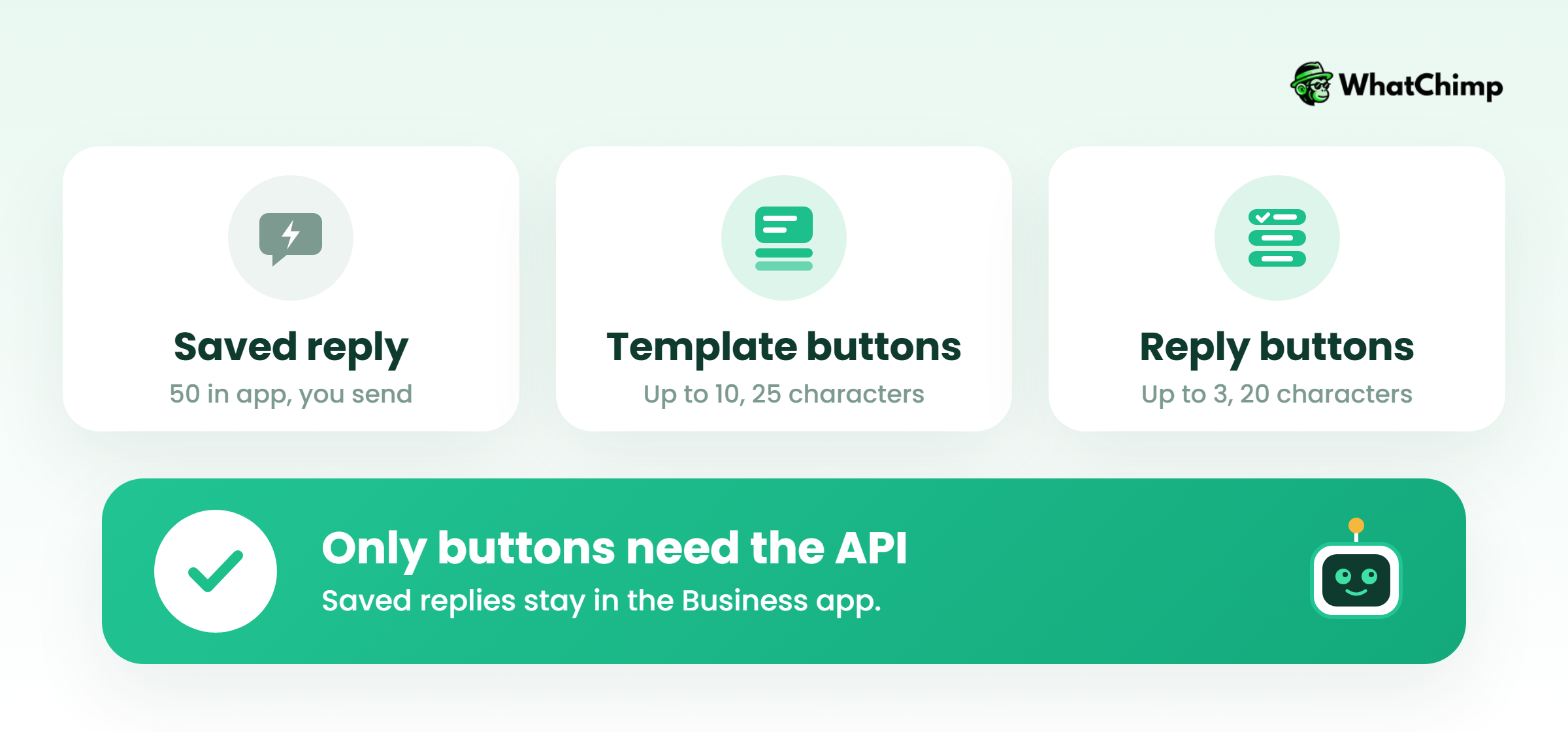
The three things “quick reply” means on WhatsApp
- Saved replies: the “/” shortcuts in the app, or saved replies in a team inbox. This is what most shop owners mean.
- Template quick-reply buttons: buttons on Meta-approved templates. Meta’s template docs allow up to 10, with labels of 25 characters maximum.
- Interactive reply buttons: used inside an open conversation, with up to three predefined replies and labels of 20 characters maximum.
When someone searches “chatbot quick reply”, they mean number 2 or 3. We’ll cover both further down.
What quick replies are NOT
❌ They are not automatic. Someone has to type “/” and press send. If you want messages that go out on their own, that’s a greeting message, an away message or a chatbot.
❌ They don’t have an official 25-character limit. WhatsApp’s FAQ doesn’t publish any character limit for quick replies. Some vendors report 25 characters for the shortcut and 500 for the message, but treat those as reported figures, not official rules.
❌ They don’t carry media everywhere. Images and videos work from your phone, not on Web or Desktop.
❌ They don’t scale with your team. A 50-reply library in one app gets crowded fast once several people answer the same number.
✅ What they are: a fast, editable starting point for the answers you give every single day.
How to set up quick replies in the WhatsApp Business app
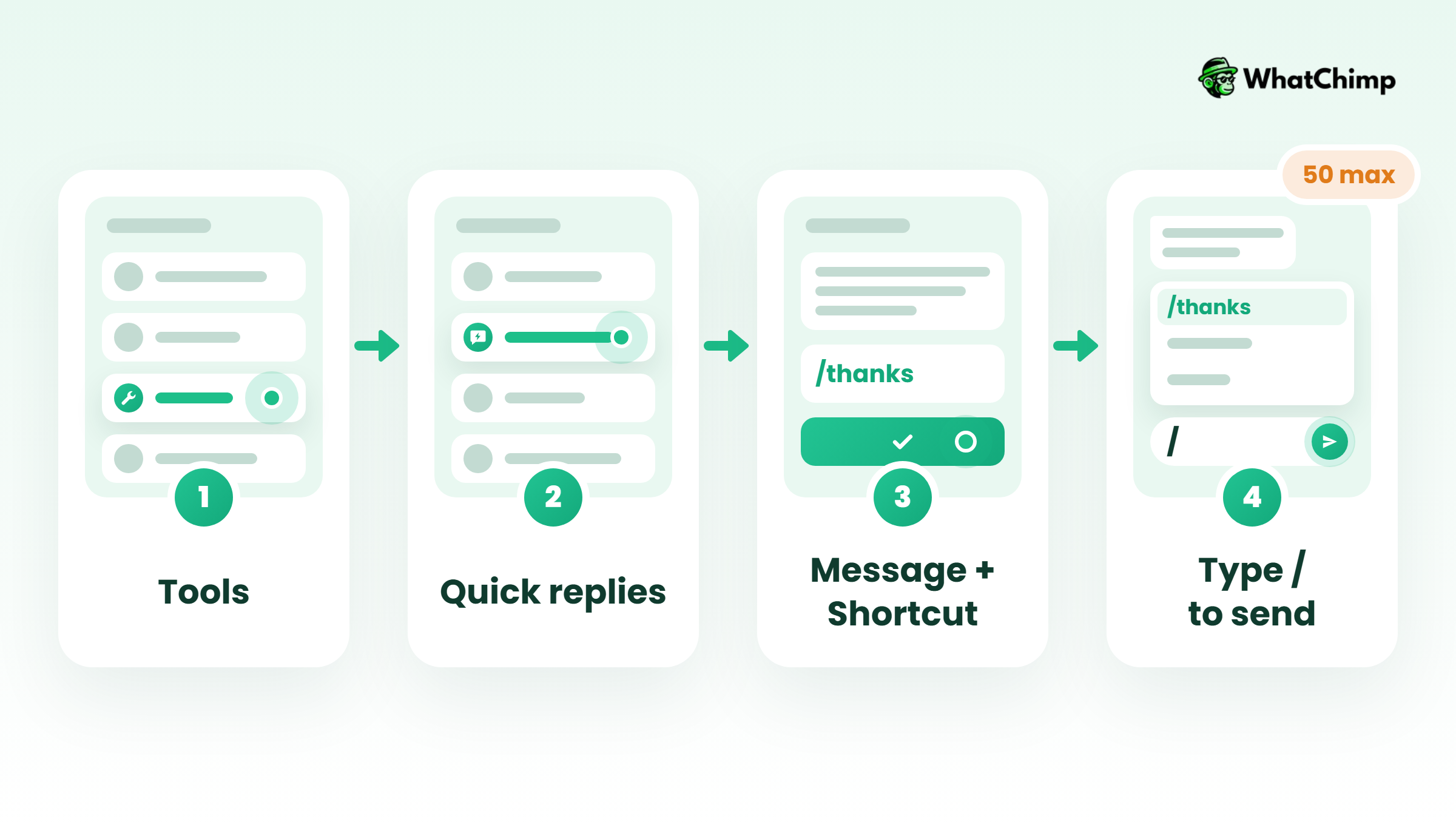
Step 1: Create a quick reply
Time required: 2 to 3 minutes
- Open WhatsApp Business and tap the Tools tab.
- Tap Quick replies.
- Tap add, then type your reply in the Message box.
- Type a Shortcut, for example /hours.
- Tap Save.
Step 2: Send it with “/”
Time required: 5 seconds
- Open any customer chat.
- Type “/” in the message field. Up pops every quick reply you’ve saved, plus the default ones.
- Pick the one you want, fill in the blanks, hit send.
What you get:
- ✅ The same correct answer every time, typed once.
- ✅ Fewer typos when you’re tired at the end of the day.
Limits you should know
| Limit | What’s official |
|---|---|
| Stored quick replies | 50 maximum |
| Images and videos | Supported, but not on Web or Desktop |
| Shortcut length | Not published (vendors report 25 characters) |
| Message length | Not published (vendors say it’s 500 characters) |
Pro tip: Reply mostly from WhatsApp Web? Then keep a text-only version of any reply that usually has a photo, and link to the image instead.
Quick reply messages for business you can steal today
Every whatsapp quick reply template below comes with a suggested shortcut and blanks in {curly brackets}. Copy one, swap in your details, save it. You’ll have the whole lot done in under ten minutes.
Greetings and welcome
| Shortcut | Message |
|---|---|
| /hi | “Hi {name}! Thanks for messaging {business}. How can I help you today?” |
| /welcome-new | “Welcome to {business}, {name}! Ask me anything about sizes, prices or delivery and I’ll reply right here.” |
| /returning | “Good to see you again, {name}! Want me to pull up your last order?” |
Business hours and delays
| Shortcut | Message |
|---|---|
| /hours | “We’re open {days}, {open_time} to {close_time}. Message anytime and we’ll reply as soon as we’re in.” |
| /checking | “Give me 2 minutes, {name}. I’m checking that for you.” |
| /delay | “Sorry for the slow reply, {name}! It’s a busy day here. I’m on your question now.” |
| /holiday | “We’re closed for {festival} until {date}. Your message is safe with us and we’ll reply first thing when we’re back.” |
Pricing and payments (UPI, cards and COD)
| Shortcut | Message |
|---|---|
| /price | “{product} is ₹{price}, including GST. Shall I send you the order link?” |
| /pay-methods | “You can pay by UPI, card, net banking, or Cash on Delivery on orders under ₹{limit}.” |
| /pay-upi | “Our UPI ID is {upi_id}. Send a screenshot once paid and I’ll confirm your order.” |
| /pay-cod | “Yes, COD is available for pincode {pincode}. A ₹{fee} COD charge applies.” |
| /pay-failed | “Sorry about that, {name}. Share your transaction ID and I’ll check with our payments team right away.” |
Orders and delivery
| Shortcut | Message |
|---|---|
| /ord-confirm | “Your order #{order_id} is confirmed, {name}! I’ll send the tracking link as soon as it ships.” |
| /ord-status | “Your order #{order_id} is {status}. Track it here: {link}” |
| /delivery-times | “We deliver to {city} in {x} to {y} working days.” |
| /delivery-change | “No problem! Send the new address with pincode and I’ll update order #{order_id} before it ships.” |
Return, refund and exchange questions
| Shortcut | Message |
|---|---|
| /ret-policy | “Yes, you can return or exchange it within {x} days of delivery, as long as it’s unused and the tags are on. Shall I start one for you?” |
| /ret-refund | “Your refund of ₹{amount} was processed on {date}. It should reach your {method} in {x} working days.” |
| /ret-exchange | “Happy to swap it! Which size or colour would you like instead?” |
Stock
| Shortcut | Message |
|---|---|
| /stock-out | “Sorry, {product} is sold out right now. Want me to message you when it’s back?” |
| /stock-back | “Good news, {name}! {product} is back in stock. Want me to keep one aside for you?” |
Appointments and bookings
| Shortcut | Message |
|---|---|
| /appt-book | “Sure! I’ve got {slot_1} or {slot_2} free on {date}. Which one works for you?” |
| /appt-confirm | “Done! You’re booked for {service} on {date} at {time}. Need to change it? Just reply here.” |
| /appt-move | “No worries at all. What new day and time suits you?” |
Complaints and technical issues
| Shortcut | Message |
|---|---|
| /sorry | “Oh no, {name}, I’m so sorry. That shouldn’t have happened. Could you send me a photo? I’ll get it fixed today.” |
| /escalate | “I’ve passed this to {team_member}, who handles {issue}. They’ll message you here by {time}.” |
| /tech-help | “Could you try {fix} and tell me what you see? If it still doesn’t work, I’ll set up a call.” |
Reviews, referrals and closing the chat
| Shortcut | Message |
|---|---|
| /thanks | “Thanks so much for shopping with us, {name}! Is there anything else you need?” |
| /review | “Loved your order? A quick review would mean a lot to us: {link}” |
| /refer | “Share code {code} with a friend. They get {offer}, and so do you.” |
Industry packs
| Industry | Shortcut | Message |
|---|---|---|
| Real estate | /site-visit | “You can visit the {project} site {days}, {time}. Want me to book you a slot this weekend?” |
| Real estate | /floor-plan | “Here you go: the floor plan and price sheet for the {unit_type} at {project}. Any questions about the payment plan?” |
| Clinics | /clinic-hours | “Dr {doctor} sees patients {days}, {time}. Reply with your preferred slot and I’ll book it.” |
| Clinics | /reports | “Good news, {name}, your reports are ready. Just pick them up at the front desk.” |
| Education | /course-fees | “The {course} fee is ₹{fee}, and you can pay it in {x} instalments. Shall I send you the syllabus?” |
| Services | /quote | “To quote you accurately, could you send {details}? I’ll reply with a price by {time}.” |
Hinglish versions of the five you’ll use most
| Shortcut | Message |
|---|---|
| /hi-hn | “Namaste {name}! {business} mein aapka swagat hai. Bataiye, aaj kya help chahiye?” |
| /price-hn | “{product} ka price ₹{price} hai, GST included. Order link bhej dein?” |
| /cod-hn | “Haan, aapke pincode {pincode} par COD available hai.” |
| /ord-status-hn | “Aapka order #{order_id} {status} hai. Yahan track kariye: {link}” |
| /checking-hn | “2 minute dijiye, hum check karke abhi batate hain.” |
Auto-reply message samples (greeting and away)
Quick replies wait for you. Auto replies don’t.
If you searched for an auto reply message sample for business WhatsApp, these are for you. The best auto reply message for WhatsApp Business tells the customer who you are and when they’ll hear back, then gives them something useful to do in the meantime.
Greeting messages
Greeting messages go out automatically when a customer first messages you.
- “Hi! Welcome to {business}. Tell us what you’re looking for and we’ll reply within {time}. Our bestsellers are here: {link}”
- “Namaste! Thanks for reaching {business}. For order updates, just send your order number.”
Away messages
In the app you can set an away message to run outside your business hours.
- After hours: “Thanks for your message! We’re closed right now and open again at {time}. We’ll reply first thing.”
- Holiday: “Happy {festival}! We’re away until {date}. Orders placed now ship on {ship_date}.”
- Sale rush: “Our sale has us busier than usual. We’ll reply as fast as we can. Your order number helps us find you quicker.”
Quick reply buttons for chatbots and templates
Now for the chatbot quick reply part. One thing first: buttons need the WhatsApp Business API. The free app can’t do them.
1. Interactive reply buttons: up to 3, labels up to 20 characters
You use these inside an open conversation. Meta’s docs allow up to three buttons, labels of 20 characters, a body of up to 1,024 characters and a footer of up to 60.
Example in action: Ravi runs a bike service centre in Pune. A customer messages him, and his bot replies “Hi! What do you need today?” with three buttons: “Book a service”, “Check my bike”, “Talk to Ravi”. Most people just tap a button instead of typing. So Ravi only jumps into the chats that really need him.
2. Template quick-reply buttons: up to 10, labels up to 25 characters
These sit on approved templates, the messages you send outside the 24-hour window or as broadcasts. Meta’s template rules say quick-reply buttons must be grouped together, not mixed in between URL or phone buttons. Templates with 4 or more buttons, or with a quick-reply button plus another button type, can’t be viewed on WhatsApp desktop clients.
3. Button copy that gets tapped
Instead of:
“Click here to know more about our latest offers”
Use:
“See offers”
- ✅ Start with a verb: “Track order”, “Book slot”.
- ✅ Keep every label well under the limit so it never gets cut off.
- ❌ Don’t write two buttons that sound the same (“Help” and “Support”).
- ❌ Don’t bury the human option. There should always be one button that gets a real person.
Best practices for writing quick replies
1. A shortcut system your team learns in a week
Use a category prefix, then the topic: /ord-status, /ret-policy, /pay-upi, /appt-move. When a new hire types “/ord”, every order reply shows up together. That’s the whole trick.
2. Personalise before you send, every time
This is the MOST important rule. A canned reply that looks canned annoys people.
Instead of:
“Dear customer, your order has been shipped.”
Use:
“Hi Meera, your blue kurta (order #4471) shipped today. Track it here: {link}”
Same shortcut. Ten extra seconds. A completely different feeling for Meera.
3. Audit the library every quarter
Prices change. Delivery times change. Your return window changes. Every three months, scroll through your replies and delete or fix anything that’s out of date. A wrong quick reply is worse than none at all, because you’ll send it a hundred times.
4. Know when to drop the template
Angry customer? Health question? Refund dispute? Type those answers yourself. Use the template as your notes, then write the way you’d actually talk.
When 50 quick replies on one phone isn’t enough
“Can’t I just keep using the app?”
Technically, yes. But in practice it falls apart the moment any of these is true:
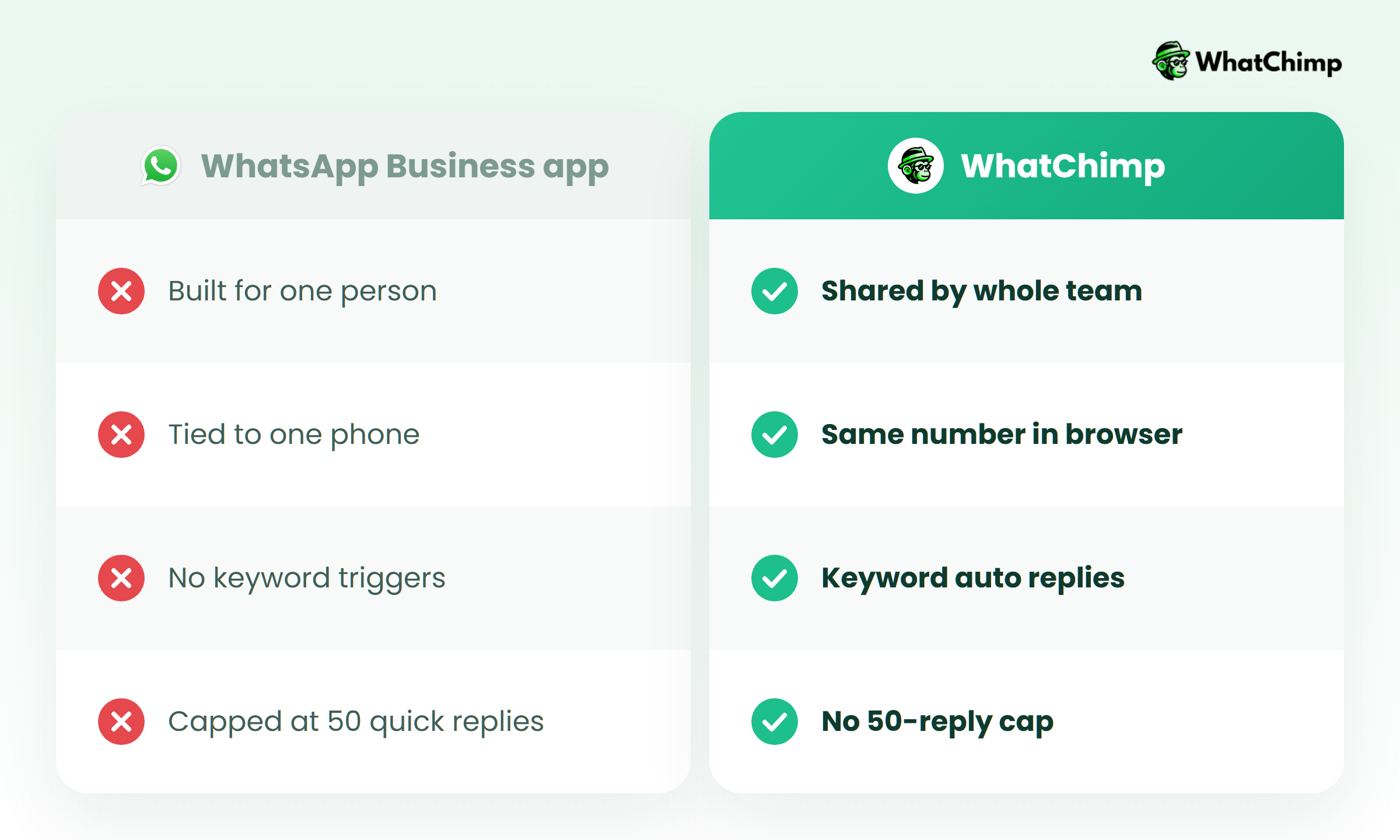
- More than one person answers your WhatsApp.
- You’ve hit 50 replies and you’re deleting good ones to make room.
- You need replies that run on their own at 2 am.
Shared team inbox with saved replies
With the WhatChimp shared inbox, your whole team logs in from a browser and replies from the same number. Saved replies work just like the app’s quick replies. One tap sends the pre-written answer, and shortcuts like /delivery-times and /delivery-change are shared by everyone on the team.
Keyword chatbots and automation
For the questions you answer the same way every time, a WhatsApp AI chatbot replies instantly to keywords, offers guided choices to find out what the customer needs, and keeps conversations going while you’re away.
What replies cost on the API now
This is the bit nobody else is telling you. On the WhatsApp Business API, every time a customer messages you, a 24-hour customer service window opens. Meta’s pricing page says Meta has charged per message since July 1, 2025. And from October 1, 2026, it charges for service messages again too. Each business phone number gets 1,000 free delivered service messages a month.
| Message | Charged by Meta? |
|---|---|
| Customer messages you | No |
| Your replies inside the 24-hour window | First 1,000 delivered per number per month free, then charged |
| Template messages | Charged per message |
The free WhatsApp Business app isn’t billed this way. If you’re on the API, our WhatsApp Business API pricing guide explains the full picture. WhatChimp adds 0% markup on Meta’s fees, so you pay exactly what Meta charges.
How to use quick replies in WhatChimp
Step 1: Connect your number
Time required: 5 to 10 minutes
- Sign up on WhatChimp. No credit card required, and you get a 7-day free trial.
- Connect your WhatsApp number through the official WhatsApp Business API. WhatChimp is a Meta Business Partner.
Step 2: Move your best replies into saved replies
- Open the shared inbox and add your saved replies, using the shortcut system from earlier.
- Invite your team so everyone answers from the same number with the same library.
Step 3: Automate the repeat questions
- Set up keyword replies in the chatbot builder for prices, hours and order status.
- Submit your templates. In our experience, approvals come back in about 10 seconds.
What you get:
- ✅ One shared reply library for the whole team.
- ✅ Answers going out even when nobody’s online.
If you want to try it on your own chats, the pricing page has today’s plans. As of August 2026, Basic was $24 a month billed annually or $40 billed monthly, but check the page on the day.
Conclusion
You now know what quick reply messages for business actually are, how to set up 50 of them in the app, and how they differ from auto replies and buttons.
You’ve also got 40+ templates and a naming system to keep them tidy.
Your one job today: save your ten most-asked answers as quick replies. When your team outgrows one phone, move them into a WhatChimp shared inbox so everyone replies from the same library.
Which question are you sick of typing out by hand?
FAQs
How many quick replies can I save in WhatsApp Business?
You can save 50. That’s WhatsApp’s cap in the Business app. Need more? Or does your whole team need the same set? Then a shared inbox on the WhatsApp Business API is where most people go next.
Are quick replies sent automatically?
No, they aren’t. You type “/” and choose the reply, then send it yourself. Greeting messages, away messages and chatbots are the features that send on their own.
What’s the difference between auto reply and quick reply on WhatsApp?
An auto reply goes out without you, and a quick reply waits for you to send it.
| Feature | Who sends it |
|---|---|
| Quick reply | You, after typing “/” |
| Greeting or away message | WhatsApp, automatically |
| Chatbot reply | Your bot, automatically |
Can quick replies include images and videos?
Yes, on your phone. On WhatsApp Web or Desktop, media in quick replies isn’t supported. So if you reply from a computer, keep a text version with a link.
Can I use quick replies in Hindi or Hinglish?
Yes. WhatsApp doesn’t mind which language you type in. Just save each language as its own reply with a clear suffix, like /price-hn, so nobody on your team grabs the wrong one.
Can I add quick reply buttons in the WhatsApp Business app?
No, buttons need the WhatsApp Business API. There, interactive messages let you add up to 3 reply buttons. Approved templates go up to 10 quick-reply buttons.
Do quick replies cost anything?
It costs nothing in the free app. On the API, replies inside the 24-hour window count as service messages, and from October 1, 2026 Meta charges for those above 1,000 delivered per number per month.