
Welcome message WhatsApp guide: 30+ templates and how to set it up
Need a welcome message WhatsApp customers actually reply to? Get 30+ copy-ready templates, app setup steps, API fixes and Meta's 2026 pricing rules.

On this page
What this guide covers
- Key takeaways
- What is a WhatsApp welcome message?
- How do you set up a greeting message in the WhatsApp Business app?
- What makes a good welcome message on WhatsApp?
- What a welcome message is NOT
- Welcome message WhatsApp templates you can copy
- What changes when you move to the WhatsApp Business API?
- How do welcome messages work with click-to-WhatsApp ads?
- What does a WhatsApp welcome message cost?
- How do you write a WhatsApp group welcome message?
- How do you know your welcome message is working?
- How to set up an automated welcome flow with WhatChimp
- Conclusion
- FAQs
Key takeaways
- On WhatsApp, a welcome message (the Business app calls it a greeting message) only goes out automatically in two cases: someone messages you for the first time, or they message after 14 days of no chat.
- Turn it on in the WhatsApp Business app under Business tools, then choose who gets it from the four recipient options.
- Give people two or three clear choices, not an open “How can we help?”. That’s the welcome message WhatsApp customers actually reply to.
- If you connect the WhatsApp Business API or a CRM, your app greeting stops working. You’ll have to rebuild it as an automated flow with buttons and a handoff to your team.
- Since October 1, 2026, Meta charges for service messages beyond the free 1,000 a month. Work out what your welcome flow will cost you before you scale it.
What if I told you most of your regular customers never see your WhatsApp greeting at all? The people who message you most are exactly the ones it skips.
You’d probably think I’m exaggerating.
I’m not. WhatsApp only sends the greeting in two cases. Someone messages you for the very first time, or they come back after 14 days of silence. That aunty who orders every week? She saw it once. Months ago.
So really, the greeting is for strangers. The new lead from Instagram. The person who found your number on Google Maps. The shopper who clicked your ad at 11 pm.
And what do most of them get back? Usually this: “Hi! Thanks for contacting us. How can we help you?”
Then they type “price?” and wait two hours.
I’ve watched this play out on hundreds of business numbers since we started WhatChimp. The first message decides whether the chat goes anywhere. So here’s what this guide gives you: how the greeting really works, and how to set it up in two minutes. You’ll also get more than 30 templates to copy (Hindi and Hinglish ones too), what breaks when you move to the API, and what it all costs under Meta’s new rules.
First, the basics.
What is a WhatsApp welcome message?
A WhatsApp welcome message is the first automatic reply a customer gets when they message your business.
In the WhatsApp Business app it’s called a greeting message. WhatsApp’s own help article on greeting messages defines it as “a customizable message that’s automatically sent to your customers when they first message you.”
On the WhatsApp Business API, there’s no greeting toggle. A “welcome message” there is a first-touch flow you build yourself: a reply with buttons, a menu, maybe an AI answer, then a handoff to a person.
Same idea, very different power.
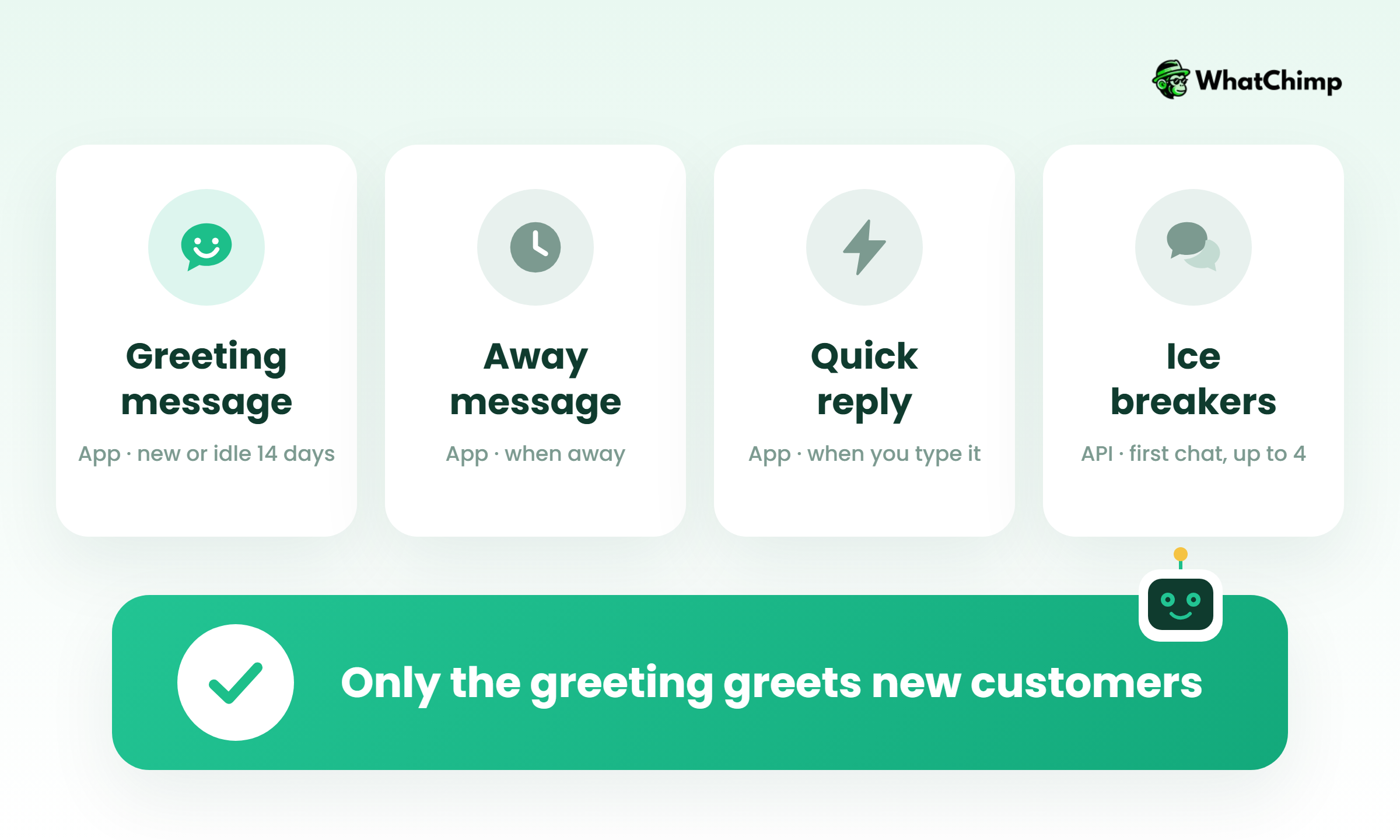
Greeting message vs away message vs quick reply vs ice breakers
People mix these four up all the time. Here’s the difference.
| Feature | Where it lives | When it shows | What it’s for |
|---|---|---|---|
| Greeting message | WhatsApp Business app | First message, or after 14 days of inactivity | Saying hello and setting expectations |
| Away message | WhatsApp Business app | When you’ve set yourself as away or outside hours | Telling people when you’ll be back |
| Quick reply | WhatsApp Business app | Only when you type a shortcut | Saving you typing for common answers |
| Ice breakers | WhatsApp Business API | The first time a user opens a chat with you | Tappable starter questions before they type anything |
The greeting and away message are automatic. Quick replies are manual. Ice breakers sit in the chat window before the customer has said a word.
When does the greeting actually send?
WhatsApp’s rule is short: “Greeting messages are only sent to customers who message you for the first time or after 14 days of inactivity.”
Say Rahul messages you on Monday and gets your greeting. He messages again on Thursday. Nothing automatic goes out. But what if he goes quiet for three weeks and then comes back? The greeting fires again.
This changes how you write it. Your greeting is speaking to a new or returning person. It never lands in the middle of a conversation.
How do you set up a greeting message in the WhatsApp Business app?
First thing: you need the WhatsApp Business app, not regular WhatsApp, on the phone your business number lives on.
Step 1: Open the greeting settings
Time required: 1 minute
On Android:
- Tap the three dots in the top right.
- Tap Settings, then Business tools.
- Tap Greeting message.
On iPhone:
- Tap Settings at the bottom.
- Tap Business tools.
- Tap Greeting message.
Menu names shift a little between app versions. If you can’t spot it, look for “Business tools” first.
Step 2: Write and switch on your greeting
Time required: 2 to 3 minutes
- Turn on Send greeting message.
- Tap the message so you can edit it.
- Paste in one of the templates below and change the details to yours.
- Tap OK, then Save.
Step 3: Choose who gets it
Time required: 1 minute
WhatsApp gives you four recipient options:
| Option | Best for |
|---|---|
| Everyone | New businesses where almost every chat is a new lead |
| Everyone not in address book | Most shops: regulars you’ve saved won’t get a robotic hello |
| Everyone except… | Keeping greetings away from staff, suppliers or family |
| Only send to… | Testing a new greeting on a few numbers first |
I’d pick “Everyone not in address book” for most small businesses. Your saved regulars already know you.
What you get:
- ✅ A free automatic reply for every new chat
- ✅ No template approval needed, because it’s an app feature
- ✅ One message, same text for everyone
Greeting not sending? Check these first
If your greeting isn’t going out, it’s almost always one of these:
- ❌ The customer messaged you in the last 14 days, so it’s not supposed to fire.
- ❌ The customer is in your address book and you picked “Everyone not in address book”.
- ❌ Your phone is offline. WhatsApp says the device has to be online to send greetings.
- ❌ You’ve connected Meta Business Agent. WhatsApp’s help article says greeting messages are switched off automatically when it’s connected.
- ❌ You moved the number to the WhatsApp Business API. More on this below, because it catches a lot of people out.
What makes a good welcome message on WhatsApp?
Most greetings fail for one reason. They hand the work back to the customer.
Meta’s own developer guidance is blunt about this: skip open-ended welcome or introductory messages. Why? “How can we help?” hands the work to the customer. Now they’ve got to think, type and explain what they need. A good welcome does that thinking for them.
Here are the rules I give every WhatChimp customer.
1. Offer two or three choices so customers reply in seconds
Give people a menu, even in the plain-text app greeting.
Instead of: “Hi! Thanks for contacting us. How can we help you today?”
Use: “Hi! Thanks for messaging Kavya Sarees 🙏 Reply 1 for prices, 2 for new arrivals, 3 to track an order. We reply personally from 10 am to 7 pm IST.”
The customer types “1”. Done. Before you even open the chat, you know what they want.
2. Tell people when you’ll reply, so nobody feels ignored
Silence is what kills chats, not a slow reply. If you say “we reply within an hour during shop hours”, people wait. If you say nothing, they message your competitor.
Example in action: Arjun runs a mobile repair shop in Pune. His greeting ends with “We usually reply within 30 minutes, 11 am to 8 pm.” His late-night messages don’t vanish anymore, because people know someone will answer in the morning.
3. Say who you are in the first line
Here’s the thing. Customers often message five shops at once. Put your business name right at the start, so when they scroll back later they know which chat is yours.
4. Keep it short enough to read without scrolling
WhatsApp doesn’t publish a single limit for the app greeting, so don’t write to a number. Write to the screen. If a customer has to scroll on a phone, it’s too long. Three or four short lines is plenty.
5. Don’t sell in the first message
This is the MOST important rule. Someone asks you a simple question and you reply with a discount code? Feels like a trap, doesn’t it? Answer first. Sell once they’ve told you what they want.
What a welcome message is NOT
A few myths I hear every week:
- ❌ “It goes out every time someone messages.” No. Only on the first message or after 14 days of inactivity.
- ❌ “It’s a marketing broadcast.” No. It’s a reply to someone who messaged you. Promotions to people who didn’t message you are a different thing, with different rules.
- ❌ “I can have a different greeting for each customer type.” Not in the app. You get one greeting. Different messages per channel or ad need the API.
- ❌ “I can add buttons and images to it.” The app greeting is plain text (emojis work). Reply buttons and menus need the API.
- ❌ “It works the same after I connect a CRM.” It usually stops entirely.
Welcome message WhatsApp templates you can copy
Below you’ll find 35 templates, grouped by situation. Swap anything in [brackets] for your own details and you’re done. Quick heads-up, though. The app greeting can’t pull in a customer’s name, so I’ve only put name placeholders where an API flow or template would fill them in.
First contact and lead capture
- “Hi! Welcome to [Business]. Reply 1 for prices, 2 for our catalogue, or 3 to chat with our team. We’re around from 10 am to 7 pm IST.”
- “Hello and thanks for reaching out to [Business] 👋 Tell us what you’re looking for and your city, and we’ll send options that fit.”
- “Hi! You’ve reached [Business]. To help you faster, send us a photo or the name of the product you’re asking about.”
- “Welcome to [Business]! Are you buying for yourself or for a business? Reply ‘Me’ or ‘Business’ and we’ll take it from there.”
Outside business hours (IST)
- “Hi! Thanks for messaging [Business]. We’re closed right now and open again at 10 am IST. Leave your question here and it’ll be the first one we answer.”
- “Hello! Our team is offline till tomorrow morning. Reply with your order number or question, and we’ll reply by 11 am IST.”
- “Thanks for writing to [Business] 🌙 We work 10 am to 7 pm, Monday to Saturday. Your message is safe with us and we’ll reply first thing.”
Ecommerce and Shopify stores
- “Hi! Welcome to [Store] 🛍️ Reply 1 to track an order, 2 for sizes and prices, 3 for returns. Have your order number handy for faster help.”
- “Hello! Thanks for messaging [Store]. Looking for something specific? Send a screenshot from our website and we’ll check stock for you.”
- “Hi there! Welcome to [Store]. We ship across India in [X] days. Reply ‘Track’ for an order, or tell us what you’d like to buy.”
- “Hi {{1}}, thanks for your first order with [Store] 🎉 We’ll send updates here. Reply ‘Help’ any time to reach our team.” (Outbound template, sent only to customers who opted in.)
Service businesses and appointment booking
- “Hi! Welcome to [Salon]. Want to book an appointment? Reply 1. Price list? Reply 2. Rather talk to us? Reply 3. We take bookings from 10 am to 8 pm.”
- “Hello! Thanks for messaging [Clinic]. Want to book? Send us a day and time that works for you. Emergency? Please call [number] right away.”
- “Welcome to [Studio]! Just tell us which service you’d like and a date. We’ll confirm your slot within the hour during working hours.”
B2B and SaaS
- “Hi! Thanks for reaching out to [Company]. Reply 1 for a demo, 2 for pricing, 3 for support on an existing account.”
- “Hello! Welcome to [Company]. To route you to the right person, share your company name and what you’d like to discuss.”
- “Hi! You’ve reached [Company] sales. We reply within 2 working hours, Monday to Friday, IST. Send your requirement and quantity to get a quote faster.”
Welcome back after 14+ days
Remember, the greeting fires again after 14 days of inactivity. So write it to work for returning customers too.
- “Hi, welcome back to [Business]! Reply 1 to reorder your usual, 2 to see what’s new, 3 to talk to us.”
- “Hello again! Good to hear from you. Tell us what you need today, or reply ‘New’ to see this month’s arrivals.”
- “Welcome back to [Business] 😊 Same team, still quick to reply. So what is it today: an order, a booking or a question?”
With reply buttons
These need the API. Meta allows up to three reply buttons, each label up to 20 characters, with a body of up to 1,024 characters. All the labels below fit.
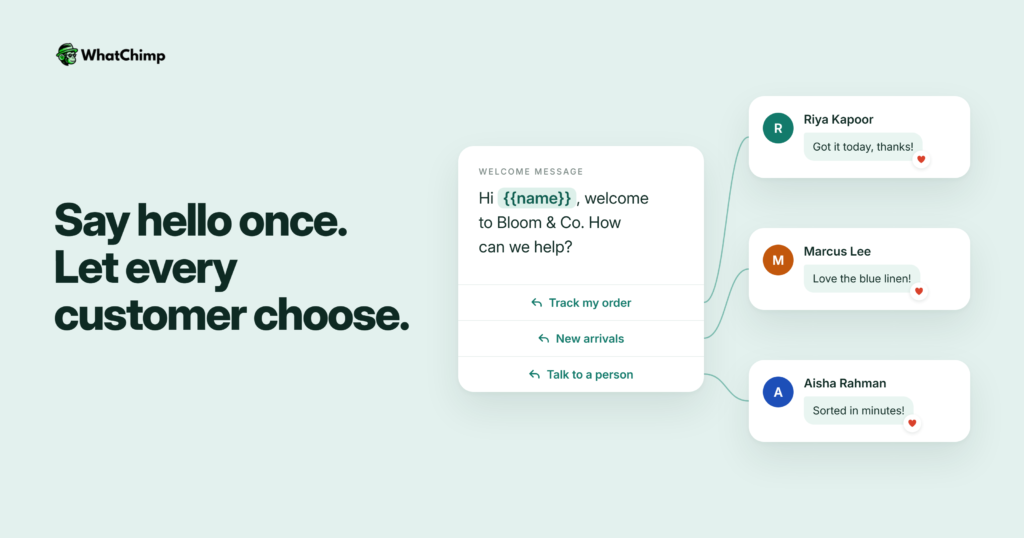
- Body: “Hi! Welcome to [Store]. What would you like to do?” Buttons: “Track my order” / “New arrivals” / “Talk to a person”
- Body: “Hello! Thanks for messaging [Salon]. Pick an option below.” Buttons: “Book a visit” / “See prices” / “Ask a question”
- Body: “Hi! Welcome to [Company]. How can we route you?” Buttons: “Book a demo” / “Pricing” / “Support”
Hindi and Hinglish templates
- “नमस्ते! [Business] में आपका स्वागत है 🙏 कीमत जानने के लिए 1, नया स्टॉक देखने के लिए 2, और हमसे बात करने के लिए 3 भेजें।”
- “नमस्ते! हम सुबह 10 बजे से शाम 7 बजे तक जवाब देते हैं। अपना सवाल यहाँ लिखें, हम जल्दी जवाब देंगे।”
- “Hi! [Business] mein aapka swagat hai 🙏 Price ke liye 1, naya stock dekhne ke liye 2, order track karne ke liye 3 bhejiye.”
- “Namaste! Abhi hum offline hain, kal subah 10 baje se reply karenge. Apna sawaal yahin chhod dijiye.”
Festival greetings (that don’t go out of date)
Never put a year or date in a greeting you’ll forget to change. Switch these on for the festival week, then switch back.
- “Happy Diwali from all of us at [Business] 🪔 We’re open with festive timings this week. Reply 1 for gift options, 2 to track an order.”
- “Eid Mubarak from [Business] 🌙 Our team is back on [day]. Leave your message and we’ll reply first thing.”
- “Merry Christmas from [Business] 🎄 Holiday orders ship within [X] days. Reply ‘Gift’ to see our picks.”
What changes when you move to the WhatsApp Business API?
Here’s the question I get most: “Can’t I just keep my app greeting after switching to the API?”
Technically, no. Practically, you won’t want to.
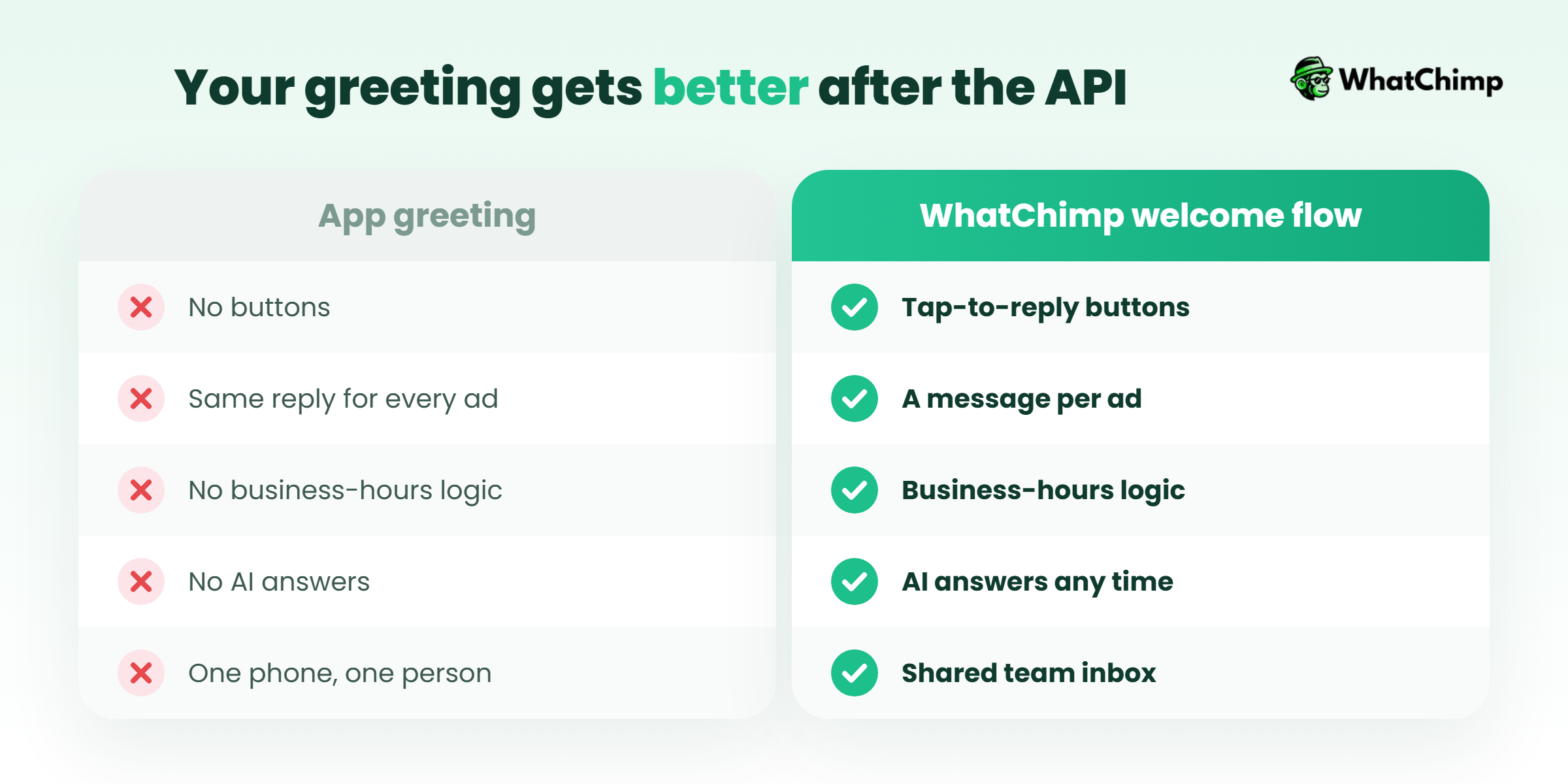
Why your greeting stops working after you connect the API or a CRM
When your number moves to the WhatsApp Business API (directly, through a CRM, or through software like WhatChimp), the Business app settings no longer control that number. There’s no greeting toggle on the API.
I’ve seen this exact pain on the HubSpot Community: a user with two numbers couldn’t set a separate automatic welcome for each one once their integration was connected.
The fix is to rebuild your welcome as an automation. And honestly, it’s an upgrade.
| App greeting | API welcome flow | |
|---|---|---|
| Format | Plain text | Text, buttons, menus, media |
| Different messages per channel or ad | ❌ | ✅ |
| Business-hours logic | ❌ | ✅ |
| Answers questions automatically | ❌ | ✅ (with an AI agent) |
| Team can reply from the same number | One phone | Many people, from the browser |
Building a welcome flow: buttons, menus, AI fallback and handoff
A good API welcome flow has four parts:
- Trigger: what starts it (a keyword like “hi”, an ad click, a website button).
- Choices: reply buttons or a list menu so the customer picks a path.
- Fallback: an AI agent that answers when the customer types something unexpected.
- Handoff: a person takes over in a shared inbox when the bot can’t help.
Example in action: Meera runs a home bakery in Bengaluru. A customer types “hi”. The flow replies: “Hi! Welcome to Meera’s Bakes 🎂 What are you looking for?” with buttons “Custom cake”, “Today’s menu” and “Talk to Meera”. If the customer instead types “do you make eggless?”, the AI agent answers from her FAQ, then offers the same buttons.
Ice breakers and commands
Ice breakers are the tappable questions a customer sees before they type anything. Meta’s conversational components documentation allows up to 4 ice breakers per number, each up to 80 characters, with no emojis. They appear the first time someone chats with you.
Examples that fit:
- “What are your prices?”
- “Where is my order?”
- “Book an appointment”
- “Talk to a person”
One catch. If a customer comes in through a wa.me link with pre-filled text, the ice breakers get dismissed. Using pre-filled links on your website? Then set up your welcome flow to reply to that text instead.
Commands are the other option: up to 30 slash commands like “/track”, each up to 32 characters, with a hint of up to 256 characters.
Outbound welcome templates and opt-in
Sometimes you want to send the first message yourself, for example after someone signs up on your website or places their first order.
That’s a business-initiated message, and WhatsApp’s Business Messaging Policy is clear: you can only message people who gave you their number and opted in to hear from you on WhatsApp, and you can only start conversations with an approved message template.
So:
- ✅ Add a WhatsApp opt-in checkbox at checkout or signup.
- ✅ Use an approved template with variables, like “Hi {{1}}, welcome to [Store]”.
- ✅ Give a way out, such as “Reply STOP to unsubscribe”.
- ❌ Don’t message a list you bought or scraped.
How do welcome messages work with click-to-WhatsApp ads?
Click-to-WhatsApp ads are where a welcome message really earns its keep. Someone taps your Facebook or Instagram ad. WhatsApp opens. And the first thing they see is your welcome.
Two things make this different.
First, you can set a welcome message per ad. Your saree ad greets people about sarees, your kurta ad about kurtas. The app greeting can’t do that.
Second, the cost. Meta’s pricing page says that when a customer messages you from an ad, a free entry point window opens that “may remain open for up to 7 days.” Some vendor blogs still say 72 hours. Go with Meta’s figure.
In WhatChimp, setting the welcome message is a step inside the ad builder itself (“What the customer sees first”), and a chatbot can then greet the lead, ask what they need, book the appointment and follow up. Ads are on the Pro plan.
What does a WhatsApp welcome message cost?
It depends on where you send it from.
The app greeting is free. It’s part of the WhatsApp Business app.
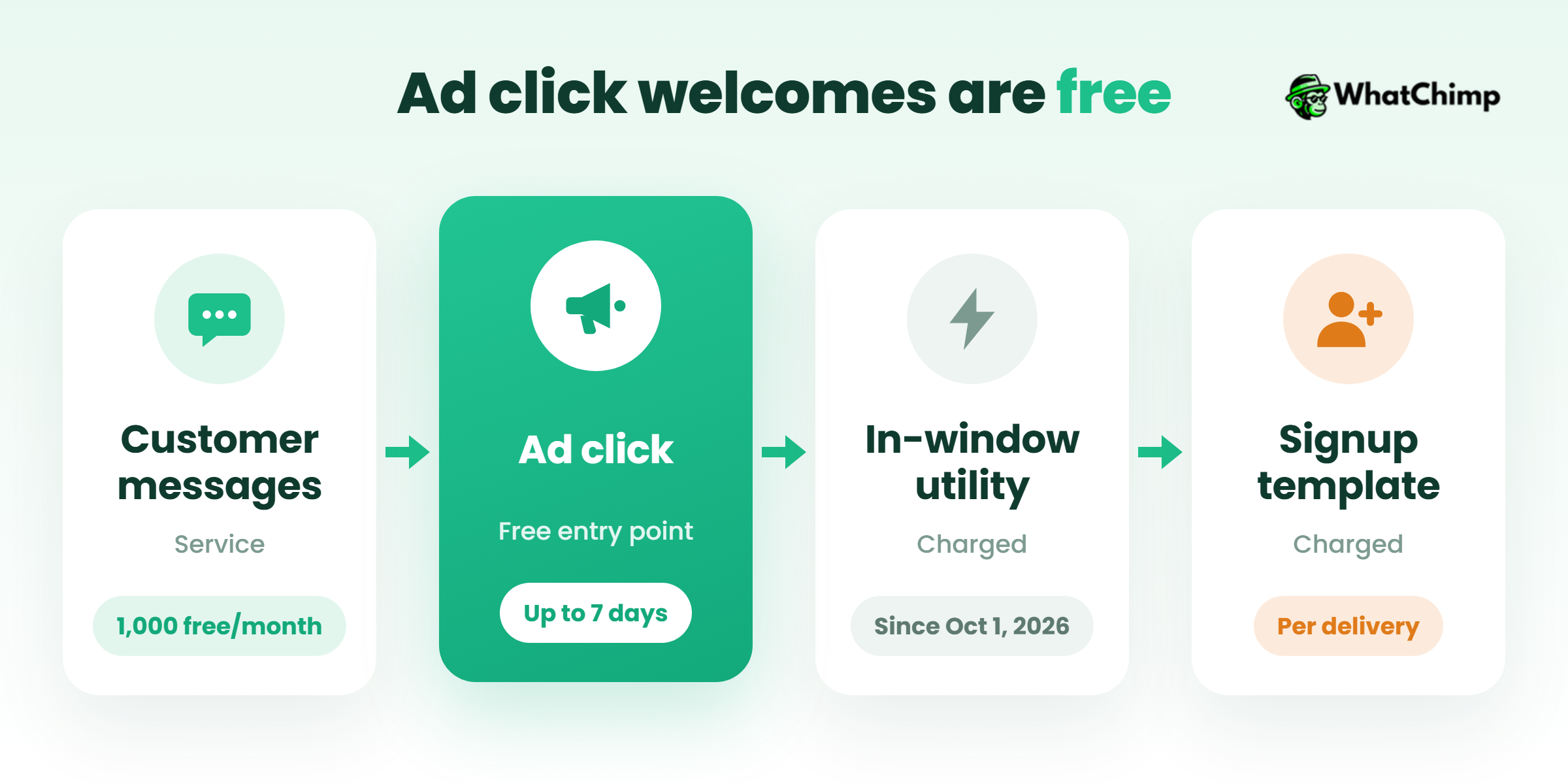
On the API, Meta has charged per message since July 1, 2025, and only when a message is delivered. Here’s how a welcome message is billed as of October 1, 2026, per Meta’s pricing page:
| Welcome scenario | How Meta treats it | Cost |
|---|---|---|
| Customer messages you first, you reply | Service message, inside the 24-hour customer service window | First 1,000 service messages a month free, charged after that since October 1, 2026 |
| Customer clicks your ad, you reply | Free entry point window | Free for up to 7 days |
| You send a utility template inside an open window | Utility | Charged since October 1, 2026 (it was free from July 1, 2025) |
| You send a welcome template after a signup | Marketing or utility template | Charged per delivered message |
One more thing for Indian businesses: marketing rates in India went up on January 1, 2026, and billing is moving to INR, with migration due by December 31, 2026. Rates change, so check Meta’s current rate card before you budget.
WhatChimp passes Meta’s fees through at Meta’s own rates, with 0% markup. Our WhatsApp Business API pricing guide walks through the categories in more detail.
How do you write a WhatsApp group welcome message?
Group welcomes are a different thing. The business greeting is for one-to-one chats with your business. In a group, you write the welcome yourself when someone joins.
First, the etiquette: always ask before you add someone to a group.
Then keep the welcome short, say what the group is for, and give one or two rules.
- “Welcome to the [Business] VIP group, [Name]! 🎉 We share new arrivals here first. Please keep chats on topic.”
- “Hi [Name], welcome! This group is for [Society] residents only. Notices go out on Mondays, questions anytime.”
- “Welcome aboard, [Name] 👋 This is the batch group for [Course]. Class links and notes get posted here.”
- “Hey [Name], great to have you here! Introduce yourself with your name and city when you get a minute.”
- “Welcome to the [Brand] community, [Name]. No forwards or promotions please. Questions about our products are always welcome.”
How do you know your welcome message is working?
You don’t need a dashboard full of charts. Honestly, you don’t. Watch four numbers for two weeks. Then change one line at a time and see what moves.
| What to watch | What it tells you | What to change if it’s poor |
|---|---|---|
| Reply rate to the welcome | Whether people engage at all | Fewer words, clearer choices |
| Which choice people pick | What new customers actually want | Put the most-picked option first |
| Time to first human reply | Whether your promise is honest | Change the stated hours or add staff |
| Chats that go quiet after the welcome | Where people drop off | Rewrite that branch of the flow |
Example in action: Faisal runs an electronics shop in Lucknow. His tracking showed most people picked “Prices” first, so he made it option 1. Then he added a list of his top products under that option instead of asking “Which product?”.
Pro tip: Test a new greeting with the “Only send to…” option on a few friends’ numbers before switching it on for everyone.
How to set up an automated welcome flow with WhatChimp
If you’ve outgrown the app greeting, or your greeting vanished after connecting the API, here’s how we’d rebuild it. WhatChimp is browser-based software built on the official WhatsApp Business API, so your team logs in and answers from the same number.
Step 1: Sign up and connect your number
Time required: 5 to 10 minutes
- Create your account. No credit card required to start.
- Click Connect WhatsApp and follow Meta’s setup to link your business number.
Step 2: Build the welcome flow
Time required: 10 to 15 minutes
- Open the chatbot builder in WhatsApp automations.
- Add keyword triggers such as “hi”, “hello” and “price”.
- Add guided choices with buttons for your two or three most common requests.
- Add a condition check for business hours, so late-night chats still get an answer and keep moving.
Step 3: Add an AI fallback and a human handoff
Time required: 10 minutes
- Train the AI chatbot on your website, PDFs and FAQs.
- Set it to hand off to a person when it detects the customer needs one.
- Route those chats to your shared inbox so whoever’s free picks them up.
Step 4: Add outbound welcomes for new customers
Time required: 5 minutes
- Connect the Shopify integration.
- Pick the “order created” event and attach your approved first-order welcome template. In my experience, template approvals come back in about 10 seconds.
What you get:
- ✅ A different welcome for each ad, keyword or entry point
- ✅ Answers outside business hours
- ✅ Your whole team replying from one number in the browser
If you want to see this running on your own number, set up the free account and build just the first flow today. You can check plans on the pricing page.
Conclusion
You now know the greeting fires only on a first message or after 14 days of silence, that you switch it on under Business tools, and that it disappears once you move to the API.
You also have more than 30 templates and the cost picture under Meta’s October 2026 rules.
Your one job today: replace “How can we help?” with a greeting that offers two or three choices. If you’re already on the API, rebuild that welcome message WhatsApp customers see first as a flow in WhatChimp, with buttons and a handoff to your team.
So what’s the first thing a new customer reads when they message you right now?
FAQs
Can I have different greeting messages for different customers?
No, not in the WhatsApp Business app. You get one greeting, full stop. The only thing you control is who receives it, through the four recipient options. Want a different welcome for each ad, keyword or channel? Then you’ll need the WhatsApp Business API and a flow builder.
Can I add buttons or images to my WhatsApp greeting message?
No, the app greeting is plain text, though emojis work. Reply buttons, menus and media need the API. There, Meta allows up to three reply buttons with labels of up to 20 characters each.
Why is my WhatsApp greeting message not being sent?
It’s usually the 14-day rule: the customer messaged you recently, so it isn’t supposed to fire. Other common causes:
- ❌ The contact is saved and you chose “Everyone not in address book”
- ❌ Your phone is offline
- ❌ Meta Business Agent is connected, which turns greetings off
- ❌ Your number has moved to the API
Does a welcome message cost money?
It costs nothing in the WhatsApp Business app. On the API, replies to a customer’s message count as service messages: the first 1,000 a month are free and the rest are charged, as of October 1, 2026. Replies to click-to-WhatsApp ad leads are free for up to 7 days, and outbound welcome templates are charged per delivered message.
Can I personalise the greeting with the customer’s name?
Not in the app greeting, which sends the same text to everyone. On the API, approved templates can carry variables like {{1}} for the customer’s name, and chatbot flows can use details the customer shares.
Does the greeting work in WhatsApp groups?
No, the business greeting is built for one-to-one chats with your business. For groups, write your own welcome when someone joins. Keep it to what the group is for and one or two rules, and always ask before adding anyone.
Can AI reply to my WhatsApp welcome messages?
Yes, on the API. Train an AI agent on your website, PDFs and FAQs and it’ll answer the questions your buttons don’t cover. When a chat needs a real person, it hands over to your team.