How to schedule messages on WhatsApp: Android, iPhone, Web and Business (November 2026)
Learn how to schedule messages on WhatsApp on Android, iPhone, Web and the Business app, what's safe, and how businesses schedule at scale with real costs.


On this page
What this guide covers
- Key takeaways
- Can you actually schedule messages on WhatsApp?
- Which scheduling method should you pick?
- How to schedule messages on WhatsApp using the built-in scheduler
- How to schedule WhatsApp messages on iPhone with Shortcuts
- How to schedule WhatsApp messages on Android
- How to schedule messages on WhatsApp Web or desktop
- How to schedule messages in the WhatsApp Business app
- Is a WhatsApp message scheduler app safe to use?
- How businesses schedule WhatsApp messages at scale
- Ready-to-copy scheduled message templates
- Best practices for WhatsApp timed messages
- Conclusion
- FAQs
Key takeaways
- Looking up how to schedule messages on WhatsApp? Honest answer: WhatsApp has been testing a built-in scheduler since October 2026, but most people don’t have it yet.
- Once you get it, you tap and hold Send and pick a time anywhere from 10 minutes to two weeks out. The message goes even if your phone’s offline.
- Until then, iPhone users can try Shortcuts and Android users can try scheduler apps. Stay away from unofficial WhatsApp mods, though. They can get your account banned.
- The WhatsApp Business app lets you schedule business broadcasts for later. The catch is it’s only for eligible users in select countries.
- Scheduling campaigns to hundreds of opted-in customers? Use the official WhatsApp Business API. You pay per delivered message.
What if I told you WhatsApp has finally built a “send later” button, and you still probably can’t see it?
You’d think I’m pulling your leg.
I’m not. WhatsApp started giving scheduled messages to some Android beta testers in October 2026, and iPhone beta testers got it ten days later. Everyone else is still doing it the old way.
And the old way hurts.
You set an alarm for 11:58 pm just to send your brother’s birthday wish at midnight. Or you run a shop, and on Sunday night you’re copy-pasting Monday’s offer into 200 chats one by one, hoping nobody replies “who is this?”
I’ve run WhatsApp campaigns for years. And yes, I’ve done both. In this guide, I’ll show you how to schedule a message in WhatsApp on every device. You’ll see which methods are safe, and how businesses send scheduled messages to thousands of customers without breaking WhatsApp’s rules.
First, the question everyone asks.
Can you actually schedule messages on WhatsApp?
Technically, yes. In practice, it depends on which phone you use and what you’re sending. Here’s where things stand in November 2026:
| Option | Who has it | Fully automatic? |
|---|---|---|
| Native scheduled messages | Some Android and iPhone beta testers | Yes |
| Business app broadcasts, “schedule for later” | Eligible users in select countries | Yes |
| Business app away messages | All Business app users | Yes, but only as auto-replies |
| iPhone Shortcuts | Any iPhone | Not always |
| Android scheduler apps | Any Android | Mostly, with caveats |
| WhatsApp Business API platform | Any business | Yes |
WhatsApp’s native scheduler (beta): what we know
Here’s how it works, according to WABetaInfo’s report on Android beta 2.26.40.7:
- Press and hold the Send button. Then choose your date and time.
- The earliest slot is 10 minutes from now. The latest is two weeks ahead.
- You can schedule text, links and one photo or video per message.
- Groups work too. But only people who are in the group when you schedule it will get the message.
- It still sends if your phone’s offline or the app is closed.
- Your scheduled messages are listed in chat info.
WhatsApp hasn’t said when this will reach everyone, and you can’t switch it on yourself. If a blog tells you it launched in 2025 with a 30-day range, that blog is wrong.
What the WhatsApp Business app can schedule today
The Business app has a real scheduler called business broadcasts. WhatsApp says it’s “available to eligible users in select countries”. These broadcasts arrive as private one-to-one messages, even for people who haven’t saved your number.
It also has away messages. Those are auto-replies, not scheduled messages, so don’t confuse the two.
Which scheduling method should you pick?
Find the row that sounds like you.
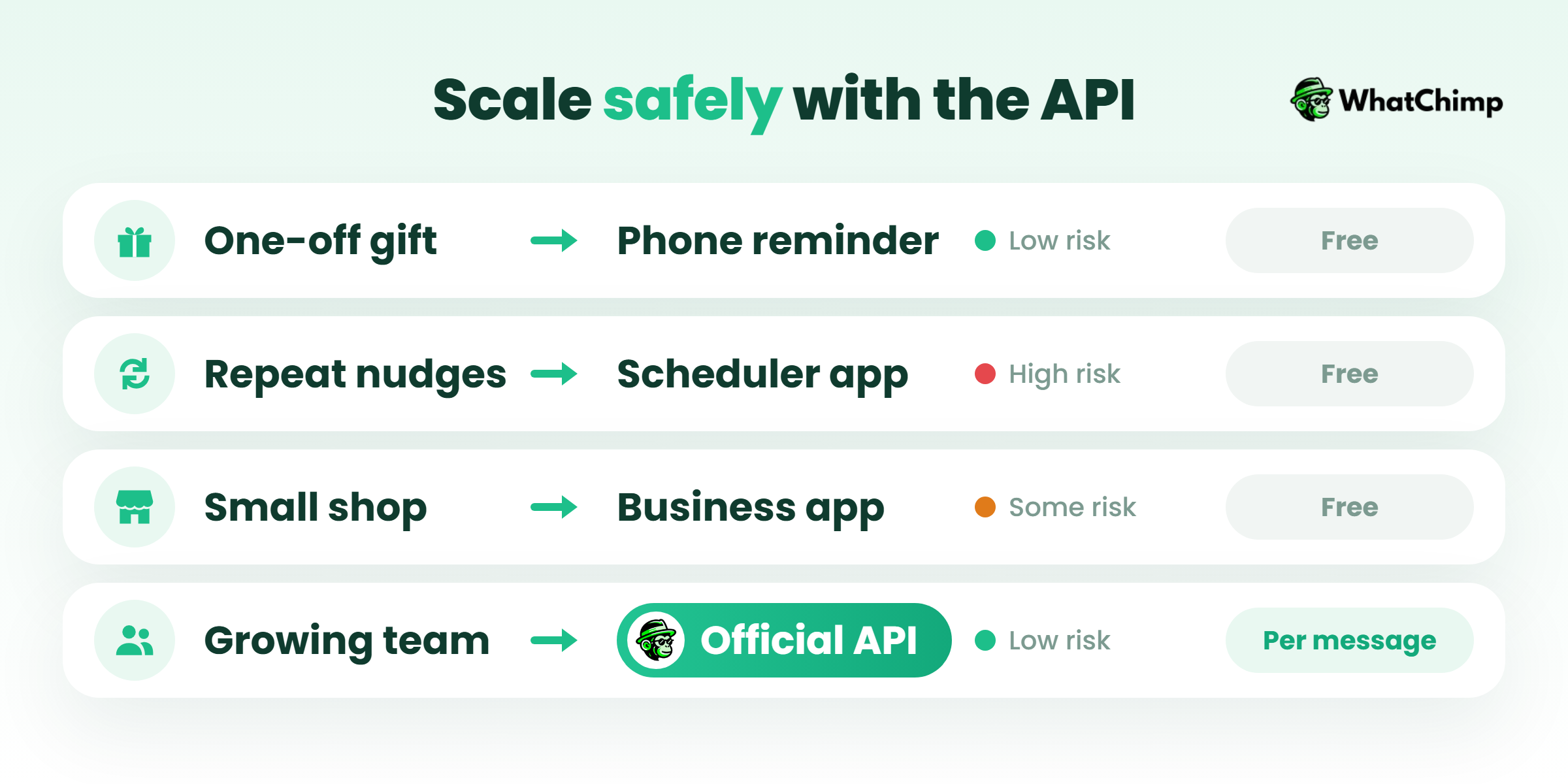
| Your need | Best method | Ban risk | Cost |
|---|---|---|---|
| One birthday wish | Native scheduler or iPhone Shortcuts | None, these are official tools | Free |
| A recurring personal reminder | Shortcuts or an Android scheduler app | Low to medium (third-party access) | Free or an app fee |
| A small shop with a few hundred contacts | Business app broadcasts, if available | Low | Free app |
| A team, bulk campaigns, follow-ups | WhatsApp Business API platform | Low if you follow Meta’s rules | Meta’s per-message fees plus software |
How to schedule messages on WhatsApp using the built-in scheduler

Step 1: Check whether you have it
Time required: 1 minute
- First, update WhatsApp from the Play Store or App Store.
- Open any chat and type what you want to send.
- Press and hold the Send button. See a scheduling option? Then you’ve got it.
Step 2: Pick when it goes out
Time required: 30 seconds
- Pick any time from 10 minutes to two weeks from now.
- Confirm. That’s it. Your message waits in the chat info list until it sends.
What you get:
- ✅ Delivery even when your phone is switched off
- ✅ No third-party app and no ban risk
Pro tip: In a group, add any new members before you schedule. People who join afterwards won’t get the message.
How to schedule WhatsApp messages on iPhone with Shortcuts
If you don’t have the beta, Apple’s Shortcuts app is the safest workaround on iPhone.
- Open Shortcuts and tap the Automation tab.
- Tap the plus button. Choose Time of Day.
- Set the time, then pick how often it repeats.
- Add the “Send Message” action for WhatsApp. Pick the contact and type your text.
- See Run Immediately? Choose it. Not every iOS version has it.
Limitations:
- ❌ It might still ask you to confirm before sending. That depends on your iOS version and settings.
- ❌ Time of Day automations repeat, so for a one-off wish you have to delete the automation once it has run.
- ❌ Your phone needs to be on.
How to schedule WhatsApp messages on Android
To schedule WhatsApp messages on Android today, most people use an app like SKEDit.
- Install the app and allow Accessibility access when it asks.
- Go to Settings and switch off battery optimisation for the app.
- Create a schedule. Choose the contact, write your message and set the time.
Here’s the catch. Accessibility access lets the app read your screen and tap for you. That’s how it presses Send. And if battery optimisation kills the app in the background, your message just never goes. The free versions have limits too. Want extras like CSV import? That’s a paid plan.
How to schedule messages on WhatsApp Web or desktop
WhatsApp Web doesn’t have its own scheduler. Chrome extensions fill the gap. The problem? They run inside your logged-in session, so they can see your chats. And your computer has to stay on with the tab open.
How to schedule messages in the WhatsApp Business app
Schedule a business broadcast
Time required: 3 to 5 minutes
- Tap Tools, then select Business broadcasts.
- Select your contacts.
- Write the message and add call-to-action buttons.
- Choose to send immediately or schedule for later.
- Check the insights once it has gone out.
Set up away messages
Go to Business tools, then Away message, and choose Always send, Custom schedule or Outside business hours. Outside business hours only works once you’ve set your hours in the business profile. Away messages also need an active internet connection to send.
Is a WhatsApp message scheduler app safe to use?
Some are. Some will get you banned.
WhatsApp’s own help page on unofficial apps names GB WhatsApp, FM WhatsApp, TeleMessage and TM WhatsApp as Terms of Service violations. Using them can get your account temporarily or permanently banned, and it can also stop you from linking devices.
- ❌ Modded WhatsApp versions that promise a built-in scheduler
- ❌ Any tool that asks for your WhatsApp verification code (never share it)
- ❌ Unknown apps asking for Accessibility access with no clear reason
- ✅ The native scheduler, the Business app and the official Business API
How businesses schedule WhatsApp messages at scale
“Can’t I just use Business app broadcasts?”
For a small list, sure. But once you have a team, thousands of customers or automated follow-ups, you need the official API. Here are the rules that come with it.

1. Opt-in comes first, or you don’t send
This is the MOST important rule. WhatsApp’s business policy says you can only message people who gave you their number and agreed to hear from you.
2. The 24-hour window decides what you can send
When a customer messages you, a 24-hour customer service window opens. Outside that window, Meta says businesses can only send template messages. So almost every scheduled campaign is a template.
3. Templates need approval before they go out
Every template is categorised as marketing, utility or authentication, and Meta reviews it before you can use it. On WhatChimp, template approvals come back in about 10 seconds.
4. Your sending limit starts at 250 people and grows
New businesses can message 250 unique users in a rolling 24 hours outside the window. If your quality stays high, that limit rises to 2,000, then 10,000, then 100,000, then unlimited, per Meta’s messaging limits.
5. You pay per delivered message
Meta has charged per message since July 1, 2025, and only for messages that get delivered. Since October 1, 2026, each business number gets 1,000 free service messages a month, and anything beyond that is charged. Our WhatsApp Business API pricing guide breaks this down by country.
Scheduling campaigns with WhatChimp
That’s where we come in. WhatChimp runs in your browser on the official WhatsApp Business API. Your whole team logs in and replies from the same number.
- Scheduled broadcasts: set a campaign to go out days or weeks in advance, at a time you pick in your time zone.
- Follow-up sequences: messages at 1 hour, Day 1 and Day 3, inside the 24-hour window or after it.
- Shopify cart reminders: sent after a delay you choose (30 minutes by default), as long as your checkout collects the customer’s phone number.
We’re a Meta Business Partner. We add 0% markup on Meta’s fees, and businesses in 90+ countries already use us. Planning next week’s campaign? Start a 7-day free trial. You won’t need a credit card, and you can schedule your first broadcast tonight.
Ready-to-copy scheduled message templates
Example in action: Priya runs a bakery in Pune. She used to fire off a plain “Sale!” message whenever she remembered. Now she schedules it for Friday at 10 am. Same message, planned time.
For a sale (marketing template):
Instead of: “SALE SALE SALE visit now”
Use: “Hi Ankit, our weekend cake sale starts tomorrow at 9 am. Reply YES and we’ll keep your favourite chocolate truffle aside.”
For an appointment (utility template):
Instead of: “Reminder of appointment.”
Use: “Hi Sarah, this is a reminder about your appointment tomorrow at 4 pm. Reply 1 to confirm or 2 to reschedule.”
For a cart reminder:
Use: “Hi Rohan, you left the blue kurta in your cart. It’s still in your size. Tap below to finish your order.”
For a birthday (personal):
Use: “Happy birthday, bhai! Scheduled this two weeks ago so I wouldn’t forget. Party’s on you.”
Best practices for WhatsApp timed messages
1. Send in your customer’s time zone, not yours
A message that lands at 3 am gets muted, or worse, reported.
2. Pick the right template category, because it changes the price
A reminder is utility and a promotion is marketing. Meta prices them differently.
3. Send fewer messages and make them better
Quality affects how fast your limits grow. Segment your list and only send each offer to the people it fits.
4. Test on yourself first
Schedule the message to your own number and read it on your phone before the real send.
Conclusion
You now know how to schedule messages on WhatsApp on every device. The native scheduler is coming but isn’t here for most people yet, and mods aren’t worth the ban risk.
If you’re a business, plan this week’s offer as a template and schedule it to your opted-in customers with WhatChimp.
So, what’s the first message you’d schedule?
FAQs
Can we schedule a message in WhatsApp without any app?
Yes, if you have the native beta or the Business app’s broadcast feature. Otherwise, iPhone users can use Shortcuts, which is built into iOS. Android users will need a third-party app for now.
Does my phone need to be on for a scheduled message to send?
It depends on the method. The native scheduler sends even when your phone is offline.
| Method | Phone must be on? |
|---|---|
| Native beta | No |
| Shortcuts or Android apps | Yes |
| Business API platform | No |
Can I schedule a message in a WhatsApp group?
Yes, with the native scheduler. Only people who are members when you schedule will get it. Android apps can usually target groups too, with the same Accessibility risks.
How far ahead can I schedule a WhatsApp message?
You can schedule up to two weeks ahead with the native beta, and no sooner than 10 minutes from now. API platforms let you schedule campaigns days or weeks out.
What is the best WhatsApp message scheduler app?
For personal use, it’s the native scheduler once you have it. For business, it’s an official API platform.
- ❌ GB WhatsApp or other mods
- ❌ Tools that ask for your verification code
How much does it cost to schedule WhatsApp messages to customers?
You pay Meta’s per-message fees plus your software plan. As I write this, WhatChimp’s pricing page shows the Basic plan at $12 a month billed yearly with a 50% coupon (normally $24). Prices change, so check the pricing page on the day.