WhatsApp Web for business: setup, limits and when your team needs more
WhatsApp Web for business, explained: how to log in, the 4-device and 14-day limits, what won't work on a computer, and when your team needs more.

On this page
What this guide covers
- Key takeaways
- What is WhatsApp Web for business?
- How to set up WhatsApp Business Web (step by step)
- What you can do from a computer
- What WhatsApp Business Web can’t do
- Myths: what WhatsApp Business Web is NOT
- How many devices can you link, and how long do they last with your phone off?
- Common problems and fixes
- Staying safe on business WhatsApp Web
- When WhatsApp Web for business stops being enough
- How do you run team WhatsApp in a browser with WhatChimp?
- Conclusion
- FAQs
Key takeaways
- WhatsApp Web for business lives at the same address as personal WhatsApp (web.whatsapp.com). Open it, scan the QR code with your WhatsApp Business app, and you’ll be replying from your computer in a couple of minutes.
- You can link up to four devices to one Business account. They keep working even when your phone is offline, according to WhatsApp’s Help Center.
- Linked devices log you out in two cases: your phone goes 14 days without WhatsApp being used, or the computer itself sits unused for 30 days.
- You can’t create or even view broadcast lists on a computer. Bulk sending stays on your phone, or it moves to the official WhatsApp Business API.
- More than four people replying? Need chat assignment, bulk campaigns or answers after hours? Then your next step is a team inbox built on the API.
What if I told you the WhatsApp Business app on your shop phone can run on four computers at once? Even with the phone switched off?
You’d probably think I’m exaggerating. I’m not.
I’m not. It’s right there in WhatsApp’s own Help Center.
Right now you’re probably thumb-typing order updates between customers while the laptop on the counter sits idle. Or your staff keep asking for “the phone” so they can answer someone.
WhatsApp Web for business fixes most of that, for free.
Not all of it, though.
In this guide I’ll show you how to set it up, what works on a computer and what doesn’t, the logout rules that catch everyone out, and the exact point where your team needs something bigger.
Last checked: 5 November 2026, against WhatsApp’s and Meta’s own pages.
First, what it actually is.
What is WhatsApp Web for business?
It’s your WhatsApp Business app, mirrored on a computer.
There’s no separate business website and no browser extension. WhatsApp Business Web uses the same web.whatsapp.com that personal accounts use. Which account shows up depends on the phone you scan the QR code with.
“Can’t I download a proper WhatsApp Business app for my laptop?”
Sort of. Here are your options:
| Option | Where it runs | What you install | Best for |
|---|---|---|---|
| WhatsApp Business app | Android or iPhone | The app (required) | Your main account, broadcast lists, settings |
| WhatsApp Web | Any modern browser | Nothing | Quick access from any computer |
| WhatsApp Desktop | Windows or Mac | WhatsApp’s desktop app | All-day use with proper notifications |
Your phone app always stays the main device. Web and Desktop are “linked devices” that hang off it.
Is it free?
Yes. The Business app, WhatsApp Web and the desktop app cost nothing to use.
Money only comes into it when you move to the WhatsApp Business API. Meta charges the API per message, and from 1 October 2026 it started charging again for service messages that used to be free. Each business number gets 1,000 free service messages a month, and Meta charges from the 1,001st.
How to set up WhatsApp Business Web (step by step)
Step 1: Open WhatsApp Web on your computer
Time required: 30 seconds
- Open your browser.
- Type web.whatsapp.com into the address bar. Type it yourself, don’t click a search ad.
- Wait for the QR code to appear.
Step 2: Link your Business app with the QR code
Time required: 1 to 2 minutes
- Open WhatsApp Business on your phone.
- On Android, tap the three dots, then Linked devices. On iPhone, tap Settings, then Linked devices.
- Tap Link a device and unlock your phone if it asks.
- Point your camera at the QR code on the screen.
What you get:
- ✅ Your chats load on the computer
- ✅ You type replies on a real keyboard
- ✅ Your phone stays free for calls and photos
Step 3: No camera? Log in with your phone number
Time required: 2 minutes
- On the QR screen, click the option to log in with your phone number.
- Enter your business number. A code appears on your computer.
- On your phone, tap the notification and type in the code. (No notification? Go to Linked devices and pick the option to link with a phone number.)
Seeing a passkey prompt? Don’t panic. WhatsApp just wants you to confirm with your phone’s fingerprint, face or screen lock. Approve it. You’re in.
Step 4 (optional): Get the WhatsApp Business Web for PC or Mac app
Live in WhatsApp all day? Then the desktop app beats a browser tab. Get it only from WhatsApp’s official download page, which also tells you which Windows and macOS versions it supports. Is your computer older than that? Stay with WhatsApp Web in your browser.
Then link it with the same QR scan as Step 2.
What you can do from a computer
Most of your everyday tools come with you to the bigger screen. WhatsApp lists greeting messages, away messages, quick replies, labels and a catalog among its Business app features, and you’ll use quick replies and labels constantly on web.
Quick replies are the big one. Type “/” in a chat and your saved answers pop up.
Example in action: Priya runs a home bakery and gets the same delivery question about 30 times a day.
Instead of: “hi yes we deliver what is your address”
Use: “Hi! Yes, we deliver across the city from 10am to 8pm. Send me your address and I’ll confirm your slot in a few minutes 🎂”
She saved it once as “/delivery”. Now it’s two keystrokes. And every customer gets the friendly version, even at 7pm when she’s running on empty.
Pro tip: Set up your greeting and away messages on the phone first. Then forget about them. They keep running in the background, whichever device you’re replying from.
What WhatsApp Business Web can’t do
This is where most people get surprised.
| Feature | Phone app | Web / Desktop |
|---|---|---|
| Chats, photos, documents | ✅ | ✅ |
| Quick replies and labels | ✅ | ✅ |
| Create or view broadcast lists | ✅ | ❌ |
| See which teammate sent a reply | ❌ | ❌ |
| Assign a chat to one person | ❌ | ❌ |
The broadcast list row comes straight from the Help Center, which lists “Creating and viewing broadcast lists” as not supported on linked devices.
Broadcast lists vs Business Broadcasts
Don’t mix these two up.
Broadcast lists are the old feature: one message sent to a list of your contacts. That one is phone only.
Business Broadcasts is a newer feature that, in WhatsApp’s words, lets you “message people even if they haven’t saved your number”. It’s marked “Available to eligible users in select countries”, so check your app before you plan a campaign around it.
Myths: what WhatsApp Business Web is NOT
A few myths I hear every week from shop owners:
- ❌ It’s not a separate download or a Chrome extension. It’s a website.
- ❌ It doesn’t need your phone online. Linked devices work on their own.
- ❌ It’s not a bulk sender. Broadcast lists stay on the phone.
- ❌ It’s not a team inbox. Everyone who logs in looks like the same person.
What it IS: your Business app on a bigger screen. That’s genuinely useful for a one or two person business.

How many devices can you link, and how long do they last with your phone off?

The 4-device limit (and 10 with Meta Verified)
WhatsApp’s Help Center says: “You can stay connected by linking up to four devices at a time to your primary phone.”
So your phone, plus four computers or tablets.
You might have seen a figure of 10 elsewhere. WhatsApp’s features page says you can link “up to 10 devices and agents”, but that line sits in its Meta Verified section. My reading: four is the standard limit, and with Meta Verified, WhatsApp says up to 10.
The 14-day and 30-day logout rules
Two rules, both from the Help Center:
- Linked devices work without your phone online, but log out if your phone goes unused for over 14 days.
- WhatsApp also disconnects a linked device after 30 days of inactivity on that device.
So if the shop phone sits in a drawer for two weeks, everybody’s laptop gets logged out. Open WhatsApp on that phone once a week and you’ll never hit it.
Can several people use it at once?
Yes, up to four, each on their own computer.
But here’s the catch. They all reply as one account. Nobody can see who sent which message, and nothing stops two people answering the same customer.
Example in action: a customer, Rahul, asks a clothing store about a return. Two staff members see the chat at the same moment. One writes “Sure, bring it in this week”, the other writes “Sorry, sale items can’t be returned”. Rahul is now confused, and the owner has no way to tell who said what.
That’s fine at two people. At five, it gets messy.
Common problems and fixes
| Problem | Likely cause | Fix |
|---|---|---|
| QR code won’t scan | Screen glare, zoomed page, dirty camera lens | Reset browser zoom, wipe the lens, reload for a fresh code |
| Logged out on its own | Phone unused for 14 days, or computer unused for 30 | Open WhatsApp on the phone, then link the computer again |
| “Phone not connected” message | Old session or outdated app | Update the Business app, log out the device and link it again |
| Old messages missing | History still syncing after linking | Keep the phone on Wi-Fi for a few minutes after you link |
| Page won’t load | Browser cache or an extension interfering | Clear the cache, turn off extensions, try another browser |
| Left it logged in on a shared PC | Forgot to log out | On your phone, go to Linked devices, tap that device, tap Log out |
That last fix is the one to remember. You can kick any computer off your account from your phone, wherever you are.
Staying safe on business WhatsApp Web
Search “broadcast WhatsApp Web” and you’ll find plenty of Chrome extensions promising to blast thousands of messages from your browser.
This is the MOST important rule in this guide: don’t install them. They’re unofficial, they automate a tool that was never built for bulk sending, and unofficial apps are a well-known way to get a number banned.
- ✅ Check your Linked devices list every week and log out anything you don’t recognise
- ✅ Lock your computer whenever you walk away from the counter
- ✅ Download the desktop app only from WhatsApp’s own site
- ❌ Don’t give staff your phone just so they can scan a QR code on their personal laptop
- ❌ Don’t use extensions that read, export or bulk-send your chats
When WhatsApp Web for business stops being enough
WhatsApp Web for business is great until one of these four things happens.
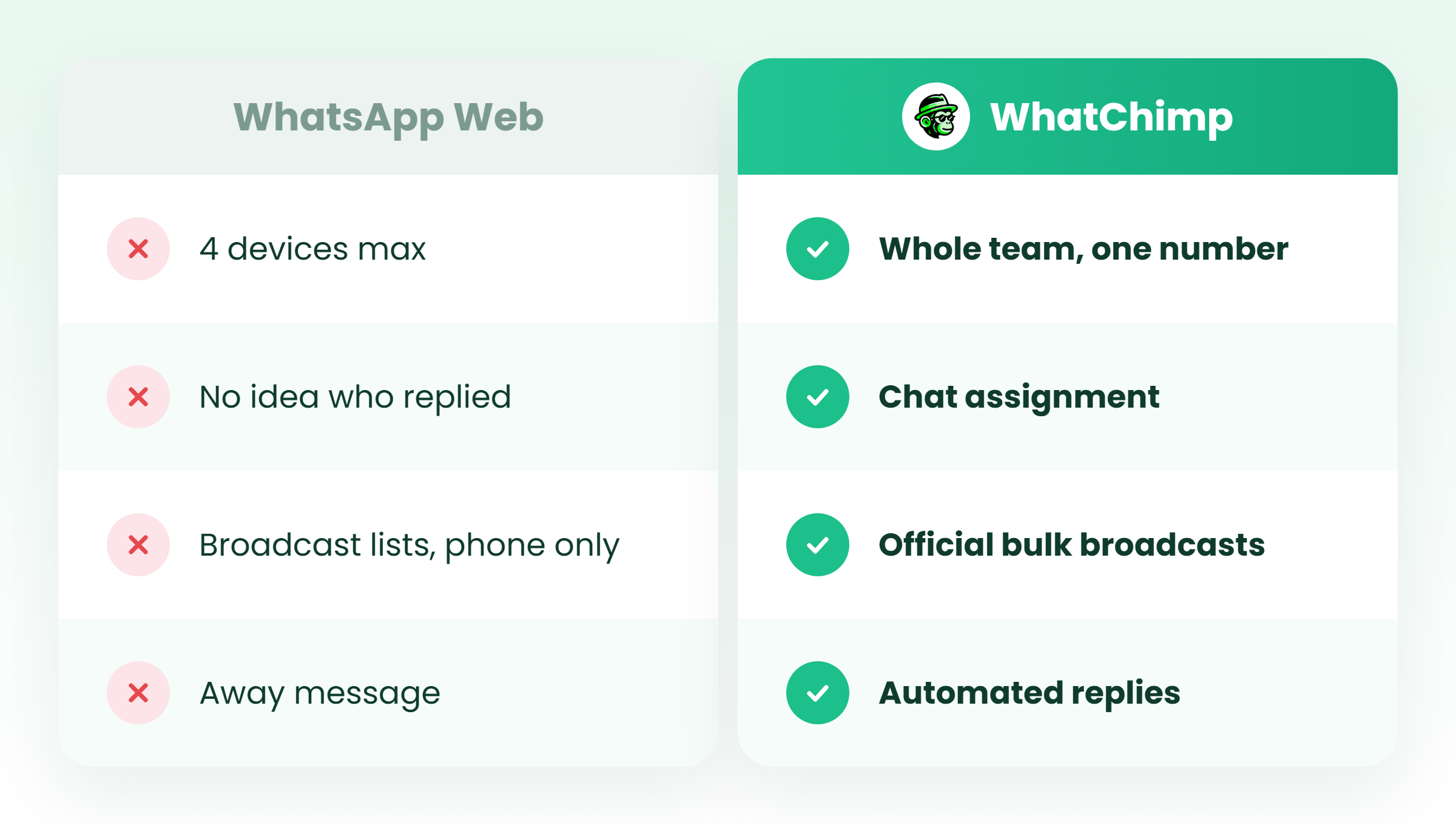
1. More than four people need to answer
The device cap is a hard wall. Your fifth person has nowhere to log in.
2. You need to know who told the customer what
Refunds, discounts and promises need an owner. Web can’t show you one.
3. You want to message hundreds of customers at once
Broadcast lists don’t exist on a computer, and extensions put your number at risk.
4. Customers message at 11pm and expect an answer
An away message says “we’re closed”. It doesn’t tell anyone their order status.
If you ticked two or more, it’s time to look at the WhatsApp Business API. Here’s how it compares with the app:
| Feature | Business app + Web | WhatsApp Business API |
|---|---|---|
| Cost | Free | Per message from Meta, with 1,000 free service messages per number each month (source) |
| People replying | Up to 4 linked devices | As many seats as your software includes |
| Bulk sending | Phone-only broadcast lists | Approved templates to opted-in contacts |
| Who replied | Not visible | Tracked per agent |
| After-hours replies | Away message | Chatbots and automations |
One API rule you should know up front. When a customer messages you, a 24-hour customer service window opens. After it closes? You can only send pre-approved template messages.
Keep your app with coexistence: what changes
You don’t have to give up the phone app. Meta’s coexistence setup lets you run the Business app and the API on the same number. Meta’s developer docs spell out the changes:
- You need Business app version 2.24.17 or later
- Broadcast lists are disabled, and existing ones become read-only
- Linked devices get unlinked and can be linked again, except WhatsApp for Windows
- API sending speed is fixed at 20 messages per second
- Messages you send from the app stay free, while API messages follow API pricing
Nobody else tells you about the Windows app part. If your team lives in WhatsApp for Windows, switch them to the browser before you connect.
How do you run team WhatsApp in a browser with WhatChimp?
This is the part where I talk about what we built. Don’t worry, it’s short.
WhatChimp runs in your browser, and it’s built on the official WhatsApp Business API. Your whole team logs in and replies from the same number. No four-device cap. Our shared team inbox gives you chat assignment, tags, canned responses and number masking, so you’re never guessing who replied to Rahul.
Coexistence comes with every plan, so the app stays on your phone. For campaigns, official bulk broadcasts do what broadcast lists can’t: segmentation and scheduling. Template approvals take about 10 seconds. And Automations take the 11pm questions, so you don’t have to.
We’re a Meta Business Partner, we add 0% markup on Meta’s conversation fees, and businesses in 90+ countries use us.
An honest word, though: if you’re a two-person shop, free WhatsApp Web probably does the job. Our Basic plan includes 2 team members. So it starts paying off at three or more people, or the day you need bulk sending or automation. Want to see for yourself? There’s a 7-day free trial. No credit card.
Conclusion
So now you know how to get WhatsApp Business onto your computer and what the four-device and 14/30-day rules mean. Broadcast lists? They stay on your phone, and now you know why.
For most small shops, that’s enough. Set up web today. Then save the answers you type most often as quick replies.
Has your team outgrown four devices? Start a free WhatChimp account and connect your number through coexistence. Everyone answers from one inbox, and you don’t lose the phone app.
So tell me, how many people are answering your WhatsApp right now?
FAQs
Is WhatsApp Business Web any different from normal WhatsApp Web?
No. It’s the same website: web.whatsapp.com. What changes is the app you scan the QR code with. Scan with WhatsApp Business and you get your business chats, labels and quick replies.
Can I use WhatsApp for Business web with my phone switched off?
Yes. Linked devices work without your phone online. Your phone still needs to be used at least once every 14 days, or all linked devices log out.
How many people can use WhatsApp web business at the same time?
Up to four, one per linked device. WhatsApp says up to 10 “devices and agents” in its Meta Verified section. Either way, everyone replies as the same account and nobody can see who sent what.
Can I send bulk messages from web WhatsApp business?
No. Broadcast lists can’t be created or viewed on linked devices. Want to send in bulk from a computer? Use a tool built on the official WhatsApp Business API. Never an unofficial browser extension.
Is WhatsApp Web for business free?
Yes, completely. Costs only start when you move to the WhatsApp Business API, which Meta charges per message. Here’s how it breaks down:
| Setup | Cost |
|---|---|
| Business app, Web, Desktop | Free |
| API service messages | First 1,000 per number per month free, then charged by Meta |
| API tool | Your software plan, plus Meta’s fees |
Why does WhatsApp Web keep logging me out?
It’s almost always one of two rules. Your phone hasn’t used WhatsApp for 14 days, or that computer hasn’t been used for 30 days. Open WhatsApp on your phone regularly and link the device again.
Will WhatsApp Web still work if I connect my number to the API?
Yes, mostly. Under coexistence your linked devices are unlinked and you can link them again, except WhatsApp for Windows. Broadcast lists also become read-only.