
Reminder WhatsApp message: 14 templates and how to send them automatically
Copy 14 reminder WhatsApp message templates, learn the 2026 rules on templates, cost and opt-in, and set up automatic WhatsApp reminders that send on time.


On this page
What this guide covers
- Key takeaways
- Do WhatsApp reminders actually work?
- How do you set a reminder on WhatsApp for yourself?
- Can you send a reminder WhatsApp message from the Business app?
- The rules for WhatsApp reminders in 2026
- How to write a WhatsApp reminder message that gets a reply
- 14 reminder templates you can copy
- When should you send each WhatsApp reminder?
- How to automate WhatsApp reminders with WhatChimp
- What a WhatsApp bot reminder is NOT
- Conclusion
- FAQs
Key takeaways
- Just want to remind yourself about a chat? You don’t need a reminder WhatsApp message template for that. Long-press the message, tap More, then tap Remind me. Done.
- If a customer hasn’t messaged you in the last 24 hours, the only way to reach them is an approved template sent through the WhatsApp Business API.
- Keep reminder templates purely informational so Meta files them as utility. Throw in a discount and it becomes marketing, which costs you more.
- Since October 1, 2026, Meta charges for utility messages even inside the 24-hour window. Check the rate card before you plan big volumes.
- Get opt-in first and add an opt-out line. Then automate the timing, so nobody on your team has to remember to hit send.
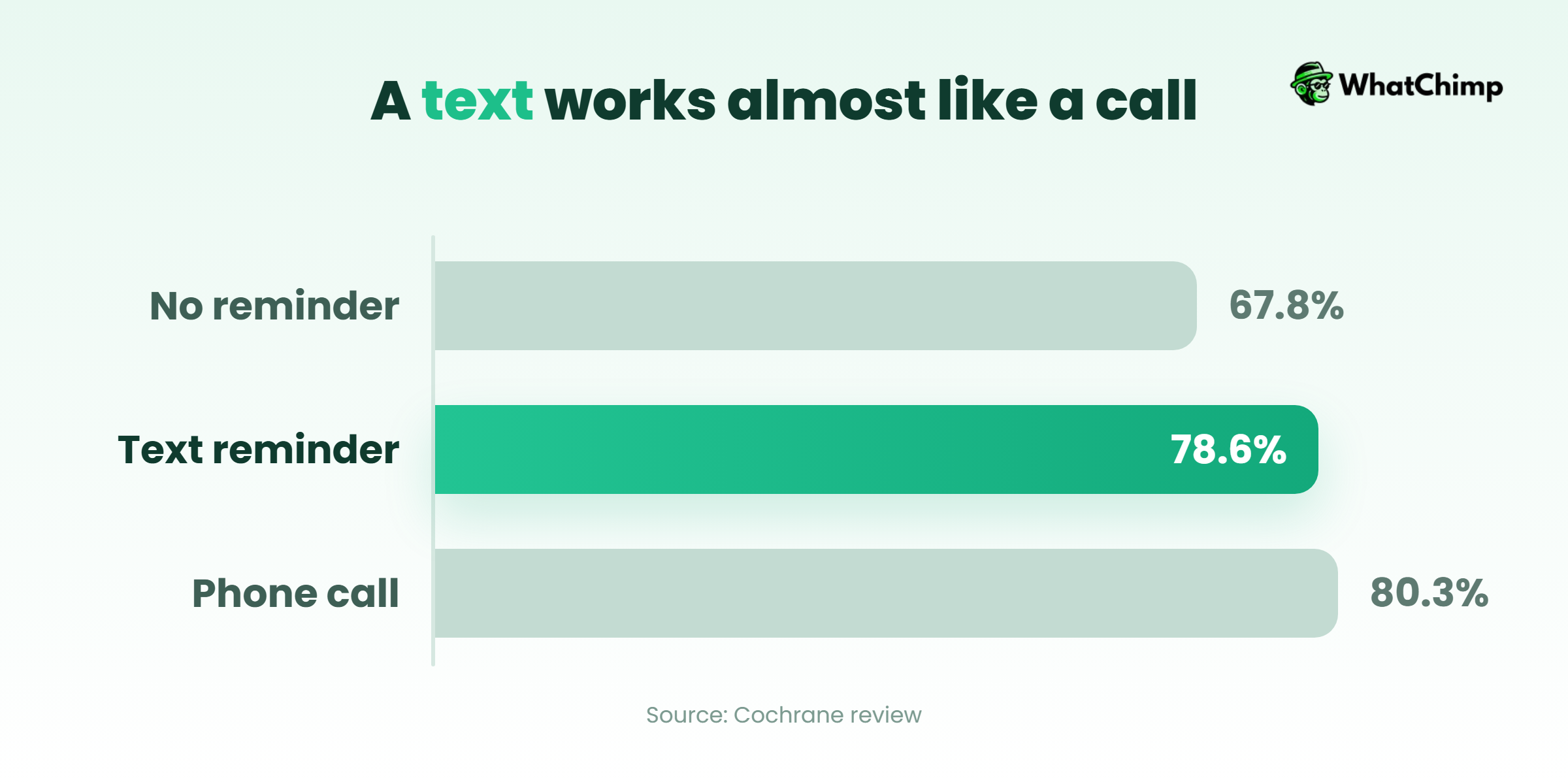
What if I told you a plain text reminder took appointment attendance from 67.8% all the way to 78.6%?
You’d probably say I’m making that up.
I’m not. That comes from a Cochrane review of seven studies, and I’ll show you the numbers below.
Now think about what you’re doing today. It’s 10pm. Tomorrow’s bookings are open on your phone, and you’re pasting the same reminder WhatsApp message into one chat, then the next, changing the name every time. On a busy week, a few slip through. And guess who doesn’t show up? Yep. The ones you forgot.
Here’s what you’ll get. 14 reminder templates you can copy as they are. The 2026 rules that decide whether a reminder actually lands, and what each one costs you. And the setup we use to send every reminder on time while your phone stays in your pocket.
First, the proof.
Do WhatsApp reminders actually work?
Yes. And the best proof is older than most marketing blogs.
A Cochrane systematic review (Gurol-Urganci et al., 2013) pulled together 7 studies covering 5,841 participants. Here’s what it found on attendance:
| Reminder type | Attendance rate |
|---|---|
| No reminder | 67.8% |
| Mobile text reminder | 78.6% |
| Phone call reminder | 80.3% |
One honest caveat: the studies tested SMS, not WhatsApp. The habit behind it is the same, though. People forget, and a short message at the right time fixes that.
The bit I like is that text reminders did about as well as phone calls (RR 0.99). A phone call takes your receptionist several minutes. A message takes them none.
How do you set a reminder on WhatsApp for yourself?
Searched how to set reminder on WhatsApp because you keep forgetting to reply to someone? Happens to me too. Here’s the quick fix.
Using Remind me
- Find the message you want to come back to. Long-press it.
- Tap More…
- Tap Remind Me.
- Pick one of the preset times. Or tap Custom and choose your own.
Changed your mind? Long-press the message again, tap More…, then tap Cancel Reminder. MacRumors has the iPhone walkthrough. Don’t see the option yet? Update the app.
Scheduling messages without an extra app
WhatsApp is testing native scheduled messages in beta on Android and iPhone. If you’re on the beta, you can write a message now and set it to go later.
Both features are built for you, the person. They’re fine for “remind me to call Mum”. They won’t send a reminder in WhatsApp to 200 customers with each one’s name, date and booking time filled in.
That’s a different job.
Can you send a reminder WhatsApp message from the Business app?
Can’t I just use my regular WhatsApp Business app?
Technically, yes. Practically, no. Here’s why:
- The Business app’s away and greeting messages only fire when someone messages you first. You can’t set them to go out at a chosen time before an appointment.
- Phone schedulers and browser extensions only work while your phone or a browser tab stays on. The WhatsApp Web route is riskier still: it’s unofficial automation, so your account is on the line.
- You’re still one person working off one phone. When five customers reply “RESCHEDULE” at once, it gets messy.
The route that holds up is the WhatsApp Business API. Reminders go out as approved templates from servers, so your laptop can be closed and your phone can be in a drawer. With software like WhatChimp, your team logs in from a browser and answers from the same number.
The rules for WhatsApp reminders in 2026
Here’s where most reminder guides go quiet. But these rules decide two things: whether your reminder gets delivered at all, and what you pay for it.

1. Outside 24 hours, only templates get through
When a customer messages you, a 24-hour customer service window opens. Inside it, you can send normal messages. Outside it, Meta’s pricing documentation is clear: “businesses can only send template messages.”
Most reminders go out days after the last chat, so in practice nearly every WhatsApp reminder needs to be a template.
2. Keep it utility, and you avoid marketing rates
Meta sorts templates into marketing, utility and authentication. A reminder counts as utility only if it’s non-promotional and specific to the user, or essential to them.
Meta’s template categorisation guide gives this as a utility example: “Reminder: Your monthly payment for {{service}} will be billed on {{date}} to the {{card}} you have saved on file.”
And this as marketing: “Your subscription will expire on {{date}}! Renew today to save {{discount}}.”
Instead of: “Your appointment is tomorrow at 4pm. Book a facial too and get 20% off!”
Use: “Quick reminder, your appointment is tomorrow at 4pm. Just reply YES to confirm or RESCHEDULE to change it.”
This is the MOST important rule. File a template as utility with marketing content inside, and Meta approves it as marketing anyway. Keep doing it and you can get hit with utility rate limits, or restrictions that last 7 or 30 days.
3. Every delivered reminder now costs money
Since July 1, 2025, Meta has charged per delivered message from businesses to users. Replies from customers are free.
The big change is recent. From October 1, 2026, utility messages sent inside the service window are charged too. Each business number also gets a free tier of 1,000 delivered service messages a month, but that covers service messages, not templates.
Rates depend on the template category and the recipient’s country code, so check Meta’s rate card for the countries you send to. WhatChimp adds 0% markup on Meta’s fees. Our WhatsApp Business API pricing guide explains how the bill adds up.
4. No opt-in, no reminder
WhatsApp’s Business Messaging Policy is simple on this. You can only message people who gave you their number and said yes to hearing from you. It also suggests a separate opt-in for each message category, and a clear way for people to opt out.
Add a tick box at booking: “Send me appointment reminders on WhatsApp.”
5. New accounts start at 250 people a day
New business portfolios can message 250 unique users in a moving 24-hour window outside the service window. According to Meta’s messaging limits page, that rises through 2,000, 10,000 and 100,000 to unlimited.
If you plan to remind 1,000 people on day one, plan again.
How to write a WhatsApp reminder message that gets a reply
Every good reminder has five parts:
- Their name.
- What the reminder is about.
- When and where.
- One clear action.
- An opt-out line.
Then add quick reply buttons such as Confirm, Reschedule or Pay now. Replying should take one tap.
Example in action: Meera runs a salon in Pune. Her client Riya gets this the evening before: “Hi Riya, your haircut with Neha is tomorrow at 11am. Tap Confirm or Reschedule.” Riya taps Reschedule, Meera’s team offers 3pm, and the 11am slot goes to someone on the waitlist.
Nobody had to pick up the phone. Not once.
14 reminder templates you can copy
{{1}}, {{2}} and so on are variables your software fills in. The category beside each is my reading of Meta’s rules. Meta gives no appointment example, so appointment reminders are likely utility when they stay purely informational.
Appointment reminders
- Clinic, 24 hours before (utility): “Hi {{1}}, quick reminder: you’re seeing {{2}} tomorrow at {{3}}, {{4}}. Just reply YES to confirm. Need a different time? Reply RESCHEDULE. And if you’d rather not get these, reply STOP.”
- Salon, 2 hours before (utility): “Hi {{1}}, see you at {{2}} today for your {{3}}! Running late? Just reply here and we’ll adjust.”
- Online consultation (utility): “Hi {{1}}, your call with {{2}} starts at {{3}}. Tap here to join: {{4}}”
Payment and invoice reminders
- Gentle, before the due date (utility): “Hi {{1}}, just a heads-up that invoice {{2}} for {{3}} is due on {{4}}. You can pay here: {{5}}. Already paid? Please ignore this.”
- Due today (utility): “Hi {{1}}, invoice {{2}} is due today. You can pay in under a minute here: {{3}}”
- Overdue (utility): “Hi {{1}}, invoice {{2}} was due on {{3}} and it’s still open. Something not right? Reply and we’ll sort it out. Pay here: {{4}}”
- Top-up (utility, Meta’s example): “Remember to top up your account by {{date}} to avoid disruptions.”
Subscription and renewal reminders
- Utility version: “Hi {{1}}, just a heads up: your {{2}} plan renews on {{3}}. Happy to continue? You don’t need to do anything.”
- Marketing version: “Hi {{1}}, your plan ends on {{2}}. Renew this week and save {{3}}. Reply STOP to opt out.”
Event, webinar and class reminders
- Webinar, day before (utility): “Hi {{1}}, {{2}} starts tomorrow at {{3}}. Your link: {{4}}”
- Class, 1 hour before (utility): “Hi {{1}}, your {{2}} class starts at {{3}}. Bring water and a towel.”
Order, cart and document reminders
- COD confirmation (utility): “Hi {{1}}, your order {{2}} for {{3}} is ready to ship, cash on delivery. Tap Confirm and it’s on its way. Changed your mind? Just tap Cancel.”
- Abandoned cart (treat as marketing): “Hi {{1}}, looks like you left {{2}} in your cart. Still want it? Tap below to finish checking out.”
- Missing document (utility): “Hi {{1}}, we still need your {{2}} to process {{3}}. Send a photo of it right here.”
When should you send each WhatsApp reminder?
Timing does half the work. Here’s what I recommend:
| Reminder type | First message | Follow-up |
|---|---|---|
| Appointment | 24 hours before | At or just before the appointment time |
| Payment | 3 days before due | On the due date, then a few days overdue |
| Renewal | 7 days before | 1 day before |
| Event or webinar | 1 day before | 1 hour before |
| Abandoned cart | 30 minutes after | Next day, once |
| Documents | 2 days before the deadline | On the deadline |
Send in your customer’s time zone, not yours.
How to automate WhatsApp reminders with WhatChimp
This is where an auto WhatsApp reminder replaces your 10pm copy-paste session.
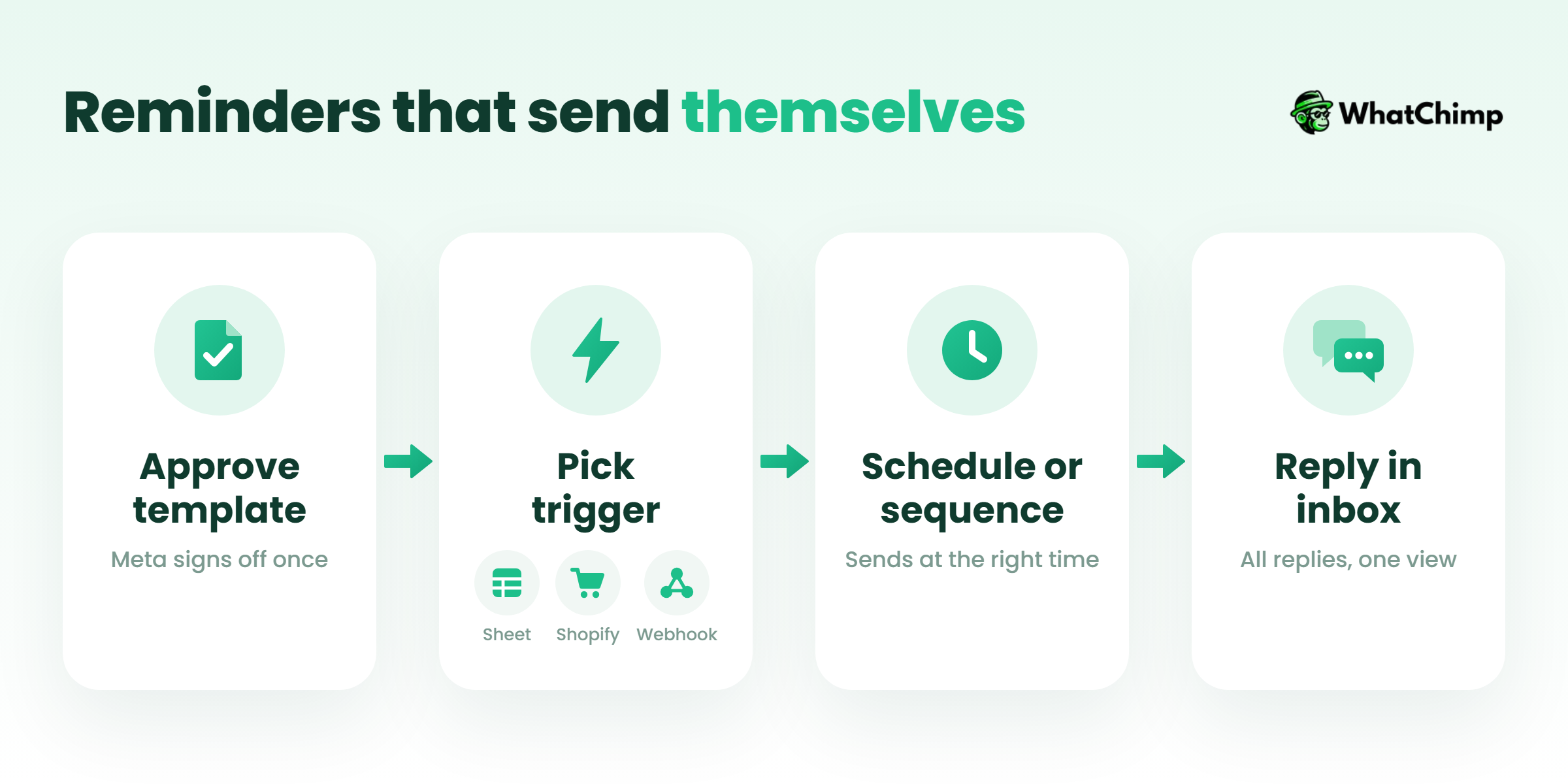
Step 1: Connect your number and approve your template
Time required: 5 to 10 minutes
- Sign up for the 7-day free trial. No credit card needed.
- Click Connect WhatsApp, then link your number to the official WhatsApp Business API.
- Create your reminder template, choose Utility as the category and hit submit. Approval takes about 10 seconds.
Step 2: Pick what triggers the reminder
Time required: 5 minutes
- A Google Sheet of due dates: a new or edited row sends the template.
- Shopify: abandoned cart and COD confirmation flows go out after whatever delay you set.
- Using an outside booking tool or CRM? Connect it with the custom webhook listener (Pro), or through Zapier, Make, Pabbly or n8n.
Step 3: Schedule it or build a sequence
Time required: 2 to 3 minutes
- For a one-off event, use a scheduled broadcast days or weeks in advance.
- For payment chasing, set up the follow-up bot in WhatsApp automations so messages go out at the intervals you choose.
Step 4: Answer replies in one place
Every Confirm, Reschedule and question lands in the shared team inbox, so anyone on your team can answer from the same number.
What you get:
- ✅ Reminders that send when your phone is off
- ✅ Delivery and read receipts for each one
- ✅ Meta’s fees at 0% markup
If no-shows are costing you this week, set up your first appointment template today and let tomorrow’s reminders send themselves.
What a WhatsApp bot reminder is NOT
- ❌ It’s not a free pass to message everyone in your phonebook. They opt in first. Then you message.
- ❌ It is not a place for promotions. Keep the discount out of the utility template.
- ❌ It is not “set and forget” forever. Clean out old numbers and cancelled bookings.
- ✅ It is one useful message, at the right time, with one tap to reply.
Conclusion
You now know how to set a reminder in WhatsApp for yourself and how to send one to customers through the official API. You’ve also seen the rules on templates, cost and opt-in, and you have 14 templates ready to copy.
Today, pick the one reminder WhatsApp message that would save you the most no-shows or late payments and get it approved in WhatChimp.
Which reminder are you going to automate first?
FAQs
Can I send automatic reminders from the WhatsApp Business app?
No, not as scheduled reminders. The Business app’s away and greeting messages only fire when a customer messages you first. For reminders that go out at a set time, you need the WhatsApp Business API through software like WhatChimp.
Do I need approved templates to send reminders?
Yes, most of the time. Here’s the catch: once 24 hours have passed since the customer last messaged you, Meta only lets you send a template. And most reminders go out days after your last chat. So plan on an approved template.
Are WhatsApp reminder messages free?
No. Meta charges per delivered message, and since October 1, 2026 that includes utility messages inside the service window. Rates depend on the category and the recipient’s country.
| Message | Charged? |
|---|---|
| Customer replies to you | No |
| Utility reminder template | Yes |
| Marketing reminder template | Yes, usually at a higher rate |
Will my reminders send if my laptop or phone is off?
Yes, as long as you’re on the API. WhatChimp sends your templates from its servers, so your phone and laptop can be off. Phone schedulers and browser extensions don’t work that way. Close the tab or let your phone die and they stop too.
How do I write a polite payment reminder message on WhatsApp?
Include their name, the invoice number, the amount, the due date and a payment link. That’s it. Then give them an easy out. A line like “Already paid? Please ignore this” keeps it friendly. Skip the pushy words. And no offers, please. Add one and the template becomes marketing.
Do I need consent to send automated WhatsApp reminders?
Yes. WhatsApp’s policy says the customer must have given you their number and agreed to get messages from you. It also recommends a separate opt-in for each message category. And every message should tell them clearly how to opt out.
Can I set up a reminder that repeats every week or month?
Yes. In WhatChimp you’ve got two ways to do it. Hook up a Google Sheet with due dates and it fires a template every cycle. Or build a follow-up sequence that runs at whatever intervals you pick. Monthly bills? Weekly classes? Both work this way.