Skip to content
WhatChimp
    • Basic plansFor small businesses starting on the official WhatsApp API
    • Enterprise plansFor large teams: higher limits and premium support
    0%
    markup on Meta ratesYou pay Meta's price for every message. Nothing on top.See plans
    Compare all plansTalk to sales
  • Messaging

    • Bulk WhatsApp BroadcastReach your whole list in one send
    • Click to WhatsApp AdsAds that open a WhatsApp conversation
    • Omnichannel InboxWhatsApp, Instagram and Facebook in one inbox
    • Shared InboxOne inbox for the whole team

    Automation

    • WhatsApp ChatbotAutomate replies around the clock
    • AI AgentAn AI agent that knows your business
    • Appointment BookingLet customers book on WhatsApp

    Commerce

    • WhatsApp CatalogShow your products inside WhatsApp
    • WhatsApp PaymentsTake payments inside the chat
    • WhatsApp FormsCollect answers with forms in the chat
    See WhatChimp in actionA short walkthrough of the whole platform.Watch demo
    Talk to sales
  • Teams

    • WhatChimp for MarketingLaunch campaigns and reach your audience
    • WhatChimp for SalesTrack and close more WhatsApp leads
    • WhatChimp for SupportAnswer customers and solve questions quickly

    Industries

    • Marketing agenciesRun WhatsApp for every client
    • EducationAdmissions, reminders and updates
    • HealthcareBookings and patient follow-ups
    • E-commerceRecover carts and confirm orders
    • Agency partner programPartner pricing, features and support for agencies
    • Become an affiliateEarn commission on every sale you refer
    • ZapierConnect thousands of apps
    • MakeBuild visual workflows
    • n8nWorkflows you host yourself
    • ShopifyAutomate your store's messages
    • WooCommerceOrder updates and cart recovery
    • WhatsApp CommerceSell inside the conversation
    • Google SheetsSync contacts with a sheet
    • PabblyAutomate data between apps
    • APIConnect your own applications
    View all integrations
    • OnboardingSet up WhatChimp step by step
    • Help docsSetup guides and best practices
    • Tutorial videosStep-by-step video guides
    • WhatsApp supportTalk to us on WhatsApp
    • Raise a ticketGet a technical issue resolved
    • Download invoicesInvoices for your subscription
    • FAQQuick answers to common questions
    Book your onboarding callA one-on-one setup session with our team.Go to onboarding
  • Log in
Watch demoSign up
Log inWatch demoSign up

Overview

3
  • WhatChimp Overview
  • Pricing Explained
  • WhatChimp Pricing Benefits (No Markup on WhatsApp API)

Setup & Configuration

6
  • How to Migrate from WhatsApp App to WhatChimp Business Account (WhatsApp Business API)
  • How to Connect Your Phone Number with WhatChimp (Embedded Signup)
  • How to Migrate from WhatsApp App to WhatChimp Business Account (WhatsApp Business API)
  • How to Add Payment Method for WhatsApp API Billing
  • How to Verify Your Meta Business Manager
  • How to Change Your Display Picture, Description, Website, and More on WhatsApp Cloud API

WhatsApp Business API

7
  • What is WhatsApp Business API?
  • Business Manager, WhatsApp Accounts, and Phone Numbers Explained
  • WhatsApp Messaging Limits
  • How to Apply for the WhatsApp Green Tick?
  • Handy Links for WhatsApp Business API Settings
  • How to Delete Your Phone Number on Meta
  • My WhatsApp Business Verification Request Was Rejected

Live Chat

2
  • Customer Chat Handover via Join Chat & Signature Message
  • How to Handle WhatsApp Conversations with the Live Chat Dashboard 

Subscriber Manager

4
  • How to Import Subscribers Manually inside WhatChimp
  • How to Integrate Google Sheets and Import Contacts into Whatchimp
  • How to Import Subscribers Using CSV
  • How to Manage Custom Fields and Labels

Message Template

14
  • Understanding WhatsApp Quality Rating with Whatchimp
  • Understanding WhatsApp Messaging Tiers in Whatchimp
  •  How to Upgrade WhatsApp Messaging Tiers with Whatchimp
  • Understanding WhatsApp Quality Rating in Whatchimp
  • Guidelines for Utility and Marketing Templates in Whatchimp
  • Understanding Conversations and Their Types in Whatchimp
  • Type of Messages
  • Character Limits for Media Message Templates
  • Top Reasons Why Templates Get Rejected
  • Understanding Template Rejections & How to Fix Them
  • Templates to Restart Conversations After Non-Working Hours
  • Creating a WhatsApp Message Template in WhatChimp 
  • How to Create Message Template in WhatsApp Manager and Sync to WhatChimp
  • How to Create and Use Carousel Media Templates in WhatChimp

Broadcasting

5
  • Understanding WhatsApp Broadcast Limits with Whatchimp
  • WhatsApp Broadcasting Rules with Whatchimp
  • WhatsApp’s 24-Hour Rule: What You Need to Know
  • WhatsApp Broadcasting with Personalized Variable Data
  • Broadcasting – How to Send Bulk Messages on WhatsApp without Getting Banned

Bot Manager

11
  • How to Build Automatic Follow-Up Chatbots on WhatsApp
  • How to Collect User Details Without Forms on WhatsApp
  • How to Add Clickable CTA Buttons in WhatChimp
  • How to Integrate a Website Chatbot Into Your WordPress Website
  • How to Create a Keyword-Based WhatsApp Chatbot in WhatChimp
  • How to set up sales sequence chatbot?
  • How to Automate Complex Conversations with User Input Flow in Webchat
  • External HTTP API Integration in Bot Flow
  • How to Use Dynamic Lists in WhatChimp
  • WhatsApp Flow Forms in Whatchimp
  • WhatsApp No Match Reply & Frequency Setup

Webhook Workflow

1
  • Send Shopify Order Notifications to WhatsApp via Webhook Workflow

E-Commerce Catalog

1
  • Selling Products on WhatsApp with WhatChimp’s Catalog Integration

AI Integration

1
  • Train AI Assistant for Chatbot With FAQ, URL & File

APIs and Webhooks

1
  • How to Create WordPress Users via HTTP API in Whatchimp

Integrations

3
  • How to Send Automated WhatsApp Messages on WP Form Submission
  • Using Google Sheet Data in WhatsApp and Other Chatbot Replies with WhatChimp
  • How to Connect Zapier with WhatChimp to Send Collected Data in WhatsApp

Account Settings

1
  • How to Create a Facebook Business Manager Account for Whatchimp

FAQs and Troubleshooting

8
  • Understanding Template Rejections & How to Fix Them
  • Top Reasons Why Templates Get Rejected
  • What if the Facebook “Start Verification” Button is Greyed Out or Not Visible?
  • Understanding Meta’s Frequency Capping for WhatsApp Marketing
  • Blocking Spam Messages in Whatchimp
  • Troubleshooting the Facebook “Start Verification” Button in Whatchimp
  • Common Error Codes and solutions
  • Why Your Messages Aren’t Sending & How to Fix It
View Categories
  • Home
  • Docs
  • How to Connect and Integrate Your WhatsApp Business Account with WhatChimp

How to Connect and Integrate Your WhatsApp Business Account with WhatChimp

Faith Eke
Updated on 5 February 2025

4 min read

This guide explains how to connect your WhatsApp Business account to WhatChimp. By linking the two, you’ll be able to manage your WhatsApp campaigns, send bulk messages, and more—all in one place.

  1. Go to app.whatchimp.com.
  2. Log in with your credentials, or click “Sign Up” to create an account.

Connect Your WhatsApp Number #

Option 1: Connect Without a Product Catalog #

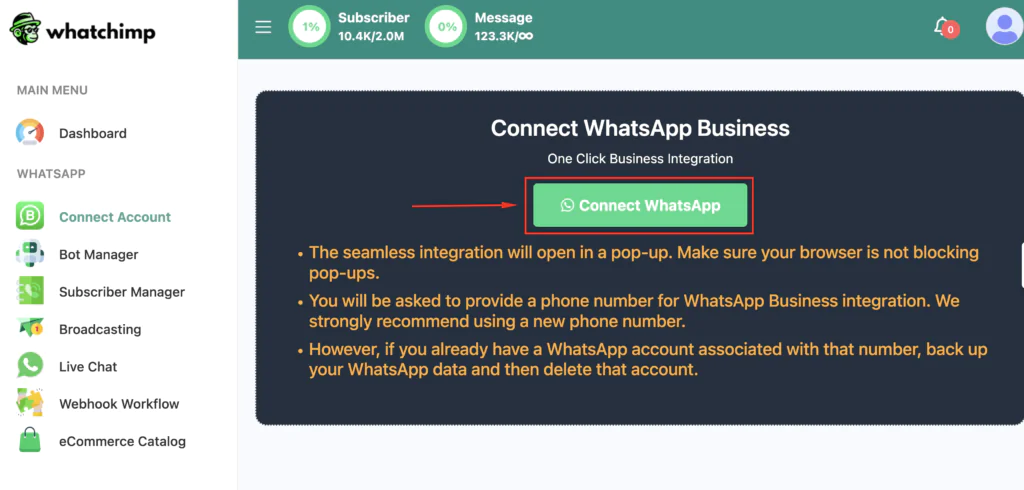
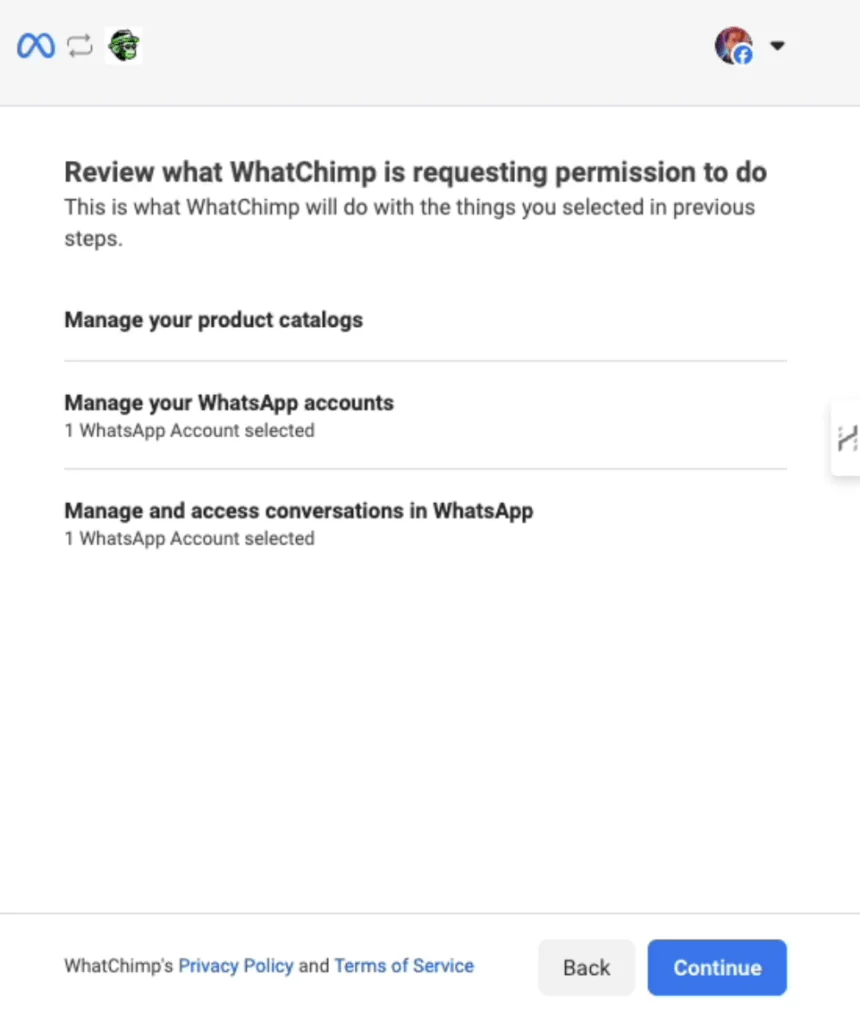
  1. Open the WhatChimp dashboard and click “Connect Account.”
  2. Use Meta’s embedded signup by clicking the ‘Connect Whatsapp’
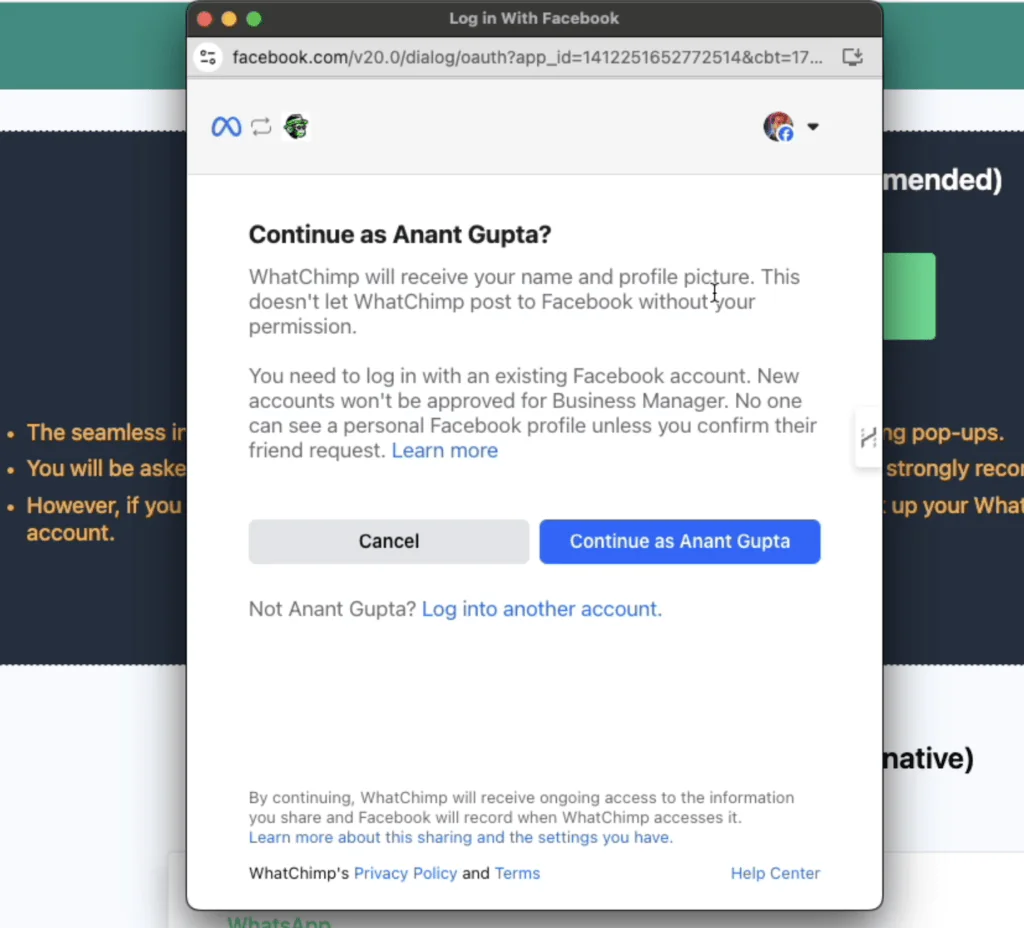
  3. Log in with your Facebook/Meta credentials.
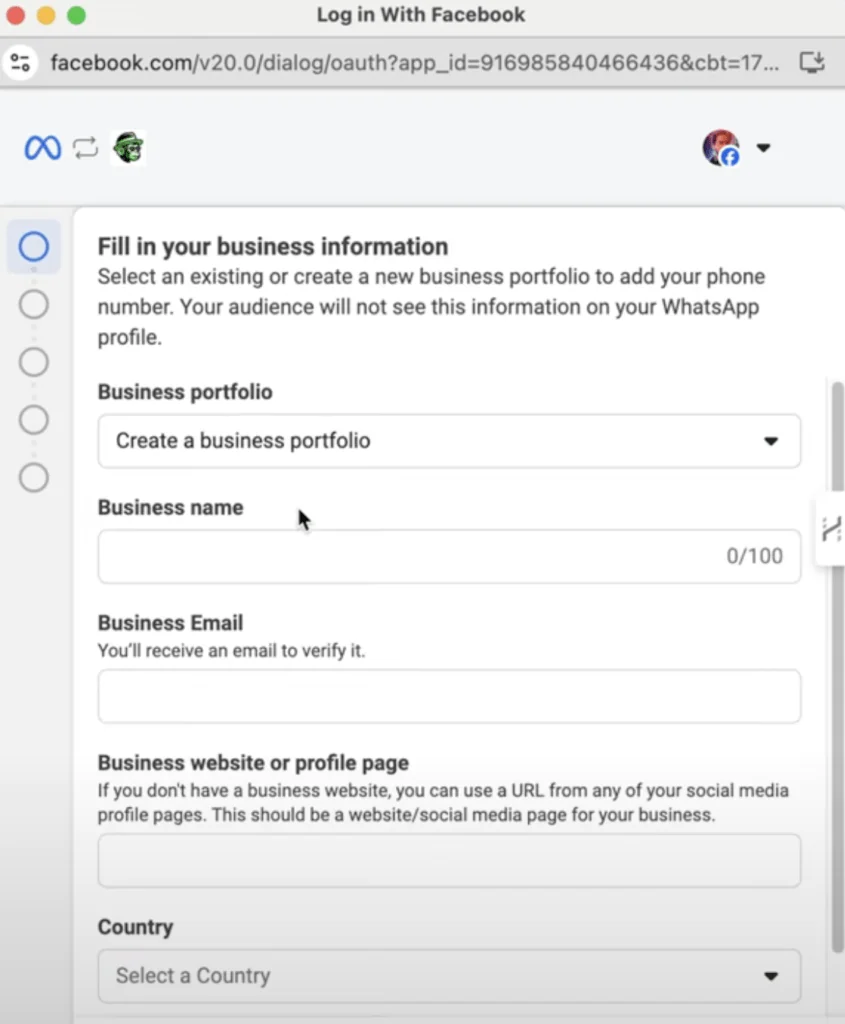
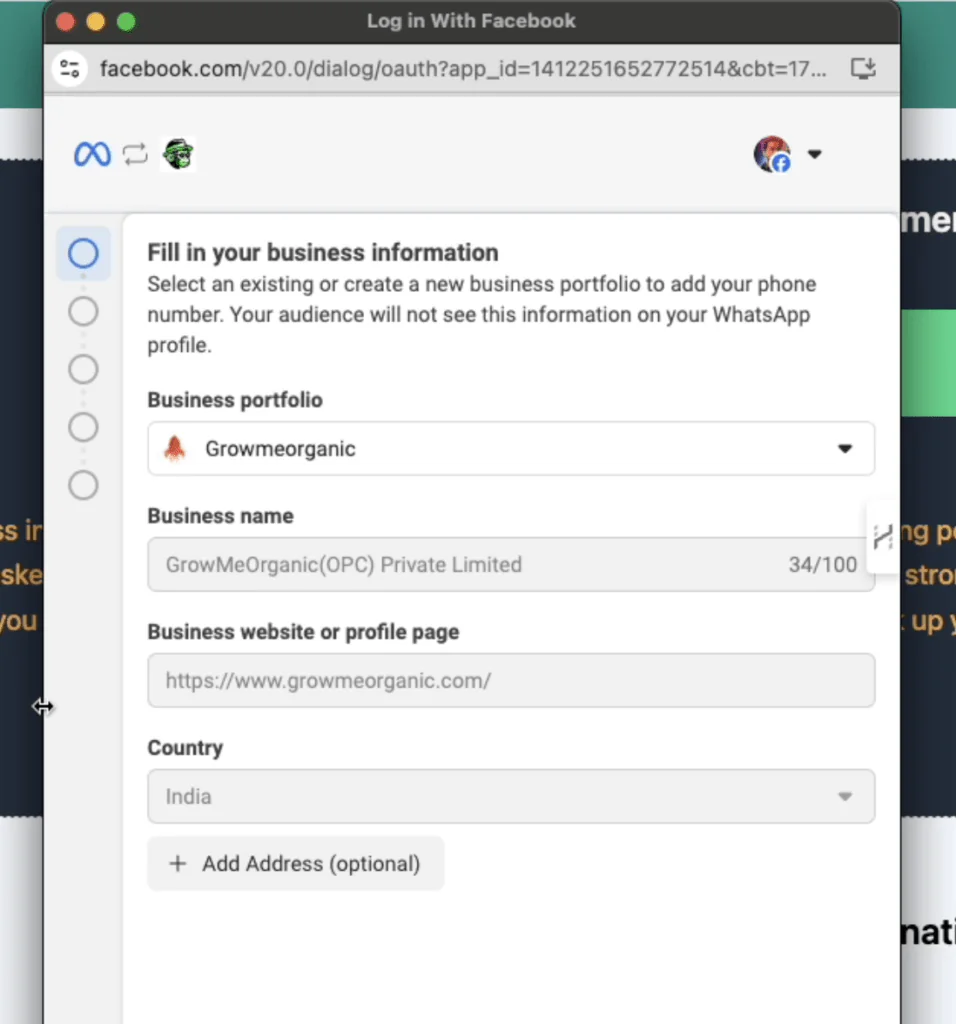
  4. Complete the business information form (business name, website, and country).
  1. Click “Next” to generate a WhatsApp Business account.
  2. Set a recognizable name for your account (e.g., “Company Name Support”)

Important Note:

When choosing your Display Name, it’s essential to include your company name for verification purposes. If you wish to use your brand name, you must format it as follows:

“Brand Name” by “Company Name”

For example, if your company is XYZ Pvt Ltd and you want to use your brand name SuperTech, the display name should be:

“SuperTech by XYZ Pvt Ltd”

This ensures your display name is aligned with WhatsApp’s guidelines and increases the likelihood of your profile being approved.


Enter Your Phone Number #

Meta requires a new or migrated number to connect to the WhatsApp API. Existing WhatsApp numbers need to be unregistered before use.

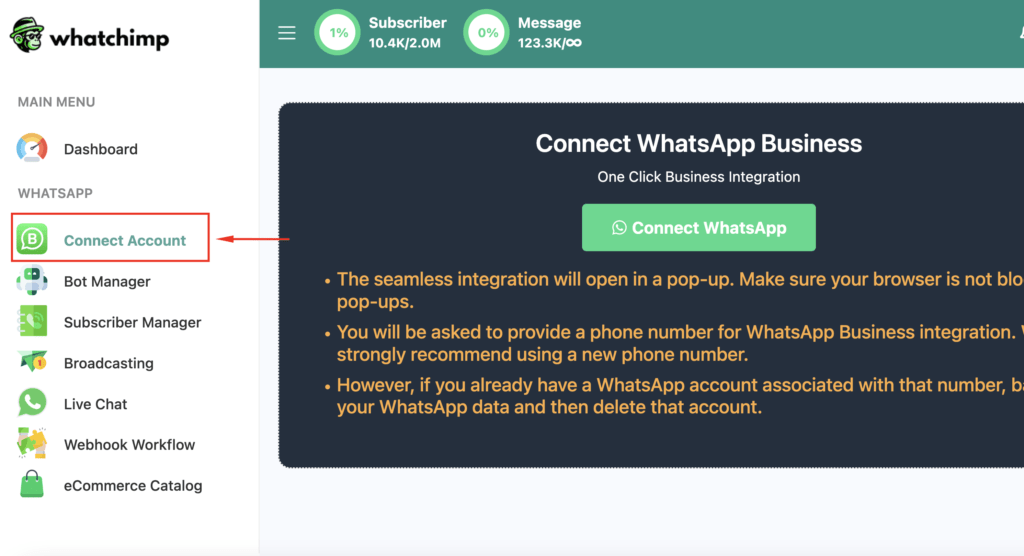
  1. Enter a phone number that is not already registered with WhatsApp or WhatsApp Business.
  2. If the number is in use:
    • Delete it from WhatsApp (note: this will erase chats unless backed up).
    • Alternatively, migrate the number to a new one.
  3. Verify the phone number using the OTP (One-Time Password) sent to it.
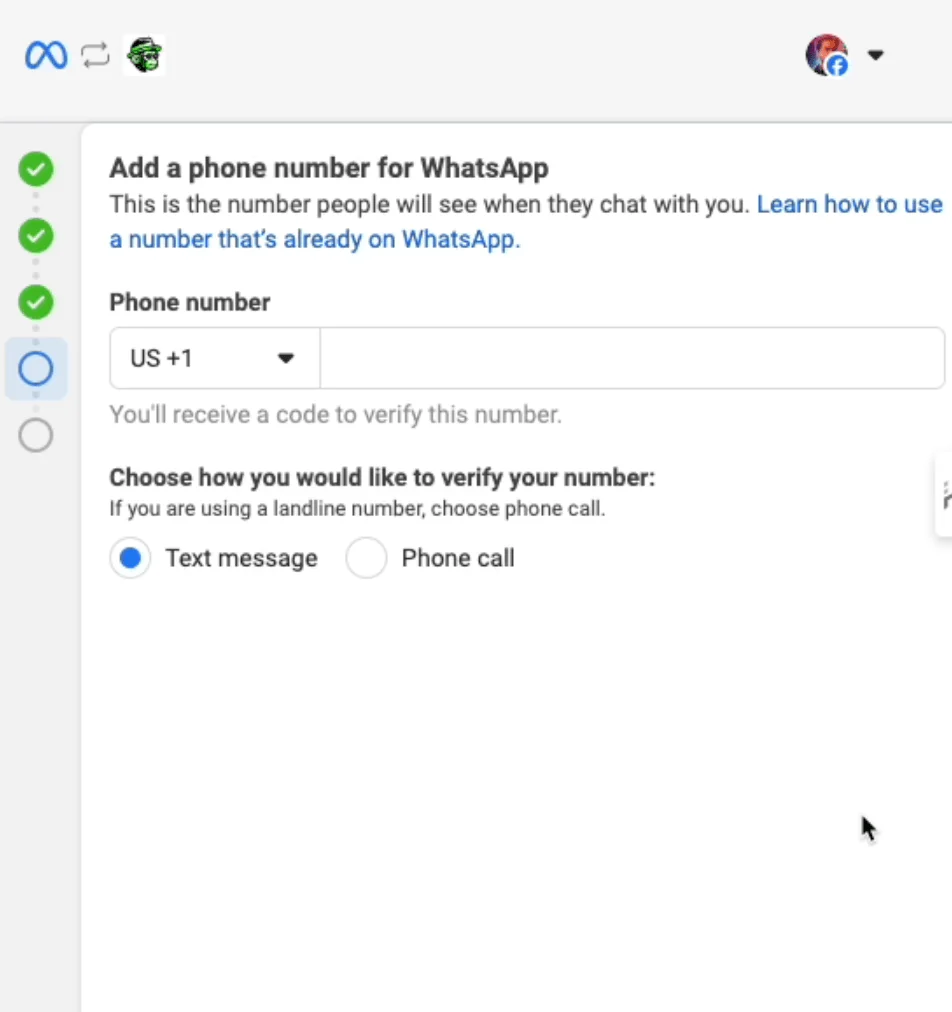
  4. You will be prompted to review the permissions WhatsApp requires for your business. These are standard permissions that cannot be changed.
    Click Continue to acknowledge the permissions and proceed.
Tip:
You only need the SIM for the OTP verification; no need for a new phone unless you also want to receive calls on that number.

The phone number you use must be new and not currently linked to WhatsApp or the WhatsApp Business App.

Option 2: Connect With a Product Catalog
#

  • Ensure you have an existing catalog or create one in Facebook Commerce Manager before proceeding (steps provided in the “How to Integrate a Product Catalog on WhatsApp” section below).
  • During the connection process, you will be prompted to select or sync a catalog:
    • If you already have a catalog: Select it from the dropdown menu and proceed.
    • If you don’t have a catalog: Follow the catalog setup steps outlined in the relevant section before proceeding.
  • After selecting the catalog, complete the steps to verify your phone number and review permissions.

Important Note: Connecting with a catalog is optional. If you do not need a catalog, you can complete the process by following Option 1.

Add Payment Method #

Meta charges for each conversation. Without a payment method, outgoing messages will be rejected.Payments go directly to Meta, not WhatChimp.

  1. Go to the “Connect Dashboard” and click “Manage.”
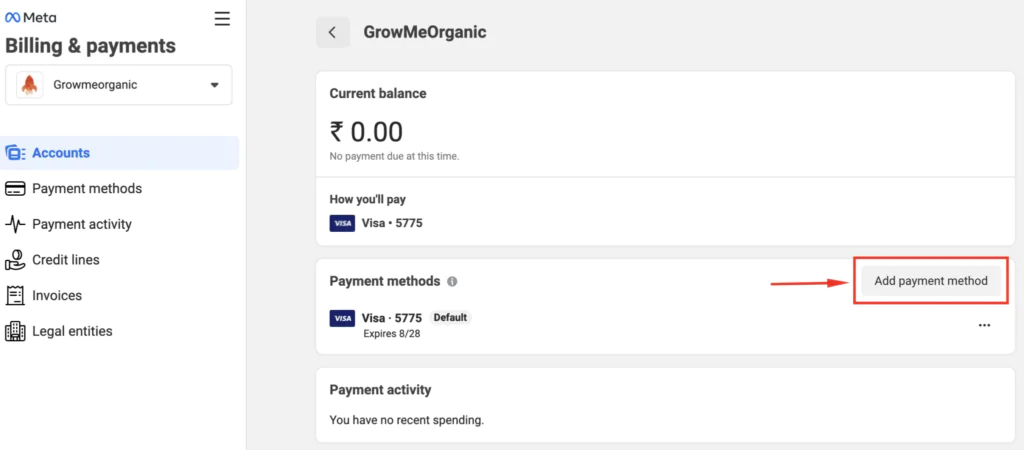
  2. In the WhatsApp Manager, click “Add Payment Method.”
  3. Enter your credit or debit card details.
  4. Confirm the card information and refresh the page to ensure it’s added.
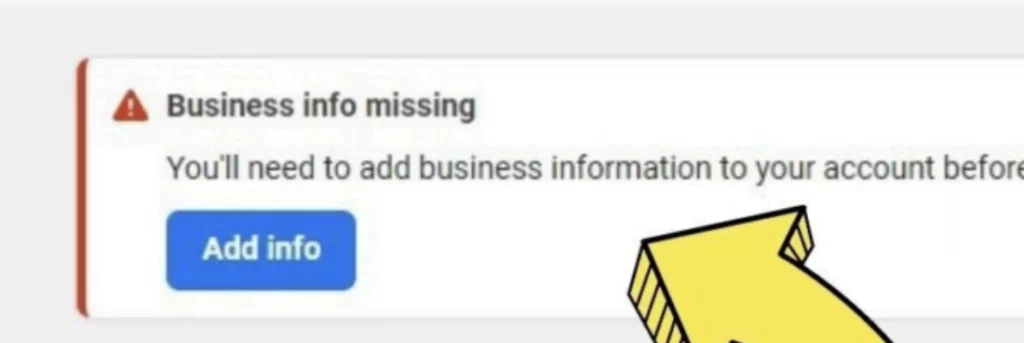
Add Business Information #

  1. In the WhatsApp Manager, click “Add Info.”
  2. Fill in your business details and click ‘Save’
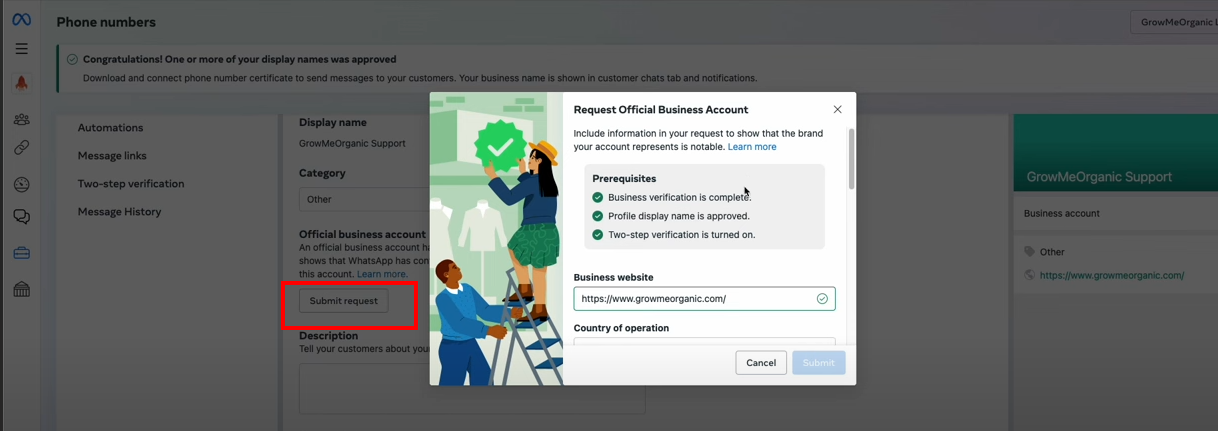
Apply for Green Tick (Optional) #

The green tick signifies official verification by Meta, increasing customer trust.

  1. In WhatsApp Manager, click “Submit Request “
    Ensure you meet the prerequisites:
    • Complete business verification.
    • Set up two-step verification.
    • Have an approved display name.
  2. Provide PR links or media coverage about your business.
  3. Submit the application for Meta’s review.
Tip: If your business isn’t well-known or lacks media presence, your application might be rejected.

Manage Your WhatsApp Number #

Customize your WhatsApp profile to reflect your brand and improve communication with customers.

Instructions:

  1. In WhatsApp Manager, find your connected number under “Manage.”
  2. Update your profile picture, business name, and description.
  3. Add your address, website, and any additional details customers may need.

FAQs and Troubleshooting #

  • Q: Do I need a new phone for this process?
    A: No, you only need a new SIM for OTP verification, unless you plan to take calls on the same number.
  • Q: What if my number is already registered with WhatsApp?
    A: You’ll need to delete it from WhatsApp or migrate to another number before connecting it to WhatChimp.
  • Troubleshooting Tips:
    • If you see a “number already registered” error, ensure the number has been removed from WhatsApp or is new.
    • Ensure your payment method is set up to avoid issues with sending messages.

Leave a Reply Cancel reply

Your email address will not be published. Required fields are marked *

Table of Contents
  • Connect Your WhatsApp Number
  • Option 1: Connect Without a Product Catalog
  • Enter Your Phone Number
  • Option 2: Connect With a Product Catalog
  • Add Payment Method
  • Add Business Information
  • Apply for Green Tick (Optional)
  • Manage Your WhatsApp Number
  • FAQs and Troubleshooting

Share This Article :

  • Facebook
  • X
  • LinkedIn
  • Pinterest

Was it helpful ?

  • Happy
  • Normal
  • Sad
WhatChimp

#1 Official WhatsApp Marketing Platform (Meta Business Partner)

Meta Business Partner
4.8 on Trustpilot, 242 reviews
sales@whatchimp.com+1 (555) 750-6003

Features

  • AI Agents
  • Omnichannel: FB & Insta
  • Bulk Broadcasting
  • Shared Inbox
  • Smart Chatbots
  • Catalog
  • Appointment Booking
  • Native Forms
  • Payments
  • CTWA Ads
  • Coexistence
  • Multi WhatsApp Numbers
  • All features

Integrations

  • API
  • Google Sheets
  • Zapier
  • Pabbly
  • Make
  • n8n
  • WhatsApp Commerce
  • WooCommerce
  • Shopify
  • View all integrations

Platform

  • WhatsApp Business API
  • WhatsApp marketing software

Solutions

  • For Marketing
  • For Sales
  • For Support

Partner

  • Agency Partnership
  • Become an Affiliate

Help and resources

  • Login
  • Watch Demo
  • Documentation
  • Blog
  • Onboarding
  • Tutorial Videos
  • Support
  • Invoices

Company

  • About us
  • Pricing
  • Meta Partner Directory
  • FAQ
  • Contact us

Compare

  • Wati alternative
  • AiSensy alternative
  • Interakt alternative
  • Gallabox alternative
  • DoubleTick alternative
  • Zoko alternative
  • Gupshup alternative
  • WANotifier alternative
  • QuickReply alternative
WhatChimp

© 2019-2026 GrowMeOrganic LLC. All rights reserved.

  • Refund & Cancellation
  • Terms & Conditions
  • Privacy Policy
  • Cookie settings

Free masterclass

How to send 1000s of WhatsApp messages without getting banned

A free masterclass from WhatChimp, for anyone who sells or supports on WhatsApp.

  • Leverage Meta's official WhatsApp API
  • Automate your sales
  • Save 30% on messaging costs

Meta Business PartnerOn the official WhatsApp API

Sign up for the masterclass

Your first name and email are all we need.

Masterclass

Free. No payment details.

Rated 4.8 on Trustpilot from 242 reviews